TOPIC: UNIVERSAL WINDOWS PLATFORM APPS
A round-up of online portals for those seeking work
 21st June 2026
For me, much of 2025 was spent finding a new freelance work engagement. In time, that search successfully concluded, but not before I got flashbacks of how hard things were when seeking work after completing university education and deciding to hybridise my search to include permanent employment too. While fulfilling a new contract with a new client, I am compiling a listing of places on the web to a search for work, at least for future reference if nothing else.
Founded in 2011 by former executives from Gumtree, eBay and Zoopla, this UK-based job search engine aggregates listings from thousands of sites across 16+ countries with headquarters in London and approximately 100 employees worldwide. The platform offers over one million job advertisements in the UK alone and an estimated 350 million globally, attracting more than 10 million monthly visits. Jobseekers can use the service without cost, benefiting from search functionality, email alerts, salary insights and tools such as ValueMyCV and the AI-powered interview preparation tool Prepper. The company operates on a Cost-Per-Click or Cost-Per-Applicant model for employers seeking visibility, while also providing data and analytics APIs for programmatic advertising and labour market insights. Notably, the platform powers the UK government Number 10 Dashboard, with its dataset frequently utilised by the ONS for real-time vacancy tracking.
Founded in 2000 by Lee Biggins, this independent job board has grown to become one of the leading platforms in the UK job market. Based in Fleet, Hampshire, it maintains a substantial database of approximately 21.4 million CV's, with around 360,000 new or updated profiles added monthly. The platform attracts significant traffic with about 10.1 million monthly visits from 4.3 million unique users, facilitating roughly 3 million job applications each month across approximately 137,000 live vacancies. Jobseekers can access all services free of charge, including job searching, CV uploads, job alerts and application tracking, though the CV building tools are relatively basic compared to specialist alternatives. The platform boasts high customer satisfaction, with 96 percent of clients rating their service as good or excellent, and offers additional value through its network of over 800 partner job sites and ATS integration capabilities.
This is a comprehensive job-hunt management tool that replaces traditional spreadsheets with an intuitive Kanban board interface, allowing users to organise their applications effectively. The platform features a Chrome extension that integrates with major job boards like LinkedIn and Indeed, enabling one-click saving of job listings. Users can track applications through various stages, store relevant documents and contact information, and access detailed statistics about their job search progress. The service offers artificial intelligence capabilities powered by GPT-4 to generate application responses, personalise cover letters and craft LinkedIn profiles. With over 25,000 active users who have tracked more than 280,000 job applications collectively, the tool provides both free and premium tiers. The basic free version includes unlimited tracking of applications, while the Pro subscription adds features such as custom columns, unlimited tags and expanded AI capabilities. This solution particularly benefits active jobseekers managing numerous applications across different platforms who desire structured organisation and data-driven insights into their job search.
This organisation provides a specialised platform matching candidates with companies based on flexible working arrangements, including remote options, location independence and customisable hours. Their interface features a notable "Work From Anywhere" filter highlighting roles with genuine location flexibility, alongside transparency scores for companies that reflect their openness regarding working arrangements. The platform allows users to browse companies offering specific perks like part-time arrangements, sabbatical leave, or compressed hours, with rankings based on flexibility and workplace culture. While free to use with job-saving capabilities and quick matching processes, it appears relatively new with a modest-sized team, limited independent reviews and a smaller volume of job listings compared to more established competitors. The platform's distinctive approach prioritises work-life balance through values-driven matching and company-oriented filters, particularly useful for those seeking roles aligned with modern flexible working preferences.
Founded in 2007 and based in Puerto Rico, FlexJobs operates as a subscription-based platform specialising in remote, hybrid, freelance and part-time employment opportunities. The service manually verifies all job listings to eliminate fraudulent postings, with staff dedicating over 200 hours daily to screening processes. Users gain access to positions across 105+ categories from entry-level to executive roles, alongside career development resources including webinars, resume reviews and skills assessments. Pricing options range from weekly trials to annual subscriptions with a 30-day money-back guarantee. While many users praise the platform for its legitimacy and comprehensive filtering tools, earning high ratings on review sites like Trustpilot, some individuals question whether the subscription fee provides sufficient value compared to free alternatives. Potential limitations include delayed posting of opportunities and varying representation across different industries.
Founded in November 2004 and now operating in over 60 countries with 28 languages, this leading global job search platform serves approximately 390 million visitors monthly worldwide. In the UK alone, it attracts about 34 million monthly visits, with users spending nearly 7 minutes per session and viewing over 8.5 pages on average. The platform maintains more than 610 million jobseeker profiles globally while offering free services for candidates including job searching, application tools, CV uploads, company reviews and salary information. For employers, the business model includes pay-per-click and pay-per-applicant sponsored listings, alongside tools such as Hiring Insights providing salary data and application trends. Since October 2024, visibility for non-sponsored listings has decreased, requiring employers to invest in sponsorship for optimal visibility. Despite this competitive environment requiring strategic budget allocation, the platform remains highly popular due to its comprehensive features and extensive reach.
A meta-directory founded in 2022 by Rodrigo Rocco, this platform aggregates and organises links to over 400 specialised and niche job sites across various industries and regions. Unlike traditional job boards, it does not host listings directly but serves as a discovery tool that redirects users to external platforms where actual applications take place. The service refreshes links approximately every 45 minutes and offers a weekly newsletter. While providing free access and efficient discovery of relevant boards by category or sector, potential users should note that the platform lacks direct job listings, built-in application tracking, or alert systems. It is particularly valuable for professionals exploring highly specialised fields, those wishing to expand beyond mainstream job boards and recruiters seeking to increase their visibility, though beginners might find navigating numerous destination boards somewhat overwhelming.
Founded in Milan by Vito Lomele in 2006 (initially as Jobespresso), this global job aggregator operates in 58 countries and 21 languages. The platform collects between 28 and 35 million job listings monthly from various online sources, attracting approximately 55 million visits and serving over 100 million registered users. The service functions by gathering vacancies from career pages, agencies and job boards, then directing users to original postings when they search. For employers, it offers programmatic recruitment solutions using artificial intelligence and taxonomy to match roles with candidates dynamically, including pay-per-applicant models. While the platform benefits from its extensive global reach and substantial job inventory, its approach of redirecting to third-party sites means the quality and freshness of listings can vary considerably.
Founded in 1993 as Fax-Me Ltd and rebranded in 1995, this pioneering UK job board launched the world's first jobs-by-email service in May 1994. Originally dominating the IT recruitment sector with up to 80% market share in the early 2000s, the platform published approximately 200,000 jobs and processed over 1 million applications monthly by 2010. Currently headquartered in Colchester, Essex, the service maintains a global presence across Europe, North America and Australia, delivering over 1.2 million job-subscription emails daily. The platform employs a proprietary smart matching engine called Alchemy and features manual verification to ensure job quality. While free for jobseekers who can upload CVs and receive tailored job alerts, employers can post vacancies and run recruitment campaigns across various sectors. Although respected for its legacy and niche focus, particularly in technical recruitment, its scale and visibility are more modest compared to larger contemporary platforms.
Founded in 2020 with headquarters in London, Lifelancer operates as an AI-powered talent hiring platform specialising in life sciences, pharmaceutical, biotech, healthcare IT and digital health sectors. The company connects organisations with freelance, remote and international professionals through services including candidate matching and global onboarding assistance. Despite being relatively small, Lifelancer provides distinct features for both hiring organisations and jobseekers. Employers can post positions tailored to specific healthcare and technology roles, utilising AI-based candidate sourcing, while professionals can create profiles to be matched with relevant opportunities. The platform handles compliance and payroll across multiple countries, making it particularly valuable for international teams, though as a young company, it may not yet offer the extensive talent pool of more established competitors in the industry.
The professional networking was core to my search for work and had its uses while doing so. Writing posts and articles did a lot to raise my profile along with reaching out to others, definitely an asset when assessing the state of a freelancing market. The usefulness of the green "Open to Work" banner is debatable because of my freelancing pitch in a slow market. Nevertheless, there was one headhunting approach that might have resulted in something if another offer had not gazumped it. Also, this is not a place to hang around over a weekend with job search moaning filling your feed, though making your interests known can change that. Now that I have paid work, the platform has become a way of keeping up to date in my line of business.
Established in 1994 as The Monster Board, Monster.com became one of the first online job portals, gaining prominence through memorable Super Bowl advertisements. As of June 2025, the platform attracts approximately 4.3 million monthly visits, primarily from the United States (76%), with smaller audiences in India (6%) and the UK (1.7%). The service offers free resources for jobseekers, including resume uploads and career guidance, while employers pay for job postings and additional premium features.
Established in 1999 and headquartered in Richmond, Surrey, PharmiWeb has evolved into Europe's leading pharmaceutical and life sciences platform. The company separated its dedicated job board as PharmiWeb.jobs in 2019, while maintaining industry news and insights on the original portal. With approximately 600,000 registered jobseekers globally and around 200,000 monthly site visits generating 40,000 applications, the platform hosts between 1,500 and 5,000 active vacancies at any time. Jobseekers can access the service completely free, uploading CVs and setting alerts tailored to specific fields, disciplines or locations. Additional recruiter services include CV database access, email marketing campaigns, employer branding and applicant management tools. The platform particularly excels for specialised pharmaceutical, biotech, clinical research and regulatory affairs roles, though its focused nature means it carries fewer listings than mainstream employment boards and commands higher posting costs.
If 2025 was a flashback to the travails of seeking work after completing university education, meeting this name again was another part of that. Founded in May 1960 by Sir Alec Reed, the firm began as a traditional recruitment agency in Hounslow, West London, before launching the first UK recruitment website in 1995. Today, the platform attracts approximately 3.7 million monthly visitors, primarily UK-based users aged 25-34, generating around 80,000 job applications daily. The service offers jobseekers free access to search and apply for roles, job alerts, CV storage, application tracking, career advice articles, a tax calculator, salary tools and online courses. For employers, the privately owned company provides job advertising, access to a database of 18-22 million candidate CVs and specialist recruitment across about 20 industry sectors.
Founded by digital nomad Pieter Levels in 2015, this prominent job board specialises exclusively in 100% remote positions across diverse sectors including tech, marketing, writing, design and customer support. The platform offers free browsing and application for jobseekers, while employers pay fees. Notable features include mandatory salary transparency, global job coverage with regional filtering options and a clean, minimalist interface that works well on mobile devices. Despite hosting over 100,000 remote jobs from reputable companies like Amazon and Microsoft, the platform has limitations including basic filtering capabilities and highly competitive application processes, particularly for tech roles. The simple user experience redirects applications directly to employer pages rather than using an internal system. For professionals seeking remote work worldwide, this board serves as a valuable resource but works best when used alongside other specialised platforms to maximise opportunities.
Founded in 2015 and based in Boulder, Colorado, this platform exclusively focuses on remote work opportunities across diverse industries such as marketing, finance, healthcare, customer support and design. Attracting over 1.5 million monthly visitors, it provides jobseekers with free access to various employment categories including full-time, part-time, freelance and hybrid positions. Beyond job listings, the platform offers a comprehensive resource centre featuring articles, expert insights and best practices from over 108 remote-first companies. Job alerts and weekly newsletters keep users informed about relevant opportunities. While the platform provides strong resources and maintains positive trust ratings of approximately 4.2/5 on Trustpilot, its filtering capabilities are relatively basic compared to competitors. Users might need to conduct additional research as company reviews are not included with job postings. Despite these limitations, the platform serves as a valuable resource for individuals seeking remote work guidance and opportunities.
Formerly known as TryRemotely and Empllo, Remotely functions as a comprehensive job board specialising in remote technology and startup positions across various disciplines including engineering, product, sales, marketing, design and finance. The platform currently hosts over 30,000 active listings from approximately 24,000 hiring companies worldwide, with specific regional coverage including around 375 positions in the UK and 36 in Ireland. Among its notable features is the AI-powered Job Copilot tool, which can automatically apply to roles based on user preferences. While Empllo offers extensive listings and advanced filtering options by company, funding and skills, it does have limitations including inconsistent salary information and variable job quality. The service is free to browse, with account creation unlocking personalised features. It is particularly suitable for technology professionals seeking distributed work arrangements with startups, though users are advised to verify role details independently and potentially supplement their search with other platforms offering employer reviews for more thorough vetting.
For jobseekers in the technology and digital sectors, Remotive serves as a specialised remote job board offering approximately 2,000 active positions on its free public platform. Founded around 2014-2015, this service operates with a remote-first approach and focuses on verifying job listings for legitimacy. The platform provides a premium tier called "Remotive Accelerator" which grants users access to over 50,000 additional curated jobs, advanced filtering options based on skills and salary requirements and membership to a private Slack community. While the interface receives praise for its clean design and intuitive navigation, user feedback regarding the paid tier remains mixed, with some individuals noting limitations such as inactive community features and an abundance of US-based or senior-level positions. The platform is particularly valuable for professionals in software development, product management, marketing and customer service who are seeking global remote opportunities.
Originally launched in Canada in 2011 as neuvoo, this global job search engine is now headquartered in Montreal, Quebec, providing access to over 30 million jobs across more than 75 countries. The platform attracts between 12 and 16 million monthly visits worldwide, with approximately 6 percent originating from the UK. Jobseekers can utilise the service without charge, accessing features like salary converters and tax calculators in certain regions to enhance transparency about potential earnings. Employers have the option to post jobs for free in some areas, with additional pay per click sponsored listings available to increase visibility. Despite its extensive coverage and useful tools, user feedback remains mixed, with numerous complaints on review sites regarding outdated listings, unwanted emails and difficulties managing or deleting accounts.
Founded in 2011 and based in New York City, The Muse is an online platform that integrates job listings with career guidance, employer insights and coaching services to support individuals in making informed career decisions. It distinguishes itself by offering detailed employer profiles that include workplace culture, employee perspectives and company values, alongside editorial content on resume writing, interview techniques and career progression. While jobseekers can access core features for free, employers pay to advertise roles and create branded profiles, with additional revenue generated through premium coaching services. The platform appeals to graduates, early-career professionals and those seeking career transitions, prioritising alignment between personal values and workplace environments over simply aggregating job vacancies. Compared to larger job boards, it focuses on storytelling and career development resources, positioning itself as a tool for navigating modern employment trends such as flexible work and diversity initiatives.
Founded in 1999, Totaljobs is a major UK job board currently owned by StepStone Group UK Ltd, a subsidiary of Axel Springer Digital Classifieds. The platform attracts approximately 20 million monthly visits and generates 4-5 million job applications each month, with over 300,000 daily visitors browsing through typically 280,000+ live job listings. As the flagship of a broader network including specialised boards such as Jobsite, CareerStructure and City Jobs, Totaljobs provides jobseekers with search functionality across various sectors, job alerts and career advice resources. For employers and recruiters, the platform offers pay-per-post job advertising, subscription options for CV database access and various employer tools.
Founded in 2011, this is one of the largest purely remote job boards globally, attracting approximately 6 million monthly visitors and featuring over 36,000 remote positions across various categories including programming, marketing, customer support and design. Based in Vancouver, the platform operates with a small remote-first team who vet listings to reduce spam and scams. Employers pay for each standard listing, while jobseekers access the service without charge. The interface is straightforward and categorised by functional area, earning trust from major companies like Google, Amazon and GitHub. However, the platform has limitations including basic filtering capabilities, a predominance of senior-level positions particularly in technology roles and occasional complaints about outdated or misleading posts. The service is most suitable for experienced professionals seeking genuine remote opportunities rather than those early in their careers. Some users report region-restricted application access and positions that offer lower compensation than expected for the required experience level.
Founded in 2014, this job board provides remote work opportunities for digital nomads and professionals across various industries. The platform offers over 30,000 fully remote positions spanning sectors such as technology, marketing, writing, finance and education. Users can browse listings freely, but a Premium subscription grants access to additional jobs, enhanced filters and email alerts. The interface is user-friendly with fast-loading pages and straightforward filtering options. The service primarily features global employment opportunities suitable for location-independent workers. However, several limitations exist: many positions require senior-level experience, particularly in technical fields; the free tier displays only a subset of available listings; filtering capabilities are relatively basic; and job descriptions sometimes lack detail. The platform has received mixed reviews, earning approximately 3.4 out of 5 on Trustpilot, with users noting the prevalence of senior technical roles and questioning the value of the premium subscription. It is most beneficial for experienced professionals comfortable with remote work arrangements, while those seeking entry-level positions might find fewer suitable opportunities.
Managing Microsoft Outlook on Windows: Fonts, Zoom, Data Files and Deployment Controls
12th March 2026
Outlook continues to evolve across Windows, with a mixture of everyday personalisation options for users and deployment controls for administrators. Recent guidance from Microsoft brings together practical steps for composing messages in a preferred typeface, approaches for reading messages more comfortably, and a set of administrative measures to manage when and how the new Outlook appears in an organisation. Alongside this are reminders about where Outlook stores data on different account types and how that affects moving between computers, as well as pointers for finding POP, IMAP and SMTP settings for Outlook.com when manual configuration is needed. What follows draws these threads together so that individual users and IT teams can navigate the changes with clarity.
Changing the Default Font for New Messages and Replies
For those composing email, Outlook starts with a familiar default: new messages use Calibri in black. This is only a starting point because the application allows the font, its colour, size and style to be changed, and it treats new messages separately from replies and forwards so that different choices can be set for each if desired.
In new Outlook for Windows, the path goes like this: View > View Settings > Email > Compose and Reply. Under Message Format, the preferred font, size and style can be chosen before saving, and these settings then apply whenever a message is written or a reply is sent. Note that in new Outlook the font setting applies to both new messages and replies and forwards from a single control, so a separate choice for each is not available in this version.
In classic Outlook for Windows, the approach is different and more granular. Navigating to File > Options > Mail reveals a Stationery and Fonts button. On the Personal Stationery tab, there are separate Font buttons for new mail messages and for replying or forwarding messages, which allows a distinct typeface, size and colour to be set for each scenario independently. This separation can be useful for distinguishing composed messages from replied ones at a glance. If similar changes are needed for the message list rather than the compose window, there is a separate set of options for changing the font or font size in the message list.
Adjusting the Zoom Level in the Reading Pane
Comfort when reading is equally important, particularly with longer emails. Both new and classic Outlook offer ways to adjust zoom in the Reading Pane without touching system-wide display settings, though the controls differ between the two versions. In new Outlook, selecting a message in the inbox opens it in the Reading Pane, after which the View tab's Zoom control can be used. Zooming in and out is done with plus and minus buttons, and there is a Reset option that returns the view to its default level. In classic Outlook, the same result can be achieved either by dragging the zoom bar at the bottom right of the window or by going to View and then Zoom, where a specific percentage between 50% and 200% can be chosen. Classic Outlook also offers a "Remember my preference" checkbox in the Zoom dialogue, which locks the chosen level so it persists across sessions without needing to be reset each time. In both versions, these adjustments affect only how messages appear on the screen and have no bearing on how they are composed or how recipients will see them.
Confirming Which Version of Outlook Is in Use
Not every copy of Outlook presents the same options at the same time. If steps that are described as applying to new Outlook do not appear, the device may still be running classic Outlook for Windows. That is not uncommon in environments where administrators are controlling the transition or where devices have not yet received the relevant updates, so checking the version in use is a sensible first step before assuming that something has gone wrong.
Hiding the New Outlook Toggle in Classic Outlook
For administrators, a recurring question is how to prevent users from switching to new Outlook until the organisation is ready. Microsoft provides a cloud policy in the Microsoft 365 Apps admin centre that hides the Try the new Outlook toggle in classic Outlook for Windows. After signing in to the admin centre, the policy can be created by going to Customisation, selecting Policy Management and enabling the policy named Hide the "Try the new Outlook" toggle in Outlook. There is also a registry-based method for controlling the same setting: the key is under HKEY_CURRENT_USERSoftwareMicrosoftOffice16.0OutlookOptionsGeneral and is named HideNewOutlookToggle, with a value of dword:00000000 to hide the toggle. To later enable the policy, the same value is set to 1. As with any registry change, this approach is best handled with care and in line with internal change management practices.
Removing the New Outlook App After Preinstallation on Windows 11
Preinstallation of the new Outlook on Windows 11 is another area where planning matters. On Windows 11 builds later than version 23H2, the app is preinstalled for all users, and there is currently no way to block that preinstallation. If devices should not surface the new Outlook, it can be removed after installation using the following Windows PowerShell command:
Remove-AppxProvisionedPackage -AllUsers -Online -PackageName (Get-AppxPackage Microsoft.OutlookForWindows).PackageFullNameAfter deprovisioning, Windows updates will not reinstall the app. Administrators can also remove an additional Windows orchestrator registry value at HKEY_LOCAL_MACHINESOFTWAREMicrosoftWindowsUpdateOrchestratorUScheduler_OobeOutlookUpdate where applicable. Devices that have installed the March 2024 Non-Security Preview release, or a later cumulative update for Windows 11 version 23H2, respect the deprovisioning command and do not require removal of that registry value.
Handling User-Installed Instances and Start Menu Placeholders
Users may also install the app themselves, for example by selecting a toggle. In that case, the management approach shifts from provisioned packages to installed packages, and the following PowerShell command removes the app for all users:
Remove-AppxPackage -AllUsers -Package (Get-AppxPackage Microsoft.OutlookForWindows).PackageFullNameIt is worth verifying whether the app is actually installed or whether only a Start menu placeholder is visible because a pinned icon may appear even when the underlying app is not yet present. A quick check of the folder at %localappdata%MicrosoftOlklogs can confirm whether the app has produced logs, and Start layout policies can be used to manage pins, so users are not inadvertently prompted to install by selecting a placeholder. On consumer devices, a Recommended section in the Windows 11 Start menu can also surface the app, which may need consideration in user communications.
Migrating Users Away from Windows Mail and Calendar
The end of support for Windows Mail and Calendar on the 31st of December 2024 introduced another migration pathway. Active users of those apps are being switched automatically to the new Outlook app, so organisations that wish to block that route can remove the Mail and Calendar apps from devices using the following command:
Get-AppxProvisionedPackage -Online | Where {$_.DisplayName -match "microsoft.windowscommunicationsapps"} | Remove-AppxProvisionedPackage -Online -PackageName {$_.PackageName}For current users, the installed package can be removed with Remove-AppxPackage -AllUsers -Package (Get-AppxPackage microsoft.windowscommunicationsapps).PackageFullName. Alternatives exist through Microsoft Intune or Configuration Manager, which may be preferable in environments that already use those tools for application lifecycle management.
Blocking Acquisition via the Microsoft Store
Preventing acquisition from the Microsoft Store is more straightforward. Because the new Outlook for Windows is available there as well, blocking access to the Microsoft Store app prevents users from downloading it through that channel. Microsoft provides configuration options for controlling Microsoft Store access, and administrators can align those with broader device management policies that may already limit consumer app installs on corporate devices.
Opting Out of Automatic Migration
Some organisations will want to opt out of new Outlook migration entirely for a period. Starting in January 2025, users with Microsoft 365 Business Standard and Premium licences are automatically migrated from classic Outlook to new Outlook, with in-app notifications sent before the switch and the option to toggle back afterwards. Microsoft exposes a policy named Manage user setting for new Outlook automatic migration that controls whether users are switched automatically. If the policy is not set, the user setting remains uncontrolled and users can manage it themselves, with the default being enabled. Enabling the policy enforces automatic migration and prevents users from changing the setting, while disabling it turns off automatic migration and also prevents user changes. The equivalent registry setting sits under HKEY_CURRENT_USERSoftwarePoliciesMicrosoftoffice16.0outlookpreferences with a DWORD named NewOutlookMigrationUserSetting set to 0 to disable or 1 to enable. The same controls can be managed via Group Policy Administrative Templates and through the Cloud Policy service from the Microsoft 365 Apps admin centre, and because the setting is defined in ADMX templates it can also be surfaced in Intune using Administrative Templates.
Applying Conditional Access and Mailbox Policies
Beyond installation state and migration timing, access policies are a decisive layer of control. Conditional Access policies can require multifactor authentication, restrict access by location, block risky sign-in behaviours or insist on organisation-managed devices. For additional nuance, Outlook on the web (OWA) mailbox policies used together with the ConditionalAccessPolicy parameter can limit capabilities for users on non-compliant devices, for instance by restricting attachments. This approach allows a more graduated user experience that reduces risk without completely blocking access, and it can be combined with broader Conditional Access baseline requirements.
There are cases where a firmer control is required. To prevent mailbox access from the new Outlook regardless of how users acquired the app, administrators can use an Exchange mailbox policy that blocks organisation mailboxes from being added. This acts as a final block so that work or school accounts cannot be used in the app, even if an individual user has installed it or found it preinstalled. Because mailbox policies are applied to the account rather than to a device or a specific app, it is prudent to consider them alongside the earlier measures that block acquisition or control installation, so that personal accounts are not used in ways that bypass organisational safeguards.
Understanding How Outlook Stores Data and What Moves to a New Computer
While deployment and access are important, day-to-day continuity often depends on understanding how Outlook stores data and how that affects moving to a new computer. Outlook saves backup information in a variety of different locations depending on the account type involved. For users of Microsoft 365, Exchange, Outlook.com, Hotmail.com or Live.com accounts not accessed by POP or IMAP, email is backed up on the server and there is no Personal Folders file with a .pst extension. An Offline Folders file with an .ost extension may be present, but Outlook automatically recreates this when a new email account is added, and it cannot be moved between computers. Other elements such as navigation pane settings, print styles, signatures and stationery can be transferred, and their locations vary with version and configuration.
Users of POP accounts encounter a different arrangement. All email, calendar, contact and task information is stored in a .pst file, and moving this file to a new computer preserves that information. It does not carry over the account settings themselves, so Outlook needs to be set up on the new computer before opening the .pst file that was copied from the old one. On Windows 11, navigation pane settings are found at drive:Users<username>AppDataRoamingMicrosoftOutlook and signatures at drive:Users<username>AppDataRoamingMicrosoftSignatures. Knowing these paths saves time during a migration and reduces the risk of overlooking important data.
Avoiding OneDrive Synchronisation Problems with PST Files
Large .pst files can slow down OneDrive synchronisation if they are stored in folders that OneDrive is backing up. Symptoms include messages such as "Processing changes" or "A file is in use" that persist for longer than expected. Microsoft provides guidance on removing an Outlook PST data file from OneDrive if that becomes necessary, and doing so can restore normal synchronisation behaviour while keeping Outlook functional on the local machine.
Showing Hidden Files and Extensions on Windows
Locating Outlook data sometimes means revealing folders and file name extensions that Windows hides by default. This is especially true when navigating to AppData or similar directories, or when differentiating between PST and OST files. On Windows 11 File Explorer, going to View > Show, where both "File name extensions" and "Hidden items" settings can be toggled to their on positions. Doing so makes the AppData folder and the distinction between these file types visible without needing to navigate through the Control Panel.
Configuring POP, IMAP and SMTP Settings for Outlook.com
Configuration of Outlook.com accounts brings its own questions when used in the Outlook desktop app or other mail applications. Outlook and Outlook.com can often detect the correct mailbox settings automatically, which simplifies setup for many users. When that is not the case, or when using a third-party app, the POP, IMAP and SMTP settings can be viewed within Outlook.com settings and used for manual configuration. For Outlook.com accounts, both the IMAP and POP server name is outlook.office365.com, with IMAP using port 993 and POP using port 995, both with SSL/TLS encryption and OAuth2 authentication. It is worth noting that POP and IMAP access is disabled by default in Outlook.com and must be enabled in account settings before either protocol can be used. For other non-Microsoft accounts, the safest course is to obtain settings directly from the relevant email provider rather than guessing values, since incorrect entries can lead to connection issues that are not always obvious at first glance.
Getting Support for Outlook.com
Support remains close at hand for Outlook.com users who need it. The Help option on the menu bar in Outlook.com opens self-help resources where queries can be entered and common issues surfaced. If those do not resolve the problem, there is a path to contact support, which requires signing in to the account so that assistance can be tailored. If signing in is not possible, Microsoft directs users to a separate route to begin recovery or get help, and the Outlook.com Community provides an additional place to search for answers or ask questions from other users.
Keeping Users and IT Teams Informed During Outlook's Transition
Together, these user-facing features and administrative controls reflect a period of transition for Outlook on Windows. Individuals can shape the way they write and read messages, adjusting fonts to suit their preferences and using zoom where needed, without altering system-wide settings. Administrators can pace the adoption of the new Outlook with policies that hide toggles, prevent or reverse preinstallation, opt out of automatic migration and apply Conditional Access or mailbox policies that enforce organisational requirements. Underneath these changes, the fundamentals of data storage and account setup remain steady, with server-backed accounts recreating their local caches on-demand and POP accounts relying on .pst files that can be moved with care. By keeping these points in mind, users and IT teams alike can make informed decisions that avoid surprises and maintain a smooth email experience.
Stop Excel 365 saving files to OneDrive by default
8th June 2024
Recently, I was doing some work in Excel (while I use the 365 version, this may work with others too) when I found it offering to save a file to OneDrive by default. My preference is to keep everything local, especially given the limitations of online storage. Thus, I sought a way to do just this.

That meant going to File > Options and then to the Save tab. In there, I found the option called Save to Computer by default and activated that. The default local location can be changed too, but I left this as it was because I tend to use multiple file locations anyway. Clicking on the OK button after making the change that I wanted was enough to set the behaviour as I required, and I no longer see the prompt for online storage since then.
Choosing a desktop Markdown editor for producing grammar-checked static website content
8th November 2022
Earlier this year, I changed over two websites from dynamic versions using content management systems to static ones by using Hugo to build them from Markdown files. That meant that I needed to look at the editing of Markdown, even if it is a fairly simple file format. For one thing, Grammarly can be incorporated into WordPress, so I did not want to lose something like that.
The latter point meant that I was steered away from plain text editors. Otherwise, there are online ones like StackEdit and Dillinger, but the Firefox Grammarly plugin only appears to work on the first of these, and even then, only partially in my experience. While Dillinger does offer connections to online file storage providers like Google, Dropbox and OneDrive, I wanted to store files on my desktop for upload to a web server. It also works with GitHub, but I prefer to use another web hosting provider.
There are various specialised Markdown editors for desktop usage like Typora, ReText, Formiko or Ghostwriter, yet I chose none of these. My actual choice may surprise many: it was Visual Studio Code. The availability of a Grammarly plug-in was what swayed it for me, even if it did need to be switched on for Markdown files. In many ways, it does work as smoothly as elsewhere because it gets fooled by links and other code-like pieces of text. Also, having the added ability to add words to a custom dictionary would be ideal. Some rule overriding is available, but I am not sure that everything is covered, even if the list of options is lengthy. Some time is needed to inspect all of them before I proceed any further. Thus far, things are working well enough for me.
Limiting Google Drive upload & synchronisation speeds using Trickle
9th October 2021
Having had a mishap that lost me some photos in the early days of my dalliance with digital photography, I have been far more careful since then and that now applies to other files as well. Doing regular backups is a must that you find reiterated by many different authors, and the current computing climate makes doing that more vital than it ever was.
So, as well as having various local backups, I also have remote ones in the form of OneDrive, Dropbox and Google Drive. While these more correctly are file synchronisation services, disciplined use can make them useful as additional storage facilities in the interests of maintaining added resilience. There also are dedicated backup services that I have seen reviewed in the likes of PC Pro magazine, but I have to make use of those.
Insync
Part of my process for dealing with new digital photo files is to back them up to Google Drive, and I did that with a Windows client in the early days but then moved to Insync running on Linux Mint. One drawback to the approach is that this hogs the upload bandwidth of an internet connection that has yet to move to fibre from copper cabling. While having fibre connections to a local cabinet helps, a 100 KiB/s upload speed is easily overwhelmed and digital photo file sizes keep increasing. It does not help that I insist on using more flexible raw formats like DNG, CR2 or CR3 either.
While making fewer images could help to cut the load, I still come away from an excursion with many files because I get so besotted with my surroundings. This means that upload sessions take numerous hours and can extend across calendar days. Ultimately, this makes my internet connection far less usable; hence I want to throttle upload speed, much like what is possible in the Transmission BitTorrent client or in the Dropbox client. Since this is not available in Insync, I have tried using the trickle command instead, and an example is below:
trickle -d 2000 -u 50 insync
Here, the upload speed is limited to 50 KiB/s while the download speed is limited to 2000 KiB/s. In my case, the latter of these hardly matters, while the former leaves me with acceptable internet usability. Insync does not work smoothly with this, though, so occasional restarts are needed to keep file uploads progressing and CPU load also is higher. As rough as the user experience feels, uploads can continue in parallel with other work.
gdrive
One other option that I am exploring is the use of the command-line tool gdrive and this appears to work well with trickle. After downloading and installing the tool, getting going is a matter of issuing the following command and following the instructions:
gdrive about
On web servers, I even have the tool backing up things to Google Drive on a scheduled basis. Because of a Google Drive limitation that I have encountered not only with gdrive but also with Insync and Google's own Windows Google Drive client, synchronisation only happens with two new folders, one local and the other remote. Handily, gdrive supports the usual bash style commands for working with remote directories, so something like the following will create a directory on Google Drive:
gdrive mkdir ttdc [ID for parent folder]
Here, the ID for the parent folder may be omitted, though it can be obtained by going to Google Drive online and getting a link location by right-clicking on a folder and choosing the appropriate context menu item. This gets you something like the following and the required identifier is found between the last slash and the first question mark in the address string (so as not to share any real links, I made the address more general below):
https://drive.google.com/drive/folders/[remote folder ID]?usp=sharing
Then, synchronisation uses a command like the following:
gdrive sync upload [local folder or file path] [remote folder ID]
There also is the option to do a one-way upload, and this is the form of the command used:
gdrive upload [local folder or file path] -p [remote folder ID]
Because every file or folder object has its own ID on Google Drive, it is possible to create two objects on there that appear to have the same name, though that is sure to cause confusion even if you know what is happening. It is possible in each of the above to throttle them using trickle as well:
trickle -d 2000 -u 50 gdrive sync upload [local folder or file path] [remote folder ID]

trickle -d 2000 -u 50 gdrive upload [local folder or file path] -p [remote folder ID]
Handily, this works without the added drama seen with Insync and lends itself to scripting as well, so it could be something that I will incorporate into my current workflow. One thing that needs to be watched is file upload failures, but there may be ways to catch those and retry them, which would be another thing that needs doing. This is built into Insync, and it would be a learning opportunity if I were to stick with gdrive instead.
Dealing with an "Your insider preview build settings need attention" message in Windows 10 Settings
5th September 2016
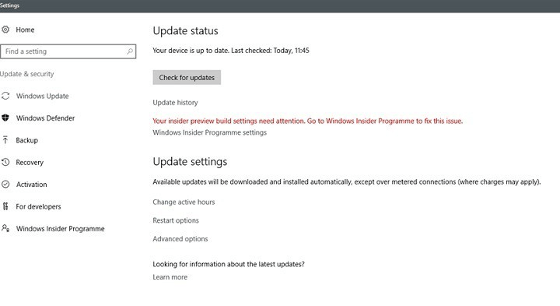
Having now upgraded all my Windows 10 machines to the Anniversary Update edition without much in the way of upheaval, I came across the following message on one of them:
Your insider preview build settings need attention. Go to Windows Insider Programme to fix this.
It appeared on the Update screen of the Settings application, and I believe that I may have triggered it by letting foolish curiosity take me to the Windows Insider Programme screen. Returning there offered no way of resolving the issue, so I had to try the registry editing tip that I discovered elsewhere on the web. Naturally, the creation of a System Restore Point before proceeding with changes to the Windows Registry is advised.
Typing REGEDIT into Cortana brings up a clickable link to the Registry Editor. Having clicked on this, I then clicked on the Yes button on the ensuing dialogue box that Windows 10 throws up every time you make a system change, such as installing new software. With the Registry Editor opened, I made my way to the following location:
HKEY_LOCAL_MACHINE\SOFTWARE\Microsoft\WindowsSelfHost\UI\Strings
Once there, I deleted every entry that mentioned "Insider" or "Windows Insider" to leave only two afterwards: "(Default)", "UnknownErrorDialogValues". That resolved the issue, and I now intend to stay away from the Windows Insider Programme screen in Settings so that the message never appears again.
A first look at Windows 8 reveals Metro interface challenges
6th November 2011
Even if it has been a little while, I have managed to set up a VirtualBox virtual machine to have a look at the Developer Preview of the next version of Windows, something that I and others continue to call Windows 8 though Microsoft has yet to confirm the name. When I tried the installation before, it failed on me, though that may have been due to having an earlier release of VirtualBox on my machine at that time. 4.1.14 has a preset for Windows 8 and I also happened to notice that it can create virtual hard disks that can be used with competitors like VMWare, Parallels and Virtual PC too. It's an interesting development, even if I am left wondering why you'd need to do that when VirtualBox runs on most platforms anyway.
To get back to Windows 8, the installation ran near enough without any intervention apart from stating the language you wanted to use, U.K. English in my case. On startup, the operating system presents you with a lock screen that you need to get out of the way so you can log in. It can be dragged out of your way, or you can double-click on it or use the carriage return key to get rid of it. Quite why someone thinks it's a good extra is a little beyond me, when a log in screen would suffice. Logging in gets you the new start menu or, as I prefer to think of it, screen. By default, there are a good few Metro apps installed, though I decided to rid myself of most of them.
Regarding those apps, one irritation could be that there isn't that obvious a way to switch away from them to something else. Thankfully, ALT+TAB does seem to work and it has the most instantaneous effect. Otherwise, using the Windows key or hovering over the bottom-left corner of the screen to get the menu that brings up the start screen. From the PC user's point of view, I could see this needing a little more thought because it took a little while for me to figure out what to do. Closing Metro apps isn't an option either unless you resort to the Task Manager to do so. Microsoft appears to want to leave them open from the point at which you start them until the PC is shut down. It's a design decision that leaves me unconvinced, though; thoughts of rogue apps running riot on a system come to mind. Then, a stop button could be handy.
There is no start menu as we have come to know it any more with the start screen replacing it. However, it is possible to limit what's on there to the software that you use most often and rearrange panels as you'd like them to be. Apart from hosting shortcuts for starting applications, it also acts as a task switcher like the task bar in Windows 7 and there is one of those in Windows 8 too when you jump to the desktop; handily, there's a panel for that too. Installing Firefox added a panel to the start screen, so a little thought has gone into such a common situation, and that's just as well. Still, there's more work to be done because, currently, there's no way of changing the background colour of the start screen without resorting to a hex editor or third-party tools. Still, since you can pick your own picture for the lock screen, things are not all locked down on you.
A preview of IE 10 is included and, apart from the occasional artifact when displaying one of my websites, it seems to work well enough, as does Windows Explorer. However, aside from these and a smattering of Metro apps, the Developer Preview does feel barer than previous versions of Windows. However, it does appear that applications like Notepad, PowerShell and the Command Prompt are on there, yet you need to search for these. That also means that you need to know about them too, so I'd suggest a better way of browsing the applications that are available too. This is one of the weaknesses of Ubuntu's Unity interface, and you have to search in the Dash to find them. Just starting to type in the Metro start screen (and other screens too, it seems) in Windows does trigger the completion of a search box, much like what happens in the GNOME Shell Activities screen on systems with GNOME 3. While it's good to see good ideas being reused from elsewhere, Microsoft might do well to note that you still can browse lists of applications in GNOME 3 too.
Shutting down Windows 8 also is seemingly more convoluted than is the case with Windows 7. Logging off and then powering off from the log in screen is one approach, and that was my early impression of GNOME 3 too. With the latter, I later discovered a status menu plugin that added in the option where it was accessible or that using the ALT key when clicking the status menu when the plugin wouldn't work would do what I needed. Without logging off from Windows 8, you can do a shutdown using the sidebar that appears on selecting Settings from the menu that pops up on hovering near the bottom-left corner of the start screen or the Start button of the task bar of the desktop. Then, look for the power icon and select what you need from the menu that clicking on this icon produces. Of course, you may find that the ALT+F4 key combination when issued while on a clean desktop is the cleanest of all.
All in all, the Developer Preview of the next release of Windows looks fairly usable. That is not to imply that there aren't things that need changing. Aside from this being an early sight of what may be coming to us Windows users, it isn't unknown for Microsoft to roll back on a radical move to make it more palatable to the user community. After all, it has to watch how it treats the corporate market too. The strong possibility of there being alterations is one thought that needs to be shared with those who are inclined to lose their tempers at the moment and I have seen comments with unpleasant language out there on the web (none of that here, please, by the way). As for me, I like to look ahead to be forewarned about what's coming my way in the world of computing. What I have seen so far of the next Windows release is reassuring, though there are rough edges such as PC shutdown and Metro app switching, yet Microsoft cannot commit commercial suicide either, so these have to be fixed. It appears that the world of Microsoft operating systems is in flux, with the company's keeping a firm eye on the world of mobile computing, with tablets being a major concern. While others may disagree, I can see Windows 8 working well on conventional PC's and that's no bad thing.