Getting VMware Workstation working on Ubuntu 8.04
 28th April 2008
With every change of kernel, a re-installation of VMware becomes necessary, and my move to Ubuntu "Hardy Heron" 8.04 was punctuated by the same activity. However, the advent of the 2.6.24.x kernel meant that my usual means were no longer successful, so a new approach was needed.
That involved the mysteriously named vmware-any-any patch, and version 116 of this seemed to set things to rights for me. Stopping the installation before vmware-config.pl runs is the best course of action, since it will only fail anyway. Downloading vmware-any-any-update-116.tgz, extracting from the archive and running runme.pl using sudo continues the process.
While it seemed to have worked for me, I must wonder at why VMware seems unbothered by the idea of keeping up with Linux kernels and C compilers. It would certainly have removed the need for the user community needing to do anything about the problems that others and I keep seeing; it's a very unusual arrangement.
The dangers of overriding JavaScript onload event handlers
17th April 2008
Recently, I gave myself a right old fright while tinkering with my hillwalking and photo gallery website. The problem stemmed from my use of window.onload to set up behaviours for web pages in a visitor information directory on the site. A lapse of concentration allowed me to associate an onload event handler with the body tags of the pages using a common header PHP script; another lapse also meant that my mistake was on public view for all to see because I uploaded files before I spotted the problem.
The result was that I was left wondering why the window.onload pieces weren't working at all, something that seriously broke the pages. The mists of panic and bewilderment were cleared in good time by the realisation of what had happened: the body tag onload had overridden the window onload and rendered it inactive. I don't know from where the thought arrived, but it was the one that resolved the problems that I was seeing; it might be that I might have met it before in the dim and not-so-distance past.
Having your pages degrade gracefully for when a visitor has not enabled JavaScript or when you are foolish enough to break something like I did is definitely an asset, a point brought home to me by my salutary experience. I am not sure why I was willing to run the risk that I did, but it now looks as if I need to include the task of adding improved graceful degradation to the to-do list.
Automating FTP II: Windows
15th April 2008
Having thought about automating command line FTP on UNIX/Linux, the same idea came to me for Windows too, and you can achieve much the same results, even if the way of getting there is slightly different. The first route to consider is running a script file with the ftp command at the command prompt (you may need %windir%system32ftp.exe to call the right FTP program in some cases):
ftp -s:script.txt
The contents of the script are something like the following:
open ftp.server.host

user

password

lcd destination_directory

cd source_directory

prompt

get filename

bye
It doesn't take much to turn your script into a batch file that takes the username as its first input and your password as its second for the sake of enhanced security and deletes any record thereof for the same reason:
echo open ftp.server.host >  script.txt

echo %1 >> script.txt

echo %2 >> script.txt

echo cd htdocs >> script.txt

echo prompt >> script.txt

echo mget * >> script.txt

echo bye >> script.txt

%windir%system32ftp.exe -s:script.txt

del script.txt
The feel of the Windows command line (in Windows 2000, it feels very primitive, but Windows XP is better and there's PowerShell now too) can leave a lot to be desired by someone accustomed to its UNIX/Linux counterpart, yet there's still a lot of tweaking that you can do to the above, given a bit of knowledge of the Windows batch scripting language. Any escape from a total dependence on pointing and clicking can only be an advance.
Another use for virtualisation
13th April 2008
One of the unexpected features of VMware is that you are left to set the virtual machine to use resolutions above and beyond that allowed by your own monitor and graphics card combinations. From a web development or design point of view, this is incredibly useful when you consider the sizes of the screens that come with PC's these days: some of them make my 17' Iiyama ProLite E431S take on the appearance of having proportions close to that of a postage stamp.
While getting a bigger screen sounds a very nice idea and 24' models are supposed to allow for excellent productivity, I plan to stick with what I have and VMware facilitates this with a top resolution of 2360 pixels by 1770 pixels when you get VMware tools set up on your guest OS; Windows XP is what I have been using with these higher resolutions.
You do have to pan about a bit because you can only see part of the screen when the resolutions climb beyond your own monitor settings, and it does exercise your hardware but being able to see how things look in resolutions larger than anything that you can access (1600 by 1200 is as high as it goes for me for a real machine and that belongs to my workplace) is very much worth it. It certainly allowed me to fine tune my online photo gallery, something that makes me relax a little more now that I have done the required optimisation for different screen heights.
Automating FTP I: UNIX and Linux
11th April 2008
Having got tired of repeated typing in everything at the prompt of an interactive command line FTP session and doing similar things via the GUI route, I started to wonder if there was a scripting alternative and, lo and behold, I found it after a spot of googling. There are various opportunities for its extension such as prompting for username and password instead of the risky approach of including them in a script or cycling through a directory structure but here's the foundation stone for such tinkering anyway:
HOSTNAME='ftp.server.host'

USER='user'

PSSWD='password'

REP_SRC='source_directory'

REP__DEST='destination_directory'

FILENAME='*'
rm -rf log_file.tmp
cd "${REP_DEST}"
ftp -i -n -v <<EndFTP >>log_file.tmp 2>>log_file.tmp

open ${HOSTNAME}

user ${USER} ${PSSWD}

prompt

cd "${REP_SRC}"

mget "${FILENAME}"

EndFTP
cd ~
Getting Evolution to display images in HTML emails
6th April 2008
By default, Evolution doesn't display images in HTML emails. It's a good security and anti-spam practice, but it's also nice to have the ability to override this behaviour. While the Ctrl+I keyboard shortcut (View>Show Images is the way to do it through the menus) will do the trick on an email by email basis, you need to add the email address to your address book for a more permanent approach. There's a little extra to make the latter work, and it involves heading to Evolution's Preferences dialogue box (Shift + Ctrl + S or View>Preferences) and selecting Mail Preferences from the sidebar. Clicking on Mail Preferences gets you where you need to be. The part of the screen that's relevant is Loading Images, and there are three options: Load images in email from contacts is the option that you probably want more than Always load images from the Internet because keeping Evolution's anti-spam defaults is most likely an excellent idea. Apart from sender whose images you don't want to see, you should now have images displaying in HTML emails.
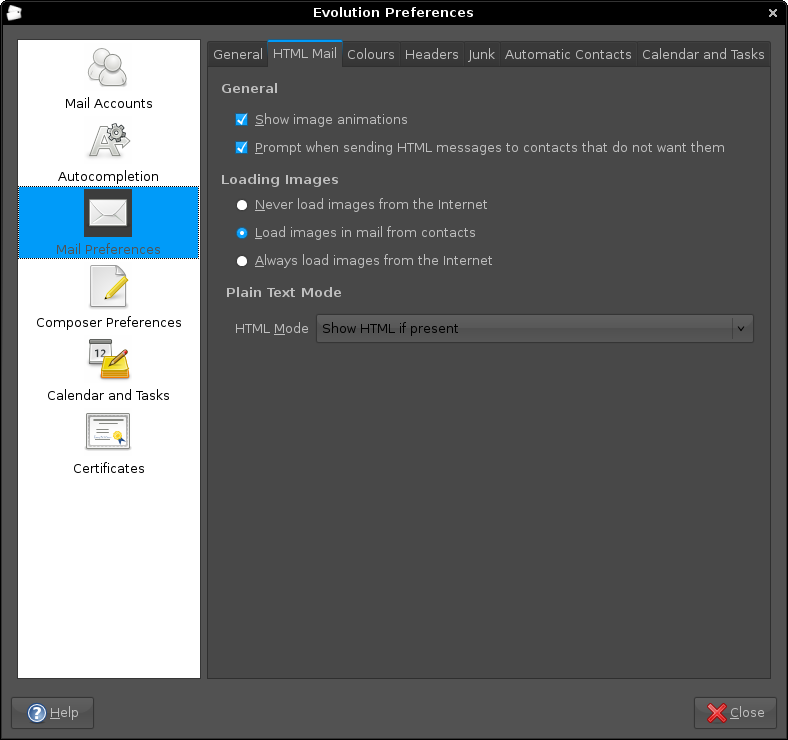
Aside: The theme in use for the above screen capture was from Ubuntu Studio rather than SlicknesS, which is my usual choice. The latter makes the above screen unusable because the text cannot be distinguished from the background, and it's only for this tab that it happens too, a combination of possible Evolution programming inconsistencies colliding with potential theme design gremlins in my view.
Keyboard shortcuts for changing desktops in Ubuntu
4th April 2008
I am more than a little surprised that I didn't encounter these earlier: Ctrl + Alt + Left Arrow Key moves left, and Ctrl + Alt + Right Arrow Key moves right through your Ubuntu desktops or workspaces. It's always handy to be able to save on mouse work while doing this sort, so these could prove useful. I wouldn't be at all surprised if they applied to other Linux distros too.