TOPIC: READING
Managing Microsoft Outlook on Windows: Fonts, Zoom, Data Files and Deployment Controls
 12th March 2026
Outlook continues to evolve across Windows, with a mixture of everyday personalisation options for users and deployment controls for administrators. Recent guidance from Microsoft brings together practical steps for composing messages in a preferred typeface, approaches for reading messages more comfortably, and a set of administrative measures to manage when and how the new Outlook appears in an organisation. Alongside this are reminders about where Outlook stores data on different account types and how that affects moving between computers, as well as pointers for finding POP, IMAP and SMTP settings for Outlook.com when manual configuration is needed. What follows draws these threads together so that individual users and IT teams can navigate the changes with clarity.
Changing the Default Font for New Messages and Replies
For those composing email, Outlook starts with a familiar default: new messages use Calibri in black. This is only a starting point because the application allows the font, its colour, size and style to be changed, and it treats new messages separately from replies and forwards so that different choices can be set for each if desired.
In new Outlook for Windows, the path goes like this: View > View Settings > Email > Compose and Reply. Under Message Format, the preferred font, size and style can be chosen before saving, and these settings then apply whenever a message is written or a reply is sent. Note that in new Outlook the font setting applies to both new messages and replies and forwards from a single control, so a separate choice for each is not available in this version.
In classic Outlook for Windows, the approach is different and more granular. Navigating to File > Options > Mail reveals a Stationery and Fonts button. On the Personal Stationery tab, there are separate Font buttons for new mail messages and for replying or forwarding messages, which allows a distinct typeface, size and colour to be set for each scenario independently. This separation can be useful for distinguishing composed messages from replied ones at a glance. If similar changes are needed for the message list rather than the compose window, there is a separate set of options for changing the font or font size in the message list.
Adjusting the Zoom Level in the Reading Pane
Comfort when reading is equally important, particularly with longer emails. Both new and classic Outlook offer ways to adjust zoom in the Reading Pane without touching system-wide display settings, though the controls differ between the two versions. In new Outlook, selecting a message in the inbox opens it in the Reading Pane, after which the View tab's Zoom control can be used. Zooming in and out is done with plus and minus buttons, and there is a Reset option that returns the view to its default level. In classic Outlook, the same result can be achieved either by dragging the zoom bar at the bottom right of the window or by going to View and then Zoom, where a specific percentage between 50% and 200% can be chosen. Classic Outlook also offers a "Remember my preference" checkbox in the Zoom dialogue, which locks the chosen level so it persists across sessions without needing to be reset each time. In both versions, these adjustments affect only how messages appear on the screen and have no bearing on how they are composed or how recipients will see them.
Confirming Which Version of Outlook Is in Use
Not every copy of Outlook presents the same options at the same time. If steps that are described as applying to new Outlook do not appear, the device may still be running classic Outlook for Windows. That is not uncommon in environments where administrators are controlling the transition or where devices have not yet received the relevant updates, so checking the version in use is a sensible first step before assuming that something has gone wrong.
Hiding the New Outlook Toggle in Classic Outlook
For administrators, a recurring question is how to prevent users from switching to new Outlook until the organisation is ready. Microsoft provides a cloud policy in the Microsoft 365 Apps admin centre that hides the Try the new Outlook toggle in classic Outlook for Windows. After signing in to the admin centre, the policy can be created by going to Customisation, selecting Policy Management and enabling the policy named Hide the "Try the new Outlook" toggle in Outlook. There is also a registry-based method for controlling the same setting: the key is under HKEY_CURRENT_USERSoftwareMicrosoftOffice16.0OutlookOptionsGeneral and is named HideNewOutlookToggle, with a value of dword:00000000 to hide the toggle. To later enable the policy, the same value is set to 1. As with any registry change, this approach is best handled with care and in line with internal change management practices.
Removing the New Outlook App After Preinstallation on Windows 11
Preinstallation of the new Outlook on Windows 11 is another area where planning matters. On Windows 11 builds later than version 23H2, the app is preinstalled for all users, and there is currently no way to block that preinstallation. If devices should not surface the new Outlook, it can be removed after installation using the following Windows PowerShell command:
Remove-AppxProvisionedPackage -AllUsers -Online -PackageName (Get-AppxPackage Microsoft.OutlookForWindows).PackageFullNameAfter deprovisioning, Windows updates will not reinstall the app. Administrators can also remove an additional Windows orchestrator registry value at HKEY_LOCAL_MACHINESOFTWAREMicrosoftWindowsUpdateOrchestratorUScheduler_OobeOutlookUpdate where applicable. Devices that have installed the March 2024 Non-Security Preview release, or a later cumulative update for Windows 11 version 23H2, respect the deprovisioning command and do not require removal of that registry value.
Handling User-Installed Instances and Start Menu Placeholders
Users may also install the app themselves, for example by selecting a toggle. In that case, the management approach shifts from provisioned packages to installed packages, and the following PowerShell command removes the app for all users:
Remove-AppxPackage -AllUsers -Package (Get-AppxPackage Microsoft.OutlookForWindows).PackageFullNameIt is worth verifying whether the app is actually installed or whether only a Start menu placeholder is visible because a pinned icon may appear even when the underlying app is not yet present. A quick check of the folder at %localappdata%MicrosoftOlklogs can confirm whether the app has produced logs, and Start layout policies can be used to manage pins, so users are not inadvertently prompted to install by selecting a placeholder. On consumer devices, a Recommended section in the Windows 11 Start menu can also surface the app, which may need consideration in user communications.
Migrating Users Away from Windows Mail and Calendar
The end of support for Windows Mail and Calendar on the 31st of December 2024 introduced another migration pathway. Active users of those apps are being switched automatically to the new Outlook app, so organisations that wish to block that route can remove the Mail and Calendar apps from devices using the following command:
Get-AppxProvisionedPackage -Online | Where {$_.DisplayName -match "microsoft.windowscommunicationsapps"} | Remove-AppxProvisionedPackage -Online -PackageName {$_.PackageName}For current users, the installed package can be removed with Remove-AppxPackage -AllUsers -Package (Get-AppxPackage microsoft.windowscommunicationsapps).PackageFullName. Alternatives exist through Microsoft Intune or Configuration Manager, which may be preferable in environments that already use those tools for application lifecycle management.
Blocking Acquisition via the Microsoft Store
Preventing acquisition from the Microsoft Store is more straightforward. Because the new Outlook for Windows is available there as well, blocking access to the Microsoft Store app prevents users from downloading it through that channel. Microsoft provides configuration options for controlling Microsoft Store access, and administrators can align those with broader device management policies that may already limit consumer app installs on corporate devices.
Opting Out of Automatic Migration
Some organisations will want to opt out of new Outlook migration entirely for a period. Starting in January 2025, users with Microsoft 365 Business Standard and Premium licences are automatically migrated from classic Outlook to new Outlook, with in-app notifications sent before the switch and the option to toggle back afterwards. Microsoft exposes a policy named Manage user setting for new Outlook automatic migration that controls whether users are switched automatically. If the policy is not set, the user setting remains uncontrolled and users can manage it themselves, with the default being enabled. Enabling the policy enforces automatic migration and prevents users from changing the setting, while disabling it turns off automatic migration and also prevents user changes. The equivalent registry setting sits under HKEY_CURRENT_USERSoftwarePoliciesMicrosoftoffice16.0outlookpreferences with a DWORD named NewOutlookMigrationUserSetting set to 0 to disable or 1 to enable. The same controls can be managed via Group Policy Administrative Templates and through the Cloud Policy service from the Microsoft 365 Apps admin centre, and because the setting is defined in ADMX templates it can also be surfaced in Intune using Administrative Templates.
Applying Conditional Access and Mailbox Policies
Beyond installation state and migration timing, access policies are a decisive layer of control. Conditional Access policies can require multifactor authentication, restrict access by location, block risky sign-in behaviours or insist on organisation-managed devices. For additional nuance, Outlook on the web (OWA) mailbox policies used together with the ConditionalAccessPolicy parameter can limit capabilities for users on non-compliant devices, for instance by restricting attachments. This approach allows a more graduated user experience that reduces risk without completely blocking access, and it can be combined with broader Conditional Access baseline requirements.
There are cases where a firmer control is required. To prevent mailbox access from the new Outlook regardless of how users acquired the app, administrators can use an Exchange mailbox policy that blocks organisation mailboxes from being added. This acts as a final block so that work or school accounts cannot be used in the app, even if an individual user has installed it or found it preinstalled. Because mailbox policies are applied to the account rather than to a device or a specific app, it is prudent to consider them alongside the earlier measures that block acquisition or control installation, so that personal accounts are not used in ways that bypass organisational safeguards.
Understanding How Outlook Stores Data and What Moves to a New Computer
While deployment and access are important, day-to-day continuity often depends on understanding how Outlook stores data and how that affects moving to a new computer. Outlook saves backup information in a variety of different locations depending on the account type involved. For users of Microsoft 365, Exchange, Outlook.com, Hotmail.com or Live.com accounts not accessed by POP or IMAP, email is backed up on the server and there is no Personal Folders file with a .pst extension. An Offline Folders file with an .ost extension may be present, but Outlook automatically recreates this when a new email account is added, and it cannot be moved between computers. Other elements such as navigation pane settings, print styles, signatures and stationery can be transferred, and their locations vary with version and configuration.
Users of POP accounts encounter a different arrangement. All email, calendar, contact and task information is stored in a .pst file, and moving this file to a new computer preserves that information. It does not carry over the account settings themselves, so Outlook needs to be set up on the new computer before opening the .pst file that was copied from the old one. On Windows 11, navigation pane settings are found at drive:Users<username>AppDataRoamingMicrosoftOutlook and signatures at drive:Users<username>AppDataRoamingMicrosoftSignatures. Knowing these paths saves time during a migration and reduces the risk of overlooking important data.
Avoiding OneDrive Synchronisation Problems with PST Files
Large .pst files can slow down OneDrive synchronisation if they are stored in folders that OneDrive is backing up. Symptoms include messages such as "Processing changes" or "A file is in use" that persist for longer than expected. Microsoft provides guidance on removing an Outlook PST data file from OneDrive if that becomes necessary, and doing so can restore normal synchronisation behaviour while keeping Outlook functional on the local machine.
Showing Hidden Files and Extensions on Windows
Locating Outlook data sometimes means revealing folders and file name extensions that Windows hides by default. This is especially true when navigating to AppData or similar directories, or when differentiating between PST and OST files. On Windows 11 File Explorer, going to View > Show, where both "File name extensions" and "Hidden items" settings can be toggled to their on positions. Doing so makes the AppData folder and the distinction between these file types visible without needing to navigate through the Control Panel.
Configuring POP, IMAP and SMTP Settings for Outlook.com
Configuration of Outlook.com accounts brings its own questions when used in the Outlook desktop app or other mail applications. Outlook and Outlook.com can often detect the correct mailbox settings automatically, which simplifies setup for many users. When that is not the case, or when using a third-party app, the POP, IMAP and SMTP settings can be viewed within Outlook.com settings and used for manual configuration. For Outlook.com accounts, both the IMAP and POP server name is outlook.office365.com, with IMAP using port 993 and POP using port 995, both with SSL/TLS encryption and OAuth2 authentication. It is worth noting that POP and IMAP access is disabled by default in Outlook.com and must be enabled in account settings before either protocol can be used. For other non-Microsoft accounts, the safest course is to obtain settings directly from the relevant email provider rather than guessing values, since incorrect entries can lead to connection issues that are not always obvious at first glance.
Getting Support for Outlook.com
Support remains close at hand for Outlook.com users who need it. The Help option on the menu bar in Outlook.com opens self-help resources where queries can be entered and common issues surfaced. If those do not resolve the problem, there is a path to contact support, which requires signing in to the account so that assistance can be tailored. If signing in is not possible, Microsoft directs users to a separate route to begin recovery or get help, and the Outlook.com Community provides an additional place to search for answers or ask questions from other users.
Keeping Users and IT Teams Informed During Outlook's Transition
Together, these user-facing features and administrative controls reflect a period of transition for Outlook on Windows. Individuals can shape the way they write and read messages, adjusting fonts to suit their preferences and using zoom where needed, without altering system-wide settings. Administrators can pace the adoption of the new Outlook with policies that hide toggles, prevent or reverse preinstallation, opt out of automatic migration and apply Conditional Access or mailbox policies that enforce organisational requirements. Underneath these changes, the fundamentals of data storage and account setup remain steady, with server-backed accounts recreating their local caches on-demand and POP accounts relying on .pst files that can be moved with care. By keeping these points in mind, users and IT teams alike can make informed decisions that avoid surprises and maintain a smooth email experience.
Windows 11 virtualisation on Linux using KVM and QEMU
5th March 2026
Windows 11 arrived in October 2021 with a requirement that posed a challenge to many virtualisation users: TPM 2.0 was mandatory, not optional. For anyone running Windows in a virtual machine, that meant their hypervisor needed to emulate a Trusted Platform Module convincingly enough to satisfy the installer.
VirtualBox, which had been my go-to choice for desktop virtualisation for years, could not do this in its 6.1.x series. Support arrived only with VirtualBox 7.0 in October 2022, meaning anyone who needed Windows 11 in a VM faced roughly a year with no straightforward path through their existing tool.
That gap prompted a look at KVM (Kernel-based Virtual Machine), which could handle the TPM requirement through software emulation. This article documents what that investigation found, what the rough edges were at the time, and how the situation has developed in the years since.
What KVM Actually Is
KVM is not a standalone application. It is a virtualisation infrastructure built directly into the Linux kernel, and has been since the module was merged between 2006 and 2007. Rather than sitting on top of the operating system as a separate layer, it turns the Linux kernel itself into a hypervisor. This makes KVM a type-1 hypervisor in practice, even when running on a desktop machine, which is part of why its performance characteristics compare favourably with hosted solutions.
In use, KVM operates alongside QEMU for hardware emulation, libvirt for virtual machine management and virt-manager as a graphical front end. The distinction matters because problems and improvements tend to originate in different parts of that stack. KVM itself is rarely the issue; QEMU and libvirt are where the day-to-day configuration lives.
To confirm that the host CPU supports hardware virtualisation before beginning, the following command checks for the relevant flags:
egrep -c '(vmx|svm)' /proc/cpuinfoAny result above zero means the hardware is capable. Intel processors expose the vmx flag and AMD processors expose svm.
Installing the Required Packages
The installation is straightforward on any major distribution.
On Debian and Ubuntu:
sudo apt install qemu-kvm libvirt-daemon-system libvirt-clients bridge-utils virt-managerOn Fedora:
sudo dnf install @virtualizationOn Arch Linux:
sudo pacman -S qemu libvirt virt-manager bridge-utilsAfter installation, the current user needs to be added to the libvirt and kvm groups before the tools will work without root privileges:
sudo usermod -aG libvirt,kvm $(whoami)Logging out and back in instates the group membership.
Configuring Network Bridging
The default network configuration in libvirt uses NAT, which is sufficient for most purposes and requires no additional setup. The VM can reach the internet and the host, but the host cannot initiate connections to the VM. For a Windows 11 guest used primarily for application compatibility, NAT works without complaint.
A bridged network, which places the VM on the same network segment as the host, requires a wired Ethernet connection. Wireless interfaces do not support bridging in the standard Linux networking stack due to how 802.11 handles MAC addresses. For those on a wired connection, a bridge can be defined with a file named bridge.xml:
<network>
  <name>br0</name>
  <forward mode="bridge"/>
  <bridge name="br0"/>
</network>
The bridge is then activated with:
sudo virsh net-define bridge.xml
sudo virsh net-start br0
sudo virsh net-autostart br0
Installing Windows 11
Windows 11 requires TPM 2.0 and Secure Boot. Neither is present in a default KVM configuration, and both need to be added explicitly.
The swtpm package provides software TPM emulation:
sudo apt install swtpm swtpm-tools   # Debian/Ubuntu
sudo dnf install swtpm swtpm-tools   # Fedora
UEFI firmware is provided by the ovmf package, which supplies the file that virt-manager needs for Secure Boot:
sudo apt install ovmf   # Debian/Ubuntu
sudo dnf install edk2-ovmf   # Fedora
In virt-manager, when creating the VM, the firmware should be set to UEFI x86_64: /usr/share/OVMF/OVMF_CODE.fd rather than the default BIOS option. A TPM 2.0 device should be added in the hardware configuration before the VM is started. With those two elements in place, the Windows 11 installer proceeds without complaint about the hardware requirements.
The VirtIO drivers ISO should be attached as a second virtual CD-ROM drive during installation. The installer will not find the storage device otherwise because the VirtIO disk controller is not a standard device that Windows recognises without a driver. When prompted to select an installation location and no disks appear, clicking "Load driver" and browsing to the VirtIO ISO resolves it.
During the out-of-box experience, Windows 11 requires a Microsoft account and an internet connection by default. To bypass this and create a local account instead, opening a command prompt with Shift+F10 and running the following works on the Home edition:
oobebypassNROThe machine restarts and presents an option to proceed without internet access.
Performance Considerations
KVM performance for a Windows 11 guest is generally good, but one factor specific to Windows 11 is worth understanding. Memory Integrity, also referred to as Hypervisor-Protected Code Integrity (HVCI), is a Windows security feature that uses virtualisation to protect the kernel. Running it inside a virtual machine creates nested virtualisation overhead because the guest is attempting to run its own virtualisation layer inside the host's. The performance impact is more pronounced on processors predating Intel Kaby Lake or AMD Zen 2, where the hardware support for nested virtualisation is less capable.
The CPU type selection in virt-manager also matters more than it might appear. Setting the CPU model to host-passthrough exposes the actual host CPU flags to the guest, which improves performance compared to emulated CPU models, at the cost of reduced portability if the VM image is ever moved to a different machine.
Host File System Access and Clipboard Sharing
This was where the experience diverged most noticeably from VirtualBox. VirtualBox Guest Additions handle shared folders and clipboard integration as a single installation, and the result works reliably with minimal configuration. KVM requires separate solutions for each, and in 2022 neither was as seamless as it has since become.
Clipboard Sharing via SPICE
Clipboard sharing uses the SPICE display protocol rather than VNC. The VM needs a SPICE display and a virtio-serial controller, which virt-manager adds automatically when SPICE is selected. Within the Windows guest, the installer for SPICE guest tools provides the clipboard agent. Once installed, clipboard text passes between host and guest in both directions.
The critical dependency that caused problems in 2022 was the virtio-serial channel. Without a com.redhat.spice.0 character device present in the VM configuration, the clipboard agent installs successfully but does nothing. Virt-manager now adds this automatically when SPICE is selected, which removes one of the more common failure points.
Host Directory Sharing via Virtiofs
At the time of this investigation, the practical option for sharing files between the Linux host and a Windows guest was WebDAV, which worked but felt like a workaround. The proper solution, virtiofs, existed but was not yet well-supported on Windows guests. The situation has since improved to the point where virtiofs is now the standard recommended approach.
It requires three components: the virtiofsd daemon on the host (included in recent QEMU packages), the virtiofs driver from the VirtIO Windows drivers package and WinFsp, which is the Windows equivalent of FUSE. Once configured through virt-manager's file system hardware settings, the shared directory appears as a mapped drive in Windows Explorer. The virtiofsd daemon was also rewritten in Rust in the intervening period, improving both its reliability and performance.
To configure a shared directory, shared memory must first be enabled in the VM's memory settings, then a file system device added with the driver set to virtiofs, a source path on the host and an arbitrary mount tag. The corresponding libvirt XML looks like this:
<memoryBacking>
  <source type='memfd'/>
  <access mode='shared'/>
</memoryBacking>

<filesystem type='mount' accessmode='passthrough'>
  <driver type='virtiofs' queue='1024'/>
  <source dir='/home/user/shared'/>
  <target dir='host_share'/>
</filesystem>
This was the area where VirtualBox held a clear practical advantage in 2022. The gap has since narrowed considerably.
Migrating from VirtualBox
Moving existing VirtualBox VMs to KVM is possible using qemu-img, which converts between disk image formats. The straightforward conversion from VDI to QCOW2 is:
qemu-img convert -f vdi -O qcow2 windows11.vdi windows11.qcow2For large images or where reliability is a concern, converting via an intermediate RAW format reduces the risk of issues:
qemu-img convert -f vdi -O raw windows11.vdi windows11.raw
qemu-img convert -f raw -O qcow2 windows11.raw windows11.qcow2
The resulting QCOW2 file can then be used when creating a new VM in virt-manager, selecting "Import existing disk image" rather than creating a new one.
How the Landscape Has Shifted Since
The investigation described here took place during a specific window: VirtualBox 6.1.x was the current release, Windows 11 had just launched, and KVM was the most practical route to TPM emulation on Linux. That context has changed in several ways worth noting for anyone reading this in 2026.
VirtualBox 7.0 arrived in October 2022 with TPM 1.2 and 2.0 support, Secure Boot and a number of additional improvements. The original reason for investigating KVM was resolved, and for those who had moved across during the gap period, returning to VirtualBox for Windows guests made sense given its more straightforward Guest Additions integration.
QEMU reached version 10.0 in April 2025, a significant milestone reflecting years of accumulated improvements to hardware emulation, storage performance and x86 guest support. Libvirt has kept pace, adding reliable internal snapshots for UEFI-based VMs, evdev input device hot plug and improved unprivileged user support. The virtiofs situation for Windows guests has moved from "technically possible but awkward" to "the recommended approach with good documentation and a rewritten daemon", which addresses the most significant practical shortcoming from 2022 directly.
The broader desktop virtualisation landscape shifted when VMware Workstation Pro became free for all users, including commercial ones, in November 2024. VMware Workstation Player was discontinued as a separate product at the same time, having become redundant once Workstation Pro was available at no cost. This gave desktop users a third credible option alongside VirtualBox and KVM, with VMware's historically strong Windows guest integration now accessible without a licence fee, though users of the free version are not entitled to support through the global support team.
The miniature PC market also expanded considerably from 2023 onwards, with Intel N100-based and AMD Ryzen Embedded systems offering enough performance to run Windows natively at modest cost. For many people, that proves a cleaner solution than any hypervisor, eliminating the integration limitations entirely by giving Windows its own dedicated hardware.
Final Assessment
KVM handled Windows 11 competently during a period when the alternatives could not, and the platform has continued to improve in the years since. The two areas that fell short in 2022, host file sharing and clipboard integration, have been addressed by developments in virtiofs and the SPICE tooling, and a new user starting today may find the experience noticeably smoother.
Whether KVM is the right choice in 2026 depends on the use case. For Linux-native workloads and server-style VM management, it remains the strongest option on Linux. For a Windows desktop guest where ease of integration matters most, VirtualBox 7.x and VMware Workstation Pro are both strong alternatives, with the latter now free to use for both commercial and personal purposes. The question that drove this investigation was answered by VirtualBox itself in October 2022. KVM provided a workable solution in the meantime, and the platform has only become more capable since then.
Additional Reading
How To Convert VirtualBox Disk Image (VDI) to Qcow2 format
How to enable TPM and secure boot on KVM?
Windows 11 on KVM – How to Install Step by Step?
Enable Virtualization-based Protection of Code Integrity in Microsoft Windows
Creating modular pages in Grav CMS
14th February 2026
Here is a walkthrough that demonstrates how to create modular pages in Grav CMS. Modular pages allow you to build complex, single-page layouts by stacking multiple content sections together. This approach works particularly well for modern home pages where different content types need to be presented in a specific sequence. The example here stems from building a theme from scratch to ensure sitewide consistency across multiple subsites.
What Are Modular Pages
A modular page is a collection of content sections (called modules) that render together as a unified page. Unlike regular pages that have child pages accessible via separate URL's, modular pages display all their modules on a single URL. Each module is a self-contained content block with its own folder, markdown file and template. The parent page assembles these modules in a specified order to create the final page.
Understanding the Folder Structure
Modular pages use a specific folder structure. The parent folder contains a modular.md file that defines which modules to include and in what order. Module folders sit beneath the parent folder and are identified by an underscore at the start of their names. Numeric prefixes before the underscore control the display order.
Here is an actual folder structure from a travel subsite home page:
/user/pages/01.home/
    01._title/
    02._intro/
    03._call-to-action/
    04._ireland/
    05._england/
    06._scotland/
    07._scandinavia/
    08._wales-isle-of-man/
    09._alps-pyrenees/
    10._american-possibilities/
    11._canada/
    12._dreams-experiences/
    13._practicalities-inspiration/
    14._feature_1/
    15._feature_2/
    16._search/
    modular.md
The numeric prefixes (01, 02, 03) ensure modules appear in the intended sequence. The descriptive names after the prefix (_title, _ireland, _search) make the page structure immediately clear. Each module folder contains its own markdown file and any associated media. The underscore prefix tells Grav these folders contain modules rather than regular pages. Modules are non-routable, meaning visitors cannot access them directly via URLs. They exist only to provide content sections for their parent page.
The Workflow
Step One: Create the Parent Page Folder
Start by creating a folder for your modular page in /user/pages/. For a home page, you might create 01.home. The numeric prefix 01 ensures this page appears first in navigation and sets the display order. If you are using the Grav Admin interface, navigate to Pages and click the Add button, then select "Modular" as the page type.
Create a file named modular.md inside this folder. The filename is important because it tells Grav to use the modular.html.twig template from your active theme. This template handles the assembly and rendering of your modules.
Step Two: Configure the Parent Page
Open modular.md and add YAML front matter to define your modular page settings. Here is an example configuration:
---
title: Home
menu: Home
body_classes: "modular"

content:
    items: '@self.modular'
    order:
        by: default
        dir: asc
        custom:
            - _hero
            - _features
            - _callout
---
The content section is crucial. The items: '@self.modular' instruction tells Grav to collect all modules from the current page. The custom list under order specifies exactly which modules to include and their sequence. This gives you precise control over how sections appear on your page.
Step Three: Create Module Folders
Create folders for each content section you need. Each folder name must begin with an underscore. Add numeric prefixes before the underscore for ordering, such as 01._title, 02._intro, 03._call-to-action. The numeric prefixes control the display sequence. Module names are entirely up to you based on what makes sense for your content.
For multi-word module names, use hyphens to separate words. Examples include 08._wales-isle-of-man, 10._american-possibilities or 13._practicalities-inspiration. This creates readable folder names that clearly indicate each module's purpose. The official documentation shows examples using names like _features and _showcase. It does not matter what names that you choose, as long as you create matching templates. Descriptive names help you understand the page structure when viewing the file system.
Step Four: Add Content to Modules
Inside each module folder, create a markdown file. The filename determines which template Grav uses to render that module. For example, a module using text.md will use the text.html.twig template from your theme's /templates/modular/ folder. You decide on these names when planning your page structure.
Here is an actual example from the 04._ireland module:
---
title: 'Irish Encounters'
content_source: ireland
grid: true
sitemap:
    lastmod: '30-01-2026 00:26'
---
### Irish Encounters {.mb-3}
<p style="text-align:center" class="mt-3"><img class="w-100 rounded" src="https://www.assortedexplorations.com/photo_gallery_images/eire_kerry/small_size/eireCiarraigh_tomiesMountain.jpg" /></p>
From your first arrival to hidden ferry crossings and legendary names that shaped the world, these articles unlock Ireland's layers beyond the obvious tourist trail. Practical wisdom combines with unexpected perspectives to transform a visit into an immersive journey through landscapes, culture and connections you will not find in standard guidebooks.
The front matter contains settings specific to this module. The title appears in the rendered output. The content_source: ireland tells the template which page to link to (as shown in the text.html.twig template example). The grid: true flag signals the modular template to render this module within the grid layout. The sitemap settings control how search engines index the content.
The content below the front matter appears when the module renders. You can use standard Markdown syntax for formatting. You can also include HTML directly in markdown files for precise control over layout and styling. The example above uses HTML for image positioning and Bootstrap classes for responsive sizing.
Module templates can access front matter variables through page.header and use them to generate dynamic content. This provides flexibility in how modules appear and behave without requiring separate module types for every variation.
Step Five: Create Module Templates
Your theme needs templates in /templates/modular/ that correspond to your module markdown files. When building a theme from scratch, you create these templates yourself. A module using hero.md requires a hero.html.twig template. A module using features.md requires a features.html.twig template. The template name must match the markdown filename.
Each template defines how that module's content renders. Templates use standard Twig syntax to structure the HTML output. Here is an example text.html.twig template that demonstrates accessing page context and generating dynamic links:
{{ content|raw }}
{% set raw = page.header.content_source ?? '' %}
{% set route = raw ? '/' ~ raw|trim('/') : page.parent.route %}
{% set context = grav.pages.find(route) %}
{% if context %}
    <p>
        <a href="{{ context.url }}" class="btn btn-secondary mt-3 mb-3 shadow-none stretch">
            {% set count = context.children.visible|length + 1 %}
            Go and Have a Look: {{ count }} {{ count == 1 ? 'Article' : 'Articles' }} to Savour
        </a>
    </p>
{% endif %}
First, this template outputs the module's content. It then checks for a content_source variable in the module's front matter, which specifies a route to another page. If no source is specified, it defaults to the parent page's route. The template finds that page using grav.pages.find() and generates a button linking to it. The button text includes a count of visible child pages, with proper singular/plural handling.
The Grav themes documentation provides guidance on template creation. You have complete control over the design and functionality of each module through its template. Module templates can access the page object, front matter variables, site configuration and any other Grav functionality.
Step Six: Clear Cache and View Your Page
After creating your modular page and modules, clear the Grav cache. Use the command bin/grav clear-cache from your Grav installation directory, or click the Clear Cache button in the Admin interface. The CLI documentation details other cache management options.
Navigate to your modular page in a browser. You should see all modules rendered in sequence as a single page. If modules do not appear, verify the underscore prefix on module folders, check that template files exist for your markdown filenames and confirm your parent modular.md lists the correct module names.
Working with the Admin Interface
The Grav Admin plugin streamlines modular page creation. Navigate to the Pages section in the admin interface and click Add. Select "Add Modular" from the options. Fill in the title and select your parent page. Choose the module template from the dropdown.
The admin interface automatically creates the module folder with the correct underscore prefix. You can then add content, configure settings and upload media through the visual editor. This approach reduces the chance of naming errors and provides a more intuitive workflow for content editors.
Practical Tips for Modular Pages
Use descriptive folder names that indicate the module's purpose. Names like 01._title, 02._intro, 03._call-to-action make the page structure immediately clear. Hyphens work well for multi-word module names such as 08._wales-isle-of-man or 13._practicalities-inspiration. This naming clarity helps when you return to edit the page later or when collaborating with others. The specific names you choose are entirely up to you as the theme developer.
Keep module-specific settings in each module's markdown front matter. Place page-wide settings like taxonomy and routing in the parent modular.md file. This separation maintains clean organisation and prevents configuration conflicts.
Use front matter variables to control module rendering behaviour. For example, adding grid: true to a module's front matter can signal your modular template to render that module within a grid layout rather than full-width. Similarly, flags like search: true or fullwidth: true allow your template to apply different rendering logic to different modules. This keeps layout control flexible without requiring separate module types for every layout variation.
Test your modular page after adding each new module. This incremental approach helps identify issues quickly. If a module fails to appear, check the folder name starts with an underscore, verify the template exists and confirm the parent configuration includes the module in its custom order list.
For development work, make cache clearing a regular habit. Grav caches page collections and compiled templates, which can mask recent changes. Running bin/grav clear-cache after modifications ensures you see current content rather than cached versions.
Understanding Module Rendering
The parent page's modular.html.twig template controls how modules assemble. Whilst many themes use a simple loop structure, you can implement more sophisticated rendering logic when building a theme from scratch. Here is an example that demonstrates conditional rendering based on module front matter:
{% extends 'partials/home.html.twig' %}
{% block content %}
  {% set modules = page.collection({'items':'@self.modular'}) %}
  {# Full-width modules first (search, main/outro), then grid #}
  {% for m in modules %}
    {% if not (m.header.grid ?? false) %}
      {% if not (m.header.search ?? false) %}
            {{ m.content|raw }}
      {% endif %}
    {% endif %}
  {% endfor %}
  <div class="row g-4 mt-3">
    {% for m in modules %}
      {% if (m.header.grid ?? false) %}
        <div class="col-12 col-md-6 col-xl-4">
          <div class="h-100">
            {{ m.content|raw }}
          </div>
        </div>
      {% endif %}
    {% endfor %}
  </div>
  {# Move search box to end of page  #}
  {% for m in modules %}
    {% if (m.header.search ?? false) %}
          {{ m.content|raw }}
    {% endif %}
  {% endfor %}
{% endblock %}
This template demonstrates several useful techniques. First, it retrieves the module collection using page.collection({'items':'@self.modular'}). The template then processes modules in three separate passes. The first pass renders full-width modules that are neither grid items nor search boxes. The second pass renders grid modules within a Bootstrap grid layout, wrapping each in responsive column classes. The third pass renders the search module at the end of the page.
Modules specify their rendering behaviour through front matter variables. A module with grid: true in its front matter renders within the grid layout. A module with search: true renders at the page bottom. Modules without these flags render full-width at the top. This approach provides precise control over the layout whilst keeping content organised in separate module files.
Each module still uses its own template (like text.html.twig or feature.html.twig) to define its specific HTML structure. The modular template simply determines where on the page that content appears and whether it gets wrapped in grid columns. This separation between positioning logic and content structure keeps the system flexible and maintainable.
When to Use Modular Pages
Modular pages work well for landing pages, home pages and single-page sites where content sections need to appear in a specific order. They excel at creating modern, scrollable pages with distinct content blocks like hero sections, feature grids, testimonials and call-to-action areas.
For traditional multipage sites with hierarchical navigation, regular pages prove more suitable because modular pages do not support child pages in the conventional sense. Instead, choose modular pages when you need a unified, single-URL presentation of multiple content sections.
Related Reading
For further information, consult the Grav Modular Pages Documentation, Grav Themes and Templates guide and the Grav Admin Plugin documentation.
Understanding Bootstrap's twelve column grid for clean layouts
8th February 2026
When it comes to designing your page structure using Bootstrap, you need to work within a twelve column grid. For uneven column widths, you need to make everything add up, while it is perhaps simpler when every column width is the same.
For instance, encountering a case of the latter when porting a website landing page as part of a migration from Textpattern to Grav meant having evenly sized columns, with one block for each section. To make everything up to twelve, two featured article blocks were added. What follows is a little about why that choice was made.
How the Twelve-Column System Works
Bootstrap's grid divides into twelve columns The number twelve was chosen because it has more divisors than any number before it or after it, up to sixty, making it exceptionally flexible for layout work.
<!-- Two across -->
<div class="col-12 col-md-6">...</div>

<!-- Three across -->
<div class="col-12 col-md-6 col-xl-4">...</div>

<!-- Classic blog layout: sidebar and main content -->
<div class="col-md-3">Sidebar</div>
<div class="col-md-9">Main content</div>
The column classes work by specifying how many of the twelve columns each element should span. For example, a col-6 class spans six columns (half the width), whilst col-4 spans four columns (one third). In the classic blog layout, this means using col-3 for a sidebar (one quarter width) and col-9 for main content (three quarters width). Other common combinations include col-8 and col-4 (two thirds and one third), or col-2 and col-10 (one sixth and five sixths).
For consistent column widths, certain numbers divide cleanly: col-12 (full width, one across), col-6 (half width, two across), col-4 (one third width, three across), col-3 (one quarter width, four across), col-2 (one sixth width, six across) and col-1 (one twelfth width, twelve across). When using 2, 3, 4, 6 or 12 blocks with these classes, the grid divides evenly. However, with other numbers, challenges emerge. For instance, eleven blocks in three columns leaves two orphans, whilst seven blocks in two columns creates uneven rows.
Bootstrap Breakpoints Explained
Bootstrap 5 defines six responsive breakpoints for different device categories:
| Breakpoint | Screen Width | Class Modifier |
|---|---|---|
| Extra small | Below 576px | None (just col-*) |
| Small | 576px and above | col-sm-* |
| Medium | 768px and above | col-md-* |
| Large | 992px and above | col-lg-* |
| Extra large | 1200px and above | col-xl-* |
| Extra extra large | 1400px and above | col-xxl-* |
These breakpoints cascade upwards. A class like col-md-6 applies from 768 pixels and continues to apply at all larger breakpoints unless overridden by a more specific class like col-xl-4. This cascading behaviour allows responsive layouts to be built with minimal markup, where each breakpoint only needs to specify what changes, rather than repeating the entire layout definition.
Putting It Into Practice
When column widths are equal, the implementation uses Bootstrap grid classes with a three-tier responsive system so that each block receives consistent treatment, with padding, borders and hover effects. Here is some boilerplate code showing how this can be accomplished:
<div class="row g-4 mt-3">
  <div class="col-12 col-md-6 col-xl-4">
    <div class="h-100">
      <h3 class="mb-3">Irish Encounters</h3>
      <p style="text-align:center" class="mt-3">
        <img class="w-100 rounded" src="...">
      </p>
      <p>From your first arrival to hidden ferry crossings...</p>
      <p>
        <a href="/travel/ireland" class="btn btn-secondary mt-3 mb-3 shadow-none stretch">
          Go and Have a Look: 12 Articles to Savour
        </a>
      </p>
    </div>
  </div>
  <!-- Repeat for 9 more destination blocks -->
  <!-- Then 2 featured article blocks -->
</div>
Two Bootstrap utility classes proved particularly useful here. Firstly, the h-100 class sets the height to 100% of the parent container, ensuring all blocks in a row have equal height regardless of content length. Meanwhile, the w-100 class sets the width to 100% of the parent container, making images fill their containers whilst maintaining aspect ratio when combined with responsive image techniques. Together, these help create visual consistency across the grid.
The responsive behaviour works as follows for twelve blocks:
| Screen Width | Class Used | Number of Columns | Number of Rows |
|---|---|---|---|
| Below 768px | col-12 |
1 | 12 |
| 768px and above | col-md-6 |
2 | 6 |
| 1200px and above | col-xl-4 |
3 | 4 |
The g-4 class adds consistent guttering between blocks across all breakpoints and is part of Bootstrap's spacing utilities, where the number (4) corresponds to a spacing value from Bootstrap's spacer scale. To accomplish this, the class applies gap spacing both horizontally and vertically between grid items, creating visual separation without needing to add margins to individual elements. This ensures blocks do not sit flush against each other whilst maintaining consistent spacing throughout the layout.
Taking Stock
Bootstrap's twelve-column grid works cleanly for certain block counts (1, 2, 3, 4, 6 and 12). In contrast, other numbers create visual imbalance in multi-column layouts. For this reason, the grid system should inform content decisions early in the planning process. Ultimately, planning block counts around the grid creates more harmonious layouts than forcing arbitrary numbers into place.
In this case, twelve blocks divided cleanly into the three-column grid, where other numbers would have created orphans. Beyond solving the layout challenge, featured articles provided value by drawing attention to important content whilst resolving the constraints of the grid system. The key takeaway is that content planning and grid design work together rather than in opposition.
Related Reading
For further exploration of these concepts, the Bootstrap Grid System documentation provides comprehensive coverage of the twelve-column system and its responsive capabilities. The Flexbox utilities documentation covers alignment and spacing options that complement the grid system.
A Practical Linux Administration Toolkit: Kernels, Storage, Filesystems, Transfers and Shell Completion
4th February 2026
Linux command-line administration has a way of beginning with a deceptively simple question that opens into several possible answers. Whether the task is checking which kernels are installed before an upgrade, mounting an NFS share for backup access, diagnosing low disk space, throttling a long-running sync job or wiring up tab completion, the right answer depends on context: the distribution, the file system type, the transport protocol and whether the need is a one-off action or a persistent configuration. This guide draws those everyday administrative themes into a single continuous reference.
Identifying Your System and Installed Kernels
Reading Distribution Information
A sensible place to begin any administration session is knowing exactly what you are working with. One quick approach is to read the release files directly:
cat /etc/*-releaseOn systems where bat is available (sometimes installed as batcat), the same files can be read with syntax highlighting using batcat /etc/*-release. Typical output on Ubuntu includes /etc/lsb-release and /etc/os-release, with values such as DISTRIB_ID=Ubuntu, VERSION_ID="20.04" and PRETTY_NAME="Ubuntu 20.04.6 LTS". Three additional commands, cat /etc/os-release, lsb_release -a and hostnamectl, each present the same underlying facts in slightly different formats, while uname -r reports the currently running kernel release in isolation. Adding more flags with uname -mrs extends the output to include the kernel name and machine hardware class, which on an older RHEL system might return something like Linux 2.6.18-8.1.14.el5 x86_64.
Querying Installed Kernels by Package Manager
On Red Hat Enterprise Linux, CentOS, Rocky Linux, AlmaLinux, Oracle Linux and Fedora, installed kernels are managed by the RPM package database and are queried with:
rpm -qa kernelThis may return entries such as kernel-5.14.0-70.30.1.el9_0.x86_64. The same information is also accessible through yum list installed kernel or dnf list installed kernel. On Debian, Ubuntu, Linux Mint and Pop!_OS the package manager differs, so the command changes accordingly:
dpkg --list | grep linux-imageOutput may include versioned packages, such as linux-image-2.6.20-15-generic, alongside the metapackage linux-image-generic. Arch Linux users can query with pacman -Q | grep linux, while SUSE Enterprise Linux and openSUSE users can turn to rpm -qa | grep -i kernel or use zypper search -i kernel, which presents results in a structured table. Alpine Linux takes yet another approach with apk info -vvv | grep -E 'Linux' | grep -iE 'lts|virt', which may return entries such as linux-virt-5.15.98-r0 - Linux lts kernel.
Finding Kernels Outside the Package Manager
Package databases do not always tell the whole story, particularly where custom-compiled kernels are involved. A kernel built and installed manually will not appear in any package manager query at all. In that case, /lib/modules/ is a useful place to look, since each installed kernel generally has a corresponding module directory. Running ls -l /lib/modules/ may show entries such as 4.15.0-55-generic, 4.18.0-25-generic and 5.0.0-23-generic. A further check is:
sudo find /boot/ -iname "vmlinuz*"This may return files such as /boot/vmlinuz-5.4.0-65-generic and /boot/vmlinuz-5.4.0-66-generic, confirming precisely which versions exist on disk.
A Brief History of vmlinuz
That naming convention is worth understanding because it appears on virtually every Linux system. vmlinuz is the compressed, bootable Linux kernel image stored in /boot/. The name traces back through computing history: early Unix kernels were simply called /unix, but when the University of California, Berkeley ported Unix to the VAX architecture in 1979 and added paged virtual memory, the resulting system, 3BSD, was known as VMUNIX (Virtual Memory Unix) and its kernel images were named /vmunix. Linux inherited vmlinuz as a mutation of vmunix, with the trailing z denoting gzip compression (though other algorithms such as xz and lzma are also supported). The counterpart vmlinux refers to the uncompressed, non-bootable kernel file, which is used for debugging and symbol table generation but is not loaded directly at boot. Running ls -l /boot/ will show the full set of boot files present on any given system.
Examining and Investigating Disk Usage
Why ls Is Not the Right Tool for Directory Sizes
Storage management is an area where a familiar command can mislead. Running ls -l on a directory typically shows it occupying 4,096 bytes, which reflects the directory entry metadata rather than the combined size of its contents. For real space consumption, du is the appropriate tool.
sudo du -sh /varThe above command produces a summarised, human-readable total such as 85G /var. The -s flag limits output to a single grand total and -h formats values in K, M or G units. For an individual file, du -sh /var/log/syslog might report 12M /var/log/syslog, while ls -lh /var/log/syslog adds ownership and timestamps to the same figure.
Drilling Down to Find Where Space Has Gone
When a file system is full and the need is to locate exactly where the space has accumulated, du can be made progressively more revealing. The command sudo du -h --max-depth=1 /var lists first-level subdirectories with sizes, potentially showing 77G /var/lib, 5.0G /var/cache and 3.3G /var/log. To surface the biggest consumers quickly, piping to sort and head works well:
sudo du -h /var/ | sort -rh | head -10Adding the -a flag includes individual files alongside directories in the same output:
sudo du -ah /var/ | sort -rh | head -10Apparent Size Versus Allocated Disk Space
There is a subtle distinction that sometimes causes confusion. By default, du reports allocated disk usage, which is governed by the file system block size. A single-byte file on a file system with 4 KB blocks still consumes 4 KB of disk. To see the amount of data actually stored rather than allocated, sudo du -sh --apparent-size /var reports the apparent size instead. The df command answers a different question altogether: it shows free and used space per mounted file system, such as /dev/sda1 at 73 per cent usage or /dev/sdb1 mounted on /data with 70 GB free. In practice, du is for locating what consumes space and df is for checking how much remains on each volume.
gdu: A Faster Interactive Alternative
Some administrators prefer a more modern tool for storage investigations, and gdu is a notable option. It is a fast disk usage analyser written in Go with an interactive console interface, designed primarily for SSDs where it can exploit parallel processing to full effect, though it functions on hard drives too with less dramatic speed gains. The binary release can be installed by extracting its .tgz archive:
curl -L https://github.com/dundee/gdu/releases/latest/download/gdu_linux_amd64.tgz | tar xz
chmod +x gdu_linux_amd64
mv gdu_linux_amd64 /usr/bin/gdu
It can also be run directly via Docker without installation:
docker run --rm --init --interactive --tty --privileged
  --volume /:/mnt/root ghcr.io/dundee/gdu /mnt/root
In use, gdu scans a directory interactively when run without flags, summarises a target with gdu -ps /some/dir, shows top results with gdu -t 10 / and runs without interaction using gdu -n /. It supports apparent size display, hidden file inclusion, item counts, modification times, exclusions, age filtering and database-backed analysis through SQLite or BadgerDB. The project documentation notes that hard links are counted only once and that analysis data can be exported as JSON for later review.
Unpacking TGZ Archives
A brief note on the tar command is useful here, since it appears throughout Linux administration, including in the gdu installation step above. A .tgz file is simply a GZIP-compressed tar archive, and the standard way to extract one is:
tar zxvf archive.tgzModern GNU tar can detect the compression type automatically, so the -z flag is often optional:
tar xvf archive.tgzTo extract into a specific directory rather than the current working directory, the -C option takes a destination path:
tar zxvf archive.tgz -C /path/to/destination/To inspect the contents of a .tgz file without extracting it, the t (list) flag replaces x (extract):
tar ztvf archive.tgzThe tar command was first introduced in the seventh edition of Unix in January 1979 and its name comes from its original purpose as a Tape ARchiver. Despite that origin, modern tar reads from and writes to files, pipes and remote devices with equal facility.
Mounting NFS Shares and Optical Media
Installing NFS Client Tools
NFS remains common on Linux and Unix-like systems, allowing remote directories to be mounted locally and treated as though they were native file systems. Before a client can mount an NFS export, the client packages must be installed. On Ubuntu and Debian, that means:
sudo apt update
sudo apt install nfs-common
On Fedora and RHEL-based distributions, the equivalent is:
sudo dnf install nfs-utilsOnce installed, showmount -e 10.10.0.10 can list available exports from a server, returning output such as /backups 10.10.0.0/24 and /data *.
Mounting an NFS Share Manually
Mounting an NFS share follows the same broad pattern as mounting any other file system. First, create a local mount point:
sudo mkdir -p /var/backupsThen mount the remote export, specifying the file system type explicitly:
sudo mount -t nfs 10.10.0.10:/backups /var/backupsA successful command produces no output. Verification is done with mount | grep nfs or df -h, after which the local directory acts as the root of the remote file system for all practical purposes.
Persisting NFS Mounts Across Reboots
Since a manual mount does not survive a reboot, persistent setups use /etc/fstab. An appropriate entry looks like:
10.10.0.10:/backups /var/backups nfs defaults,nofail,_netdev 0 0The nofail option prevents a boot failure if the NFS server is unavailable when the machine starts. The _netdev flag marks the mount as network-dependent, ensuring the system defers the operation until the network stack is available. Running sudo mount -a tests the entry without rebooting.
Troubleshooting Common NFS Errors
NFS problems are often predictable. A "Permission denied" error usually means the server export in /etc/exports does not include the client, and reloading exports with sudo exportfs -ar is frequently the remedy. "RPC: Program not registered" indicates the NFS service is not running on the server, in which case sudo systemctl restart nfs-server applies. A "Stale file handle" error generally follows a server reboot or a deleted file and is cleared by unmounting and remounting. Timeouts and "Server not responding" messages call for checking network connectivity, confirming that firewall rules permit access to port 111 (rpcbind, required for NFSv3) and port 2049 (NFS itself), and verifying NFS version compatibility using the vers=3 or vers=4 mount option. NFSv4 requires only port 2049, while NFSv2 and NFSv3 also require port 111. To detach a share, sudo umount /var/backups is the standard route, with fuser -m /var/backups helping identify processes that are blocking the unmounting process.
Mounting Optical Media
CDs and DVDs are less central than they once were, but some systems still need to read them. After inserting a disc, blkid can identify the block device path, which is typically /dev/sr0, and will report the file system type as iso9660. With a mount point created using sudo mkdir /mnt/cdrom, the disc is mounted with:
sudo mount /dev/sr0 /mnt/cdromThe warning device write-protected, mounted read-only is expected for optical media and can be disregarded. CDs and DVDs use the ISO 9660 file system, a data-exchange standard designed to be readable across operating systems. Once mounted, the disc contents are accessible under /mnt/cdrom, and sudo umount /mnt/cdrom detaches it cleanly when work is complete.
Transferring Files Securely and Efficiently
Copying Files with scp
scp (Secure Copy) transfers files and directories between hosts over SSH, encrypting both data and authentication credentials in transit. Its basic syntax is:
scp [OPTIONS] [[user@]host:]source [[user@]host:]destinationThe colon is how scp distinguishes between local and remote paths: a path without a colon is local. A typical upload from a local machine to a remote host looks like:
scp file.txt remote_username@10.10.0.2:/remote/directoryA download from a remote host to the local machine reverses the argument order:
scp remote_username@10.10.0.2:/remote/file.txt /local/directoryCommonly used options include -r for recursive directory copies, -p to preserve metadata such as modification times and permissions, -C for compression, -i for a specific private key, -l to cap bandwidth in Kbit/s and the uppercase -P to specify a non-standard SSH port. It is also possible to copy between two remote hosts directly, routing the transfer through the local machine with the -3 flag.
The Protocol Change in OpenSSH 9.0
There is an important change in modern OpenSSH that administrators should be aware of. From OpenSSH 9.0 onward, the scp command uses the SFTP protocol internally by default rather than the older SCP/RCP protocol, which is now considered outdated. The command behaves identically from the user's perspective, but if an older server requires the legacy protocol, the -O flag forces it. For advanced requirements such as resumable transfers or incremental directory synchronisation, rsync is generally the better fit, particularly for large directory trees.
Throttling rsync to Protect Bandwidth
Even with rsync, raw speed is not always desirable. A backup script consuming all available bandwidth can disrupt other services on the same network link, so --bwlimit is often essential. The basic syntax is:
rsync --bwlimit=KBPS source destinationThe value is in units of 1,024 bytes unless an explicit suffix is added. A fractional value is also valid: --bwlimit=1.5m sets a cap of 1.5 MB/s. A local transfer capped at 1,000 KB/s looks like:
rsync --bwlimit=1000 /path/to/source /path/to/dest/And a remote backup:
rsync --bwlimit=1000 /var/www/html/ backups@server1.example.com:~/mysite.backups/The man page for rsync explains that --bwlimit works by limiting the size of the blocks rsync writes and then sleeping between writes to achieve the target average. Some volume undulation is therefore normal in practice.
Managing I/O Priority with ionice
Bandwidth is only one dimension of the load a transfer places on a system. Disk I/O scheduling may also need attention, particularly on busy servers running other workloads. The ionice utility adjusts the I/O scheduling class and priority of a process without altering its CPU priority. For instance:
/usr/bin/ionice -c2 -n7 rsync --bwlimit=1000 /path/to/source /path/to/dest/This runs the rsync process in best-effort I/O class (-c2) at the lowest priority level (-n7), combining transfer rate limiting with reduced I/O priority. The scheduling classes are: 0 (none), 1 (real-time), 2 (best-effort) and 3 (idle), with priority levels 0 to 7 available for the real-time and best-effort classes.
Together, --bwlimitand ionice provide complementary controls over exactly how much resource a routine transfer is permitted to consume at any given time.
Setting Up Bash Tab Completion
On Ubuntu and related distributions, Bash programmable completion is provided by the bash-completion package. If tab completion does not function as expected in a new installation or container environment, the following commands will install the necessary support:
sudo apt update
sudo apt upgrade
sudo apt install bash-completion
The package places a shell script at /etc/profile.d/bash_completion.sh. To ensure it is loaded in shell startup, the following appends the source line to .bashrc:
echo "source /etc/profile.d/bash_completion.sh" >> ~/.bashrcA conditional form avoids duplicating the line on repeated runs:
grep -wq '^source /etc/profile.d/bash_completion.sh' ~/.bashrc
  || echo 'source /etc/profile.d/bash_completion.sh' >> ~/.bashrc
The script is typically loaded automatically in a fresh login shell, but source /etc/profile.d/bash_completion.sh activates it immediately in the current session. Once active, pressing Tab after partial input such as sudo apt i or cat /etc/re completes commands and paths against what is actually installed. Bash also supports simple custom completions: complete -W 'google.com cyberciti.biz nixcraft.com' host teaches the shell to offer those three domains after typing host and pressing Tab, which illustrates how the feature can be extended to match the patterns of repeated daily work.
Installing Snap on Debian
Snap is a packaging format developed by Canonical that bundles an application together with all of its dependencies into a single self-contained package. Snaps update automatically, roll back gracefully on failure and are distributed through the Snap Store, which carries software from both Canonical and independent publishers. The background service that manages them, snapd, is pre-installed on Ubuntu but requires a manual setup step on Debian.
On Debian 9 (Stretch) and newer, snap can be installed directly from the command line:
sudo apt update
sudo apt install snapd
After installation, logging out and back in again, or restarting the system, is necessary to ensure that snap's paths are updated correctly in the environment. Once that is done, install the snapd snap itself to obtain the latest version of the daemon:
sudo snap install snapdTo verify that the setup is working, the hello-world snap provides a straightforward test:
sudo snap install hello-world
hello-world
A successful run prints Hello World! to the terminal. Note that snap is not available on Debian versions before 9. If a snap installation produces an error such as snap "lxd" assumes unsupported features, the resolution is to ensure the core snap is present and current:
sudo snap install core
sudo snap refresh core
On desktop systems, the Snap Store graphical application can then be installed with sudo snap install snap-store, providing a point-and-click interface for browsing and managing snaps alongside the command-line tools.
Increasing the Root Partition Size on Fedora with LVM
Fedora's default installer has used LVM (Logical Volume Manager) for many years, dividing the available disk into a volume group containing separate logical volumes for root (/), home (/home) and swap. This arrangement makes it straightforward to redistribute space between volumes without repartitioning the physical disk, which is a significant advantage over a fixed partition layout. Note that Fedora 33 and later default to Btrfs without LVM for new installations, so the steps below apply to systems that were installed with LVM, including pre-Fedora 33 installs and any system where LVM was selected manually.
Because the root file system is in active use while the system is running, resizing it safely requires booting from a Fedora Live USB stick rather than the installed system. Once booted from the live environment, open a terminal and begin by checking the volume group:
sudo vgsOutput such as the following shows the volume group name, total size and, crucially, how much free space (VFree) is unallocated:
  VG     #PV #LV #SN Attr   VSize    VFree
  fedora   1   3   0 wz--n- <237.28g    0
Before proceeding, confirm the exact device mapper paths for the root and home logical volumes by running fdisk -l, since the volume group name varies between installations. Common names include /dev/mapper/fedora-root and /dev/mapper/fedora-home, though some systems use fedora00 or another prefix.
When Free Space Is Already Available
If VFree shows unallocated space in the volume group, the root logical volume can be extended directly and the file system resized in a single command:
lvresize -L +5G --resizefs /dev/mapper/fedora-rootThe --resizefs flag instructs lvresize to resize the file system at the same time as the logical volume, removing the need to run resize2fs separately.
When There Is No Free Space
If VFree is zero, space must first be reclaimed from another logical volume before it can be given to root. The most common approach is to shrink the home logical volume, which typically holds the most available headroom. Shrinking a file system involves data moving on disk, so the operation requires the volume to be unmounted, which is why the live environment is essential. To take 10 GB from home:
lvresize -L -10G --resizefs /dev/mapper/fedora-homeOnce that completes, the freed space appears as VFree in vgs and can be added to the root volume:
lvresize -L +10G --resizefs /dev/mapper/fedora-rootBoth steps use --resizefs so that the file system boundaries are updated alongside the logical volume boundaries. After rebooting back into the installed system, df -h will confirm the new sizes are in effect.
Keeping a Linux System Well Maintained
The commands and configurations covered above form a coherent body of everyday Linux administration practice. Knowing where installed kernels are recorded, how to measure real disk usage rather than directory metadata, how to attach local and network file systems correctly, how to extract archives and move data securely without disrupting shared resources, how to make the shell itself more productive, how to extend a Debian system with snap packages and how to redistribute disk space between LVM volumes on Fedora converts a scattered collection of one-liners into a reliable working toolkit. Each topic interconnects naturally with the others: a kernel query clarifies what system you are managing, disk investigation reveals whether a file system has room for what you plan to transfer, NFS mounting determines where that transfer will land and bandwidth control determines what impact it will have while it runs.
A little thing with Outlook
24th July 2010
When you start working somewhere new like I have done, various software settings that you have had at your old place of work don't automatically come with you, leaving you to scratch your head as to how you had things working like that in the first place. That's how it was with the Outlook set up on my new work PC. It was setting messages as read the first time that I selected them, and I was left wondering to set things up as I wanted them.
From the menus, it was a matter of going to Tools > Options and poking around the dialogue box that was summoned. What was then needed was to go to the Other Tab and Click on the Reading Pane Button. That action produced another dialogue box with a few check-boxes on there. My next step was to clear the one with this label: Mark item as read when selection changes. While there's another tick box that I left unchanged: Mark items as read when viewed in Reading Pane; that's inactive by default anyway.
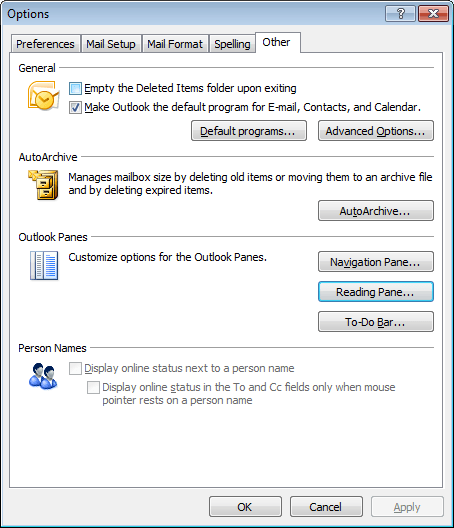
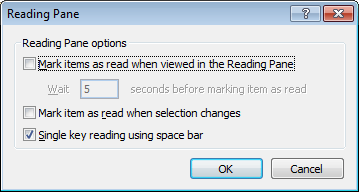
From my limited poking around, these points are as relevant to Outlook 2007 as they are to the version that I have at work, Outlook 2003. Going further back, it might have been the same with Outlook 2000 and Outlook XP too. While I have yet to what Outlook 2010, the settings should be in there too, though the Ribbon interface might have placed them somewhere different. It might be interesting to see if a big wide screen like what I now use at home would be as useful to the latest version as it is to its immediate predecessor.