TOPIC: PERSONAL INFORMATION MANAGERS
Managing Microsoft Outlook on Windows: Fonts, Zoom, Data Files and Deployment Controls
 12th March 2026
Outlook continues to evolve across Windows, with a mixture of everyday personalisation options for users and deployment controls for administrators. Recent guidance from Microsoft brings together practical steps for composing messages in a preferred typeface, approaches for reading messages more comfortably, and a set of administrative measures to manage when and how the new Outlook appears in an organisation. Alongside this are reminders about where Outlook stores data on different account types and how that affects moving between computers, as well as pointers for finding POP, IMAP and SMTP settings for Outlook.com when manual configuration is needed. What follows draws these threads together so that individual users and IT teams can navigate the changes with clarity.
Changing the Default Font for New Messages and Replies
For those composing email, Outlook starts with a familiar default: new messages use Calibri in black. This is only a starting point because the application allows the font, its colour, size and style to be changed, and it treats new messages separately from replies and forwards so that different choices can be set for each if desired.
In new Outlook for Windows, the path goes like this: View > View Settings > Email > Compose and Reply. Under Message Format, the preferred font, size and style can be chosen before saving, and these settings then apply whenever a message is written or a reply is sent. Note that in new Outlook the font setting applies to both new messages and replies and forwards from a single control, so a separate choice for each is not available in this version.
In classic Outlook for Windows, the approach is different and more granular. Navigating to File > Options > Mail reveals a Stationery and Fonts button. On the Personal Stationery tab, there are separate Font buttons for new mail messages and for replying or forwarding messages, which allows a distinct typeface, size and colour to be set for each scenario independently. This separation can be useful for distinguishing composed messages from replied ones at a glance. If similar changes are needed for the message list rather than the compose window, there is a separate set of options for changing the font or font size in the message list.
Adjusting the Zoom Level in the Reading Pane
Comfort when reading is equally important, particularly with longer emails. Both new and classic Outlook offer ways to adjust zoom in the Reading Pane without touching system-wide display settings, though the controls differ between the two versions. In new Outlook, selecting a message in the inbox opens it in the Reading Pane, after which the View tab's Zoom control can be used. Zooming in and out is done with plus and minus buttons, and there is a Reset option that returns the view to its default level. In classic Outlook, the same result can be achieved either by dragging the zoom bar at the bottom right of the window or by going to View and then Zoom, where a specific percentage between 50% and 200% can be chosen. Classic Outlook also offers a "Remember my preference" checkbox in the Zoom dialogue, which locks the chosen level so it persists across sessions without needing to be reset each time. In both versions, these adjustments affect only how messages appear on the screen and have no bearing on how they are composed or how recipients will see them.
Confirming Which Version of Outlook Is in Use
Not every copy of Outlook presents the same options at the same time. If steps that are described as applying to new Outlook do not appear, the device may still be running classic Outlook for Windows. That is not uncommon in environments where administrators are controlling the transition or where devices have not yet received the relevant updates, so checking the version in use is a sensible first step before assuming that something has gone wrong.
Hiding the New Outlook Toggle in Classic Outlook
For administrators, a recurring question is how to prevent users from switching to new Outlook until the organisation is ready. Microsoft provides a cloud policy in the Microsoft 365 Apps admin centre that hides the Try the new Outlook toggle in classic Outlook for Windows. After signing in to the admin centre, the policy can be created by going to Customisation, selecting Policy Management and enabling the policy named Hide the "Try the new Outlook" toggle in Outlook. There is also a registry-based method for controlling the same setting: the key is under HKEY_CURRENT_USERSoftwareMicrosoftOffice16.0OutlookOptionsGeneral and is named HideNewOutlookToggle, with a value of dword:00000000 to hide the toggle. To later enable the policy, the same value is set to 1. As with any registry change, this approach is best handled with care and in line with internal change management practices.
Removing the New Outlook App After Preinstallation on Windows 11
Preinstallation of the new Outlook on Windows 11 is another area where planning matters. On Windows 11 builds later than version 23H2, the app is preinstalled for all users, and there is currently no way to block that preinstallation. If devices should not surface the new Outlook, it can be removed after installation using the following Windows PowerShell command:
Remove-AppxProvisionedPackage -AllUsers -Online -PackageName (Get-AppxPackage Microsoft.OutlookForWindows).PackageFullNameAfter deprovisioning, Windows updates will not reinstall the app. Administrators can also remove an additional Windows orchestrator registry value at HKEY_LOCAL_MACHINESOFTWAREMicrosoftWindowsUpdateOrchestratorUScheduler_OobeOutlookUpdate where applicable. Devices that have installed the March 2024 Non-Security Preview release, or a later cumulative update for Windows 11 version 23H2, respect the deprovisioning command and do not require removal of that registry value.
Handling User-Installed Instances and Start Menu Placeholders
Users may also install the app themselves, for example by selecting a toggle. In that case, the management approach shifts from provisioned packages to installed packages, and the following PowerShell command removes the app for all users:
Remove-AppxPackage -AllUsers -Package (Get-AppxPackage Microsoft.OutlookForWindows).PackageFullNameIt is worth verifying whether the app is actually installed or whether only a Start menu placeholder is visible because a pinned icon may appear even when the underlying app is not yet present. A quick check of the folder at %localappdata%MicrosoftOlklogs can confirm whether the app has produced logs, and Start layout policies can be used to manage pins, so users are not inadvertently prompted to install by selecting a placeholder. On consumer devices, a Recommended section in the Windows 11 Start menu can also surface the app, which may need consideration in user communications.
Migrating Users Away from Windows Mail and Calendar
The end of support for Windows Mail and Calendar on the 31st of December 2024 introduced another migration pathway. Active users of those apps are being switched automatically to the new Outlook app, so organisations that wish to block that route can remove the Mail and Calendar apps from devices using the following command:
Get-AppxProvisionedPackage -Online | Where {$_.DisplayName -match "microsoft.windowscommunicationsapps"} | Remove-AppxProvisionedPackage -Online -PackageName {$_.PackageName}For current users, the installed package can be removed with Remove-AppxPackage -AllUsers -Package (Get-AppxPackage microsoft.windowscommunicationsapps).PackageFullName. Alternatives exist through Microsoft Intune or Configuration Manager, which may be preferable in environments that already use those tools for application lifecycle management.
Blocking Acquisition via the Microsoft Store
Preventing acquisition from the Microsoft Store is more straightforward. Because the new Outlook for Windows is available there as well, blocking access to the Microsoft Store app prevents users from downloading it through that channel. Microsoft provides configuration options for controlling Microsoft Store access, and administrators can align those with broader device management policies that may already limit consumer app installs on corporate devices.
Opting Out of Automatic Migration
Some organisations will want to opt out of new Outlook migration entirely for a period. Starting in January 2025, users with Microsoft 365 Business Standard and Premium licences are automatically migrated from classic Outlook to new Outlook, with in-app notifications sent before the switch and the option to toggle back afterwards. Microsoft exposes a policy named Manage user setting for new Outlook automatic migration that controls whether users are switched automatically. If the policy is not set, the user setting remains uncontrolled and users can manage it themselves, with the default being enabled. Enabling the policy enforces automatic migration and prevents users from changing the setting, while disabling it turns off automatic migration and also prevents user changes. The equivalent registry setting sits under HKEY_CURRENT_USERSoftwarePoliciesMicrosoftoffice16.0outlookpreferences with a DWORD named NewOutlookMigrationUserSetting set to 0 to disable or 1 to enable. The same controls can be managed via Group Policy Administrative Templates and through the Cloud Policy service from the Microsoft 365 Apps admin centre, and because the setting is defined in ADMX templates it can also be surfaced in Intune using Administrative Templates.
Applying Conditional Access and Mailbox Policies
Beyond installation state and migration timing, access policies are a decisive layer of control. Conditional Access policies can require multifactor authentication, restrict access by location, block risky sign-in behaviours or insist on organisation-managed devices. For additional nuance, Outlook on the web (OWA) mailbox policies used together with the ConditionalAccessPolicy parameter can limit capabilities for users on non-compliant devices, for instance by restricting attachments. This approach allows a more graduated user experience that reduces risk without completely blocking access, and it can be combined with broader Conditional Access baseline requirements.
There are cases where a firmer control is required. To prevent mailbox access from the new Outlook regardless of how users acquired the app, administrators can use an Exchange mailbox policy that blocks organisation mailboxes from being added. This acts as a final block so that work or school accounts cannot be used in the app, even if an individual user has installed it or found it preinstalled. Because mailbox policies are applied to the account rather than to a device or a specific app, it is prudent to consider them alongside the earlier measures that block acquisition or control installation, so that personal accounts are not used in ways that bypass organisational safeguards.
Understanding How Outlook Stores Data and What Moves to a New Computer
While deployment and access are important, day-to-day continuity often depends on understanding how Outlook stores data and how that affects moving to a new computer. Outlook saves backup information in a variety of different locations depending on the account type involved. For users of Microsoft 365, Exchange, Outlook.com, Hotmail.com or Live.com accounts not accessed by POP or IMAP, email is backed up on the server and there is no Personal Folders file with a .pst extension. An Offline Folders file with an .ost extension may be present, but Outlook automatically recreates this when a new email account is added, and it cannot be moved between computers. Other elements such as navigation pane settings, print styles, signatures and stationery can be transferred, and their locations vary with version and configuration.
Users of POP accounts encounter a different arrangement. All email, calendar, contact and task information is stored in a .pst file, and moving this file to a new computer preserves that information. It does not carry over the account settings themselves, so Outlook needs to be set up on the new computer before opening the .pst file that was copied from the old one. On Windows 11, navigation pane settings are found at drive:Users<username>AppDataRoamingMicrosoftOutlook and signatures at drive:Users<username>AppDataRoamingMicrosoftSignatures. Knowing these paths saves time during a migration and reduces the risk of overlooking important data.
Avoiding OneDrive Synchronisation Problems with PST Files
Large .pst files can slow down OneDrive synchronisation if they are stored in folders that OneDrive is backing up. Symptoms include messages such as "Processing changes" or "A file is in use" that persist for longer than expected. Microsoft provides guidance on removing an Outlook PST data file from OneDrive if that becomes necessary, and doing so can restore normal synchronisation behaviour while keeping Outlook functional on the local machine.
Showing Hidden Files and Extensions on Windows
Locating Outlook data sometimes means revealing folders and file name extensions that Windows hides by default. This is especially true when navigating to AppData or similar directories, or when differentiating between PST and OST files. On Windows 11 File Explorer, going to View > Show, where both "File name extensions" and "Hidden items" settings can be toggled to their on positions. Doing so makes the AppData folder and the distinction between these file types visible without needing to navigate through the Control Panel.
Configuring POP, IMAP and SMTP Settings for Outlook.com
Configuration of Outlook.com accounts brings its own questions when used in the Outlook desktop app or other mail applications. Outlook and Outlook.com can often detect the correct mailbox settings automatically, which simplifies setup for many users. When that is not the case, or when using a third-party app, the POP, IMAP and SMTP settings can be viewed within Outlook.com settings and used for manual configuration. For Outlook.com accounts, both the IMAP and POP server name is outlook.office365.com, with IMAP using port 993 and POP using port 995, both with SSL/TLS encryption and OAuth2 authentication. It is worth noting that POP and IMAP access is disabled by default in Outlook.com and must be enabled in account settings before either protocol can be used. For other non-Microsoft accounts, the safest course is to obtain settings directly from the relevant email provider rather than guessing values, since incorrect entries can lead to connection issues that are not always obvious at first glance.
Getting Support for Outlook.com
Support remains close at hand for Outlook.com users who need it. The Help option on the menu bar in Outlook.com opens self-help resources where queries can be entered and common issues surfaced. If those do not resolve the problem, there is a path to contact support, which requires signing in to the account so that assistance can be tailored. If signing in is not possible, Microsoft directs users to a separate route to begin recovery or get help, and the Outlook.com Community provides an additional place to search for answers or ask questions from other users.
Keeping Users and IT Teams Informed During Outlook's Transition
Together, these user-facing features and administrative controls reflect a period of transition for Outlook on Windows. Individuals can shape the way they write and read messages, adjusting fonts to suit their preferences and using zoom where needed, without altering system-wide settings. Administrators can pace the adoption of the new Outlook with policies that hide toggles, prevent or reverse preinstallation, opt out of automatic migration and apply Conditional Access or mailbox policies that enforce organisational requirements. Underneath these changes, the fundamentals of data storage and account setup remain steady, with server-backed accounts recreating their local caches on-demand and POP accounts relying on .pst files that can be moved with care. By keeping these points in mind, users and IT teams alike can make informed decisions that avoid surprises and maintain a smooth email experience.
Turning off push notifications in Firefox 46
7th May 2016
Firefox 44 introduced a feature I only recently noticed when Yahoo Mail offered browser notifications for new emails; I did not need this and could not switch it off permanently for that site. This meant I was bothered each time I checked that email address, an unnecessary irritation. Other websites offered similar push notifications but allowed permanent deactivation, making this a site-specific function unless you take an alternative approach.
Open a new browser tab and enter about:config in the address bar, then press return. If this is your first time, a warning message will appear, which you can dismiss permanently. This reveals a searchable list of options. Find dom.webnotifications.enabled and dom.webnotifications.serviceworker.enabled. By default, these values are set to 'true'. Double-click each one to change them to 'false'. This will prevent push notification offers from web services like Yahoo Mail, reducing intrusions during your browsing.
Changing Outlook usage habits
2nd August 2010
Given that I have been using it for so long, I shouldn't be discovering new things with Outlook. However, there is one thing that I have been doing for years: leaving messages set as unread until I have dealt with them. Now that I look at it, it seems a terrible habit compared with an alternative that I recently found.
Quite why I haven't been flagging messages for follow-up instead is beyond me. Is it because I worked with Outlook 2000 at my place of work for so long, and the arrival of Outlook 2007 into my life wasn't sufficient to force a change of habits? In fact, it has taken a downgrade to Outlook 2003 to make it dawn on me; it was the sight of search folder for messages marked for follow-up that triggered the realisation.
Speaking of old habits, there is one that I'll be dropping: setting up loads of rules, allegedly for organising messages. Given that they were the cause of my missing emails quite a few times, it's one more nuisance that needed to be left behind me.
A little thing with Outlook
24th July 2010
When you start working somewhere new like I have done, various software settings that you have had at your old place of work don't automatically come with you, leaving you to scratch your head as to how you had things working like that in the first place. That's how it was with the Outlook set up on my new work PC. It was setting messages as read the first time that I selected them, and I was left wondering to set things up as I wanted them.
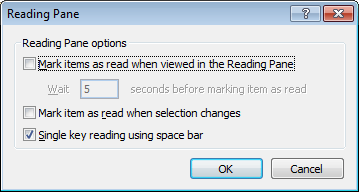
From the menus, it was a matter of going to Tools > Options and poking around the dialogue box that was summoned. What was then needed was to go to the Other Tab and Click on the Reading Pane Button. That action produced another dialogue box with a few check-boxes on there. My next step was to clear the one with this label: Mark item as read when selection changes. While there's another tick box that I left unchanged: Mark items as read when viewed in Reading Pane; that's inactive by default anyway.
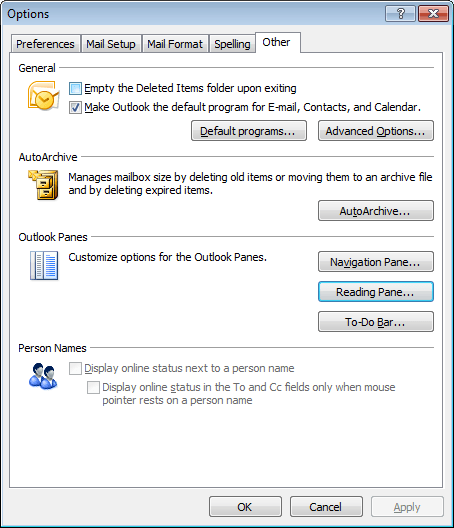
From my limited poking around, these points are as relevant to Outlook 2007 as they are to the version that I have at work, Outlook 2003. Going further back, it might have been the same with Outlook 2000 and Outlook XP too. While I have yet to what Outlook 2010, the settings should be in there too, though the Ribbon interface might have placed them somewhere different. It might be interesting to see if a big wide screen like what I now use at home would be as useful to the latest version as it is to its immediate predecessor.
Understanding Outlook's 32 KB rule limit: What happens when you upgrade from Outlook 2000 to Outlook 2007
12th January 2010
A move from Outlook 2000 to Outlook 2007 at work before Christmas resulted in deactivated Outlook rules and messages like the following when I tried reactivating them:
One or more rules could not be uploaded to Exchange server and have been deactivated. This could be because some of the parameters are not supported or there is insufficient space to store all your rules.
The cause is a 32 KB size limitation for all rules associated with your Exchange server account before Exchange 2007. With the latter, the default size increases to 64 KB and can be increased further to 256 KB by manual intervention. Though this wouldn't be a big issue if you had the option to store rules locally on your own PC, but that was removed after Outlook 2000, therefore explaining why I first encountered it when I did.
Microsoft has a useful article on their support website containing suggested remedies which aren't all as extreme as deleting some rules either. Consolidation and shortening of rule names are other suggestions, and you should never discount how much space the "run on this machine only" parameter takes up either. Still, Microsoft made an odd design decision that caused this issue, not that it is their first or even last such choice.
Moving Emails from Outlook to Evolution
3rd November 2007
It seems a little strange to my eyes, but Evolution cannot import Outlook PST files. On one level, I see a certain amount of sense: after all, Outlook is a Windows application and Evolution remains resolutely on the Linux side of the divide. Nevertheless, it is still a pesky nuisance.
The cure is, very oddly, to import data from Outlook into Mozilla Thunderbird and pop the Thunderbird files into the Evolution mail folder. Both Evolution and Thunderbird share the same file formats, so all is hunky-dory, since Evolution should just realise that they are there and bring them in.
That's what happened for me, and I have now migrated all of my old emails. Evolution's single file import wizard is there for those times when a spot of extra persuasion is needed; the data files are those without the file extensions. As it happened, I didn't need it.