TOPIC: MACOS
Silencing MLX warnings when running Ollama via Homebrew on macOS
 15th February 2026
While there is an Ollama app on macOS, I chose to install it using Homebrew instead. That worked well enough, even if I kept seeing a warning message like this on macOS Tahoe:
WARN MLX dynamic library not available error="failed to load MLX dynamic library (searched: [/opt/homebrew/Cellar/ollama/0.16.2/bin
For some reason, the MLX integration into ollama is not what it should be, even if it runs without any other issues as things stand. While the native app does not have this issue and warnings like these can be overlooked at the operating system level, my chosen solution was to specify this alias in the .zshrc file:
alias ollama='command ollama "$@" 2> >(grep -v "MLX dynamic library not available" >&2)'
On executing this command to reload the configuration file, the output from ollama to stderr was much cleaner:
source ~/.zshrc
However, the alias itself still needs some unpacking to explain what is happening. Let us proceed piece by piece, focussing on the less obvious parts of the text within the quotes in the alias definition.
command: Starting the whole aliased statement with this keyword stops everything becoming recursive and makes everything safer, even if I have got away with doing that with the ls command elsewhere. If I were to include aliases in functions, the situation could be different, producing an infinite loop in the process.
"$@": Without this, the arguments to the ollama command would not be passed into the alias.
2>: This is the overall redirection to stderr and >(grep -v "MLX dynamic library not available" >&2) where the text removal takes place.
grep -v: Within the filtering statement, this command prints everything that does not match the search string. In this case, that is "MLX dynamic library not available" .
>&2: Here is where the output is sent back to stderr for the messages that appear in the console.
In all of this, it is important to distinguish between stderr (standard error output) and stdout (standard output). For ollama, the latter is how you receive a response from the LLM, while the former is used for application feedback. This surprised me when I first learned of it, yet it is common behaviour in the world of Linux and UNIX, which includes macOS.
This matters here because suppressing stderr means that you get no idea of how an LLM download is proceeding because that goes to that destination, rather than stdout as I might have expected without knowing better as I do now. Hence, the optimal approach is to subset the stderr output instead.
Grouping directories first in output from ls commands executed in terminal sessions on macOS and Linux
12th February 2026
This enquiry began with my seeing directories and files being sorted by alphabetical order without regard for type in macOS Finder. In Windows and Linux file managers, I am accustomed to directories and files being listed in distinct blocks, albeit within the same listings, with the former preceding the latter. What I had missed was that the ls command and its aliases did what I was seeing in macOS Finder, which perhaps is why the operating system and its default apps work like that.
Over to Linux
On the zsh implementation that macOS uses, there is no way to order the output so that directories are listed before files. However, the situation is different on Linux because of the use of GNU tooling. Here, the --group-directories-first switch is available, and I have started to use this on my own Linux systems, web servers as well as workstations. This can be set up in .bashrc or .bash_aliases like the following:
alias ls='ls  --color=auto --group-directories-first'

alias ll='ls -lh  --color=auto --group-directories-first'
Above, the --color=auto switch adds colour to the output too. Issuing the following command makes the updates available in a terminal session (~ is the shorthand for the home directory below):
source ~/.bashrc
Back to macOS
While that works well on Linux, additional tweaks are needed to implement the same on macOS. Firstly, you have to install Homebrew using this command (you may be asked for your system password to let the process proceed):
/bin/bash -c "$(curl -fsSL https://raw.githubusercontent.com/Homebrew/install/HEAD/install.sh)"
To make it work, this should be added to the .zshrc file in your home folder:
export PATH="/opt/homebrew/opt/coreutils/libexec/gnubin:$PATH"
Then, you need to install coreutils for GNU commands like gls (a different name is used to distinguish it from what comes with macOS) and adding dircolors gives you coloured text output as well:
brew install coreutils

brew install dircolors
Once those were in place, I found that adding these lines to the .zshrc file was all that was needed (note those extra g's):
alias ls='gls  --color=auto --group-directories-first'

alias ll='gls -lh  --color=auto --group-directories-first'
If your experience differs, they may need to be preceded with this line in the same configuration file:
eval "$(dircolors -b)"
The final additions then look like this:
export PATH="/opt/homebrew/opt/coreutils/libexec/gnubin:$PATH"

eval "$(dircolors -b)"

alias ls='gls  --color=auto --group-directories-first'

alias ll='gls -lh  --color=auto --group-directories-first'
Following those, issuing this command will make the settings available in your terminal session:
source ~/.zshrc
Closing Remarks
In summary, you have learned how to list directories before files, and not intermingled as is the default situation. For me, this discovery was educational and adds some extra user-friendliness that was not there before the tweaks. While we may be considering two operating systems and two different shells (bash and zsh), there is enough crossover to make terminal directory and file listing operations function consistently regardless of where you are working.
Adding a dropdown calendar to the macOS desktop with Itsycal
26th January 2026
In Linux Mint, there is a dropdown calendar that can be used for some advance planning. On Windows, there is a pop-up one on the taskbar that is as useful. Neither of these possibilities is there on a default macOS desktop, and I missed the functionality. Thus, a search began.
That ended with my finding Itsycal, which does exactly what I need. Handily, it also integrates with the macOS Calendar app, though I use other places for my appointments. In some ways, that is more than I need. The dropdown pane with the ability to go back and forth through time suffices for me.
While it would be ideal if I could go year by year as well as month by month, which is the case on Linux Mint, I can manage with just the latter. Anything is better than having nothing at all. Sometimes, using more than one operating system broadens a mind.
Finding a better way to uninstall Mac applications
14th January 2026
If you were to consult an AI about uninstalling software under macOS, you would be given a list of commands to run in the Terminal. That feels far less slick than either Linux or Windows. Thus, I set to looking for a cleaner solution. It came in the form of AppCleaner from FreeMacSoft.
This finds the files to remove once you have supplied the name of the app that you wish to uninstall. Once you have reviewed those, you can set it to remove them to the recycling bin, after which they can be expunged from there. Handily, this automates the manual graft that otherwise would be needed.
It amazes me that such an operation is not handled within macOS itself, instead of leaving it to the software providers themselves, or third-party tools like this one. Otherwise, a Mac could get very messy, though Homebrew offers ways of managing software installations for certain cases. Surprisingly, the situation is more free-form than on iOS, too.
Keyboard remapping on macOS with Karabiner-Elements for cross-platform work
20th November 2025
This is something that I have been planing to share for a while; working across macOS, Linux and Windows poses a challenge to muscle memory when it comes to keyboard shortcuts. Since the macOS set up varies from the others, it was that which I set to harmonise with the others. Though the result is not full compatibility, it is close enough for my needs.
The need led me to install Karabiner-Elements and Karabiner-EventViewer. The latter has its uses for identifying which key is which on a keyboard, which happens to be essential when you are not using a Mac keyboard. While it is not needed all the time, the tool is a godsend when doing key mappings.
Karabiner-Elements is what holds the key mappings and needs to run all the time for them to be activated. Some are simple and others are complex; it helps the website is laden with examples of the latter. Maybe that is how an LLM can advise on how to set up things, too. Before we come to the ones that I use, here are the simple mappings that are active on my Mac Mini:
left_command → left_control
left_comtrol → left_command
This swaps the left-hand Command and Control keys while leaving their right-hand ones alone. It means that the original functionality is left for some cases when changing it for the keys that I use the most. However, I now find that I need to use the Command key in the Terminal instead of the Control counterpart that I used before the change, a counterintuitive situation that I overlook given how often the swap is needed in other places like remote Linux and Windows sessions.
grave_accent_and_tilde → non_us_backslash
non_us_backslash → non_us_pound
non_us_pound → grave_accent_and_tilde
It took a while to get this three-way switch figured out, and it is a bit fiddly too. All the effort was in the name of getting backslash and hash (pound in the US) keys the right way around for me, especially in those remote desktop sessions. What made the thing really tricky was the need to deal with Shift key behaviour, which necessitated the following script:
{
    "description": "Map grave/tilde key to # and ~ (forced behaviour, detects Shift)",
    "manipulators": [
        {
            "conditions": [
                {
                    "name": "shift_held",
                    "type": "variable_if",
                    "value": 1
                }
            ],
            "from": {
                "key_code": "grave_accent_and_tilde",
                "modifiers": { "optional": ["any"] }
            },
            "to": [{ "shell_command": "osascript -e 'tell application \"System Events\" to keystroke \"~\"'" }],
            "type": "basic"
        },
        {
            "conditions": [
                {
                    "name": "shift_held",
                    "type": "variable_unless",
                    "value": 1
                }
            ],
            "from": {
                "key_code": "grave_accent_and_tilde",
                "modifiers": { "optional": ["any"] }
            },
            "to": [
                {
                    "key_code": "3",
                    "modifiers": ["option"]
                }
            ],
            "type": "basic"
        },
        {
            "from": { "key_code": "left_shift" },
            "to": [
                {
                    "set_variable": {
                        "name": "shift_held",
                        "value": 1
                    }
                },
                { "key_code": "left_shift" }
            ],
            "to_after_key_up": [
                {
                    "set_variable": {
                        "name": "shift_held",
                        "value": 0
                    }
                }
            ],
            "type": "basic"
        },
        {
            "from": { "key_code": "right_shift" },
            "to": [
                {
                    "set_variable": {
                        "name": "shift_held",
                        "value": 1
                    }
                },
                { "key_code": "right_shift" }
            ],
            "to_after_key_up": [
                {
                    "set_variable": {
                        "name": "shift_held",
                        "value": 0
                    }
                }
            ],
            "type": "basic"
        }
    ]
}
Here, I resorted to AI to help get this put in place. Even then, there was a deal of toing and froing before the setup worked well. After that, it was time to get the quote (") and at (@) symbols assigned to what I was used to having on a British English keyboard:
{
    "description": "Swap @ and \" keys (Shift+2 and Shift+quote)",
    "manipulators": [
        {
            "from": {
                "key_code": "2",
                "modifiers": {
                    "mandatory": ["shift"],
                    "optional": ["any"]
                }
            },
            "to": [
                {
                    "key_code": "quote",
                    "modifiers": ["shift"]
                }
            ],
            "type": "basic"
        },
        {
            "from": {
                "key_code": "quote",
                "modifiers": {
                    "mandatory": ["shift"],
                    "optional": ["any"]
                }
            },
            "to": [
                {
                    "key_code": "2",
                    "modifiers": ["shift"]
                }
            ],
            "type": "basic"
        }
    ]
}
The above possibly was one of the first changes that I made, and took less time than some of the others that came after it. There was another at the end that was even simpler again: neutralising the Caps Lock key. That came up while I was perusing the Karabiner-Elements website, so here it is:
{
    "manipulators": [
        {
            "description": "Change caps_lock to command+control+option+shift.",
            "from": {
                "key_code": "caps_lock",
                "modifiers": { "optional": ["any"] }
            },
            "to": [
                {
                    "key_code": "left_shift",
                    "modifiers": ["left_command", "left_control", "left_option"]
                }
            ],
            "type": "basic"
        }
    ]
}
That was the simplest of the lot to deploy, being a simple copy and paste effort. It also halted mishaps when butter-fingered actions on the keyboard activated capitals when I did not need them. While there are occasions when the facility would have its uses, it has not noticed its absence since putting this in place.
At the end of all the tinkering, I now have a set-up that works well for me. While possible enhancements may include changing the cursor positioning and corresponding highlighting behaviours, I am happy to leave these aside for now. Compatibly with British and Irish keyboards together with smoother working in remote sessions was what I sought, and I largely have that. Thus, I have no complaints so far.
Building an email summariser for Apple Mail using both OpenAI and Shortcuts
3rd November 2025
One thing that I am finding useful in Outlook is the ability to summarise emails using Copilot, especially for those that I do not need to read in full. While Apple Mail does have something similar, I find it to be very terse in comparison. Thus, I started to wonder about just that by using the OpenAI API and the Apple Shortcuts app. All that follows applies to macOS Sequoia, though the Tahoe version is with us too.
Prerequisite
While you can have the required OpenAI API key declared within the Shortcut, that is a poor practice from a security point of view. Thus, you will need this to be stored in the macOS keychain, which can be accomplished within a Terminal session and issuing a command like the following:
security add-generic-password -a openai -s openai_api_key -w [API Key]
In the command above, you need to add the actual API key before executing it to ensure that it is available to the steps that follow. To check that all is in order, issue the following command to see the API key again:
security find-generic-password -a openai -s openai_api_key -w
This process also allows you to rotate credentials without editing the workflow, allowing for a change of API keys should that ever be needed.
Building the Shortcut
With the API safely stored, we can move onto the actual steps involved in setting up the Email Summarisation Shortcut that we need.
Step 1: Collect Selected Email Messages
First, open the Shortcuts app and create a new Shortcut. Then, add a Run AppleScript action and that contains the following code:
tell application "Mail"
    set selectedMessages to selection
    set collectedText to ""
    repeat with msg in selectedMessages
        set msgSubject to subject of msg
        set msgBody to content of msg
        set collectedText to collectedText & "Subject: " & msgSubject & return & msgBody & return & return
    end repeat
end tell
return collectedText
This script loops through the selected Mail messages and combines their subjects and bodies into a single text block.
Step 2: Retrieve the API Key
Next, add a Run Shell Script action and paste this command:
security find-generic-password -a openai -s openai_api_key -w | tr -d 'n'This reads the API key from the keychain and strips any trailing newline characters that could break the authentication header, the first of several gotchas that took me a while to sort.
Step 3: Send the Request to GPT-5
The, add a Get Contents of URL action and configure it as follows:
URL: https://api.openai.com/v1/chat/completions
Method: POST
Headers:
- Authorization:
Bearer [Shell Script result] - Content-Type:
application/json
Request Body (JSON):
{
  "model": "gpt-5",
  "temperature": 1,
  "messages": [
    {
      "role": "system",
      "content": "Summarise the following email(s) clearly and concisely."
    },
    {
      "role": "user",
      "content": "[AppleScript result]"
    }
  ]
}
When this step is executed, it replaces [Shell Script result] with the output from Step 2, and [AppleScript result] with the output from Step 1. Here, GPT-5 only accepts a temperature value of 1 (a lower value would limit the variability in the output if it could be used), unlike other OpenAI models and what you may see documented elsewhere.
Step 4: Extract the Summary from the Response
The API returns a JSON response that you need to parse, an operation that differs according to the API; Anthropic Claude has a different structure, for example. To accomplish this for OpenAI's gateway, add these actions in sequence to replicate what is achieved using in Python by loading completion.choices[0].message.content:
- Get Dictionary from Input (converts the response to a dictionary)
- Get Dictionary Value for key "choices"
- Get Item from List (select item 1)
- Get Dictionary Value for key "message"
- Get Dictionary Value for key "content"
One all is done (and it took me a while to get that to happen because of the dictionary → list → dictionary → dictionary flow; figuring out that not everything in the nesting was a dictionary took some time), click the information button on this final action and rename it to Summary Text. This makes it easier to reference in later steps.
Step 5: Display the Summary
Add a Show action and select the Summary Text variable. This shows the generated summary in a window with Close and Share buttons. The latter allows you to send to output to applications like Notes or OneNote, but not to Pages or Word. In macOS Sequoia, the list is rather locked down, which means that you cannot extend it beyond the available options. In use or during setup testing, beware of losing the open summary window behind others if you move to another app because it is tricky to get back to without using the CTRL + UP keyboard shortcut to display all open windows at once.
Step 6: Copy to Clipboard
Given the aforementioned restrictions, there is a lot to be said for adding a Copy to Clipboard action with the Summary Text variable as input. This allows you to paste the summary immediately into other apps beyond those available using the Share facility.
Step 7: Return Focus to Mail
After all these, add another Run AppleScript action with this single line:
tell application "Mail" to activateThis brings the Mail app back to the front, which is particularly useful when you trigger the Shortcut via a keyboard shortcut or if you move to another app window.
Step 8: Make the New Shortcut Available for Use
Lastly, click the information button at the top of your Shortcut screen. One useful option that can be activated is the Pin in Menu Bar one, which adds a menu to the top bar with an entry for the new Email Summary Shortcut in there. Ticking the box for the Use as Quick Action option allows you to set a keyboard shortcut. Until, the menu bar option appealed to me, that did have its uses. You just have to ensure that what you select does not override any combination that is in use already. Handily, I also found icons for my Shortcuts in Launchpad as well, which means that they also could be added to the Dock, something that I also briefly did.
Using the Shortcut
After expending the effort needed to set it up, using the new email summariser is straightforward. In Apple Mail, select one or more messages that you want to summarise; there is no need to select and copy the contained textual content because the Shortcut does that for you. Using the previously assigned keyboard combination, menu or Launchpad icon then triggers the summarisation processing. Thus, a window appears moments later displaying the generated summary while the same text is copied to your clipboard, ready to paste anywhere you need it to go. When you dismiss the pop-up window, the Mail app then automatically comes back into focus again.
Safari on Windows?
12th June 2007
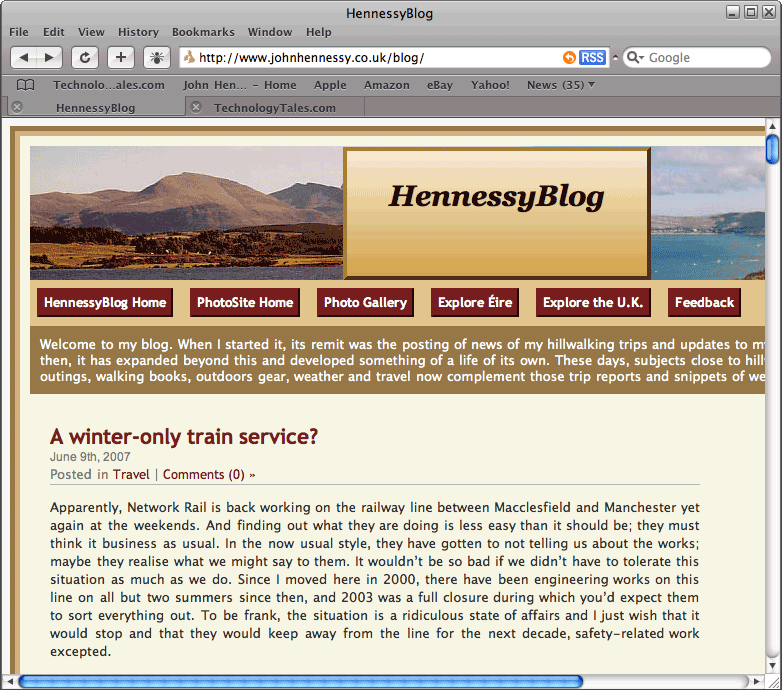 Steve Jobs recently surprised an audience at Apple's Worldwide Developer's Conference with the announcement that the Safari web browser is being made available for Windows. While everyone else is awaiting Apple's forthcoming iPhone, the Safari announcement is a more important one to me; not being big on phones, I will let the iPhone excitement pass me by. Without either buying a Mac or running OS X in a virtual machine, there was no other way for me to test my web pages in Safari bar looking for a rendering site on the web. Now, that has all changed, and I have downloaded the beta to have a look; it should iron out any rough edges that Mac users have been seeing.
Update: Safari seems to have got a mixed reaction from Windows users; some have tried it with Vista and cited issues. Another gripe has been its memory footprint, but I have seen Firefox take up 100 MB.