TOPIC: COMMAND KEY
Resolving a Linux Mint and Windows keyboard shortcut conflict encountered when using SAS Enterprise Guide in a remote Citrix session
 20th February 2026
Here is a gotcha, slight though it is, that caught me when working in SAS Enterprise Guide on a Windows system to which I was connecting from Linux via Citrix. What I wanted to do was use the keyboard shortcut CTRL + SHIFT + U to convert text to upper case in the program editor, only for it to produce a black square and nothing else.
What I was encountering was a clash in keyboard shortcut assignments. On Linux Mint, CTRL + SHIFT + U activates Unicode character input mode. The black square was there for me to enter a hexadecimal code to add a character that my keyboard would not facilitate in normal circumstances. While the facility clearly has its uses, it was getting in my way and a solution had to be found.
Taking the simple route, I changed the keyboard shortcut to avoid the clash. Though others may want to go further than this, that was enough for me. At the command line, I issued the following command so that I could accomplish this:
ibus-setup
In the application screen that appeared, I navigated to the Emoji tab. To the right of the Unicode code point box, I clicked on the button with four dots. That led me to another dialogue box where I could change the modifier keys. Thus, I unchecked the box for SHIFT and ticked the one for SUPER (the Windows key on many keyboards these days) instead, before clicking on the OK button to confirm the setting. With that completed, I closed the IBus Preferences screen.
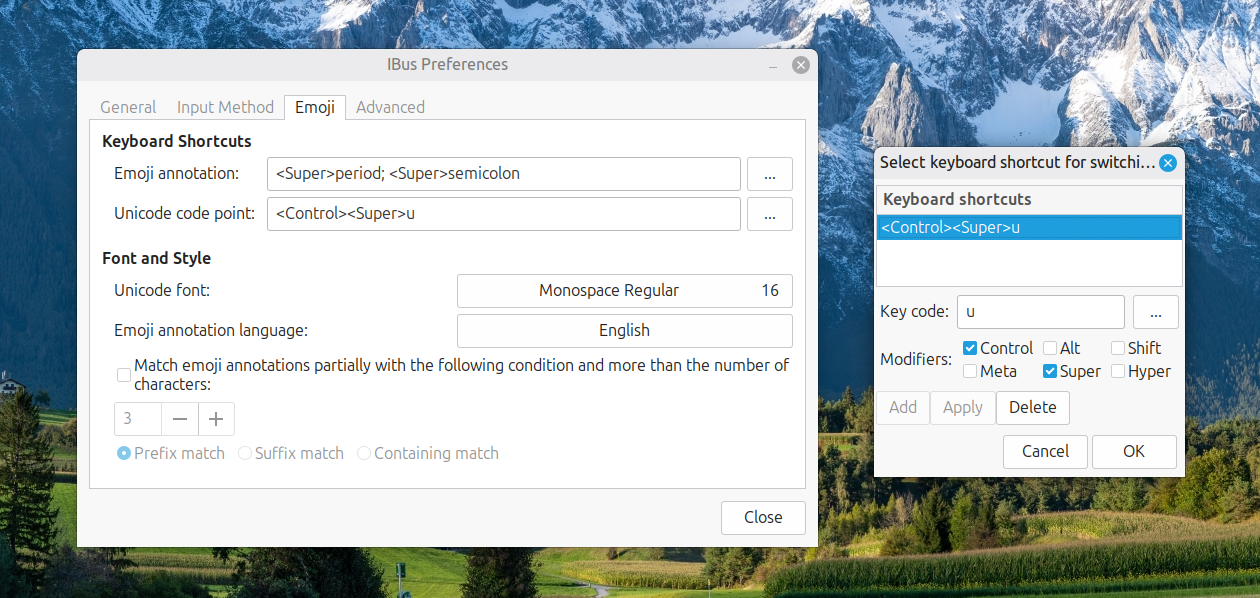
Now, I had CTRL + SUPER + U instead of CTRL + SHIFT + U. This meant that the CTRL + SHIFT + U in Enterprise Guide worked exactly as I expected it to do. A baffling situation had been resolved to leave me working without intrusion.
Locking your computer screen faster using keyboard shortcuts
11th January 2026
When you are doing paid work on a computer, locking one's screen is a healthy practice for ensuring privacy and confidentiality while you are away from your desk for a short while. For years, I have been doing this on Windows using the WIN (Windows key) + L keyboard combination. It is possible on a Mac too, albeit using a different set of keys: CTRL (Control) + CMD (Command) + Q. While the Lock Screen item on the Apple menu will accomplish the same result, a simple keyboard shortcut works much, much faster. On Linux, things are a lot more varied with different desktop environments working in their own way, even making terminal commands a way to go if you can use a heavily abbreviated alias.
Keyboard remapping on macOS with Karabiner-Elements for cross-platform work
20th November 2025
This is something that I have been planing to share for a while; working across macOS, Linux and Windows poses a challenge to muscle memory when it comes to keyboard shortcuts. Since the macOS set up varies from the others, it was that which I set to harmonise with the others. Though the result is not full compatibility, it is close enough for my needs.
The need led me to install Karabiner-Elements and Karabiner-EventViewer. The latter has its uses for identifying which key is which on a keyboard, which happens to be essential when you are not using a Mac keyboard. While it is not needed all the time, the tool is a godsend when doing key mappings.
Karabiner-Elements is what holds the key mappings and needs to run all the time for them to be activated. Some are simple and others are complex; it helps the website is laden with examples of the latter. Maybe that is how an LLM can advise on how to set up things, too. Before we come to the ones that I use, here are the simple mappings that are active on my Mac Mini:
left_command → left_control
left_comtrol → left_command
This swaps the left-hand Command and Control keys while leaving their right-hand ones alone. It means that the original functionality is left for some cases when changing it for the keys that I use the most. However, I now find that I need to use the Command key in the Terminal instead of the Control counterpart that I used before the change, a counterintuitive situation that I overlook given how often the swap is needed in other places like remote Linux and Windows sessions.
grave_accent_and_tilde → non_us_backslash
non_us_backslash → non_us_pound
non_us_pound → grave_accent_and_tilde
It took a while to get this three-way switch figured out, and it is a bit fiddly too. All the effort was in the name of getting backslash and hash (pound in the US) keys the right way around for me, especially in those remote desktop sessions. What made the thing really tricky was the need to deal with Shift key behaviour, which necessitated the following script:
{
    "description": "Map grave/tilde key to # and ~ (forced behaviour, detects Shift)",
    "manipulators": [
        {
            "conditions": [
                {
                    "name": "shift_held",
                    "type": "variable_if",
                    "value": 1
                }
            ],
            "from": {
                "key_code": "grave_accent_and_tilde",
                "modifiers": { "optional": ["any"] }
            },
            "to": [{ "shell_command": "osascript -e 'tell application \"System Events\" to keystroke \"~\"'" }],
            "type": "basic"
        },
        {
            "conditions": [
                {
                    "name": "shift_held",
                    "type": "variable_unless",
                    "value": 1
                }
            ],
            "from": {
                "key_code": "grave_accent_and_tilde",
                "modifiers": { "optional": ["any"] }
            },
            "to": [
                {
                    "key_code": "3",
                    "modifiers": ["option"]
                }
            ],
            "type": "basic"
        },
        {
            "from": { "key_code": "left_shift" },
            "to": [
                {
                    "set_variable": {
                        "name": "shift_held",
                        "value": 1
                    }
                },
                { "key_code": "left_shift" }
            ],
            "to_after_key_up": [
                {
                    "set_variable": {
                        "name": "shift_held",
                        "value": 0
                    }
                }
            ],
            "type": "basic"
        },
        {
            "from": { "key_code": "right_shift" },
            "to": [
                {
                    "set_variable": {
                        "name": "shift_held",
                        "value": 1
                    }
                },
                { "key_code": "right_shift" }
            ],
            "to_after_key_up": [
                {
                    "set_variable": {
                        "name": "shift_held",
                        "value": 0
                    }
                }
            ],
            "type": "basic"
        }
    ]
}
Here, I resorted to AI to help get this put in place. Even then, there was a deal of toing and froing before the setup worked well. After that, it was time to get the quote (") and at (@) symbols assigned to what I was used to having on a British English keyboard:
{
    "description": "Swap @ and \" keys (Shift+2 and Shift+quote)",
    "manipulators": [
        {
            "from": {
                "key_code": "2",
                "modifiers": {
                    "mandatory": ["shift"],
                    "optional": ["any"]
                }
            },
            "to": [
                {
                    "key_code": "quote",
                    "modifiers": ["shift"]
                }
            ],
            "type": "basic"
        },
        {
            "from": {
                "key_code": "quote",
                "modifiers": {
                    "mandatory": ["shift"],
                    "optional": ["any"]
                }
            },
            "to": [
                {
                    "key_code": "2",
                    "modifiers": ["shift"]
                }
            ],
            "type": "basic"
        }
    ]
}
The above possibly was one of the first changes that I made, and took less time than some of the others that came after it. There was another at the end that was even simpler again: neutralising the Caps Lock key. That came up while I was perusing the Karabiner-Elements website, so here it is:
{
    "manipulators": [
        {
            "description": "Change caps_lock to command+control+option+shift.",
            "from": {
                "key_code": "caps_lock",
                "modifiers": { "optional": ["any"] }
            },
            "to": [
                {
                    "key_code": "left_shift",
                    "modifiers": ["left_command", "left_control", "left_option"]
                }
            ],
            "type": "basic"
        }
    ]
}
That was the simplest of the lot to deploy, being a simple copy and paste effort. It also halted mishaps when butter-fingered actions on the keyboard activated capitals when I did not need them. While there are occasions when the facility would have its uses, it has not noticed its absence since putting this in place.
At the end of all the tinkering, I now have a set-up that works well for me. While possible enhancements may include changing the cursor positioning and corresponding highlighting behaviours, I am happy to leave these aside for now. Compatibly with British and Irish keyboards together with smoother working in remote sessions was what I sought, and I largely have that. Thus, I have no complaints so far.