Lessons learned on managing Windows Taskbar and Start Menu colouring in VirtualBox virtual machines
 9th December 2019
In the last few weeks, I have had a few occasions when the colouration of the Windows 10 taskbar and its Star Menu has departed from my expectations. At times, this happened in VirtualBox virtual machine installations and both the legacy 5.2.x versions and the current 6.x ones have thrown up issues.
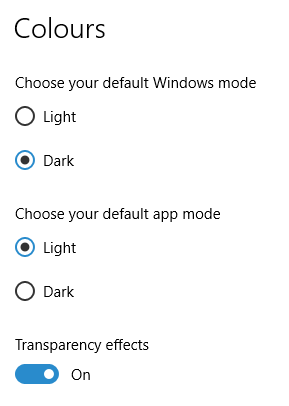
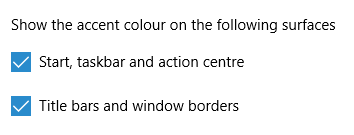
The first one actually happened with a Windows 10 installation in VirtualBox 5.2.x when the taskbar changed colour to light grey and there was no way to get it to pick up the colour of the desktop image to become blue instead. The solution was to change the Windows from Light to Dark in order for the desired colouration to be applied, and the settings above are taken from the screen that appears on going to Settings > Personalisation > Colours.
The second issue appeared in Windows 10 Professional installation in VirtualBox 6.0.x when the taskbar and Start Menu turned transparent after an updated. This virtual machine is used to see what is coming in the slow ring of Windows Insider, so some rough edges could be expected. The solution here was to turn off 3D acceleration in the Display pane of the VM settings after shutting it down. Starting it again showed that all was back as expected.
Both resolutions took a share of time to find and there was a deal of experimentation needed too. Once identified, they addressed the issues as desired. Hence, I am recording them here for use by others as much as future reference for myself.
Shrinking title bar search box in Microsoft Office 365 applications
6th December 2019

It might be a new development, but I only recently spotted the presence of a search box in the titles of both Microsoft Word and Microsoft Excel that I have as part of an Office 365 subscription. Though handy for searching file contents and checking on spelling and grammar, I also realised that the boxes take up quite a bit of space and decided to see if hiding them was possible.

In the event, I found that they could be shrunk from a box to an icon that expanded to pop up a box when you clicked on them. Since I did not need the box to be on view all the time, that outcome was sufficient for my designs, though it may not satisfy others who want to hide this functionality completely.
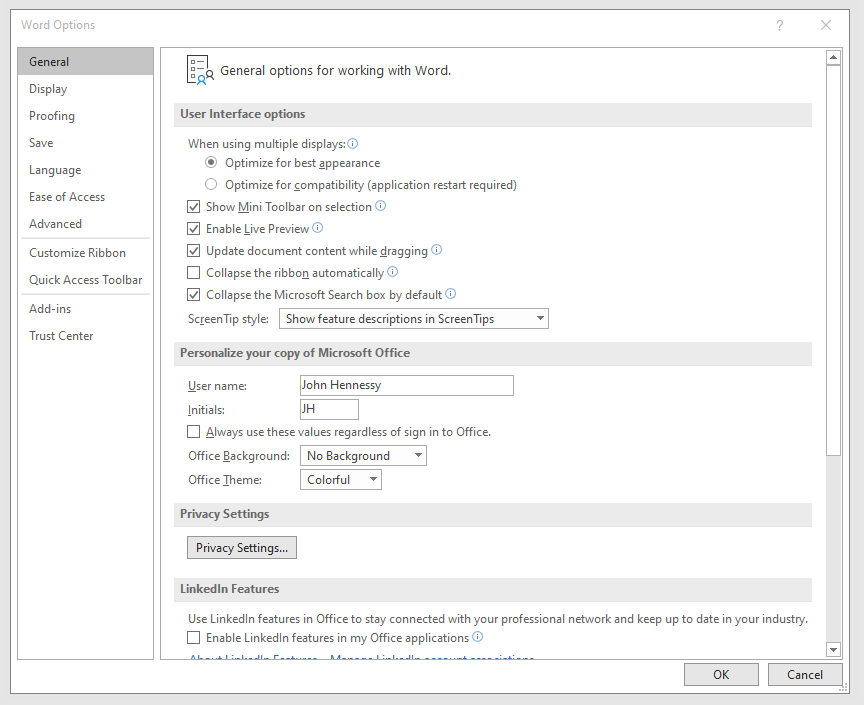
To get it, it was a matter of going to File > Options and putting a tick in the box next to the Collapse the Microsoft Search box by default entry in the General tab before clicking on the OK button. Doing that freed up some title bar space as desired, and searching is only a button press away.
Ensuring that Flatpak remains up to date on Linux Mint 19.2
25th October 2019
The Flatpak concept offers a useful way of getting the latest version of software like LibreOffice or GIMP on Linux machines because repositories are managed conservatively when it comes to the versions of included software. Ubuntu has Snaps, which are similar in concept. Both options bundle dependencies with the packaged software so that its operation can use later versions of system libraries than what may be available with a particular distribution.
However, even Flatpak depends on what is available through the repositories for a distribution, as I found when a software update needed a version of the tool. The solution was to add PPA using the following command and agreeing to the prompts that arise (answering Y, in other words):
sudo add-apt-repository ppa:alexlarsson/flatpak
With the new PPA instated, the usual apt commands were used to update the Flatpak package and continue with the required updates. Since then, all has gone smoothly as expected.
Shared folders not automounting on an Ubuntu 18.04 guest in a VirtualBox virtual machine
1st October 2019
Over the weekend, I finally got to resolve a problem that has affected Ubuntu 18.04 virtual machine for quite a while. The usual checks on Guest Additions installation and vboxsf group access assignment were performed but were not causing the issue. Also, no other VM (Windows (7 & 10) and Linux Mint Debian Edition) on the same Linux Mint 19.2 machine was experiencing the same issue. The latter observation made the problem intrinsic to the Ubuntu VM itself.
Because I install the Guest Additions software from the included virtual CD, I executed the following command to open the relevant file for editing:
sudo systemctl edit --full vboxadd-service
If I had installed virtualbox-guest-dkms and virtualbox-guest-utils from the Ubuntu repositories instead, then this would have been the command that I needed to execute instead of the above.
sudo systemctl edit --full virtualbox-guest-utils
Whichever configuration gets opened, the line that needs attention is the one beginning with "Conflicts" (line 6 in the file on my system). The required edit removes systemd-timesync.service from the list following the equals sign. It is worth checking that file paths include the correct version number for the Guest Additions software that is installed, in case this is not how things are. The only change that was needed on my Ubuntu VM was to the Conflicts line, and rebooting it got the Shared Folder automatically mounted under the /media directory as expected.
Performing parallel processing in Perl scripting with the Parallel::ForkManager module
30th September 2019
In a previous post, I described how to add Perl modules in Linux Mint, while mentioning that I hoped to add another that discusses the use of the Parallel::ForkManager module. This is that second post, and I am going to keep things as simple and generic as they can be. There are other articles like one on the Perl Maven website that go into more detail.
The first thing to do is ensure that the Parallel::ForkManager module is called by your script; having the line of code presented below near the top of the file will do just that. Without this step, the script will not be able to find the required module by itself and errors will be generated.
use Parallel::ForkManager;
Then, the maximum number of threads needs to be specified. While that can be achieved using a simple variable declaration, the following line reads this from the command used to invoke the script. It even tells a forgetful user what they need to do in its own terse manner. Here $0 is the name of the script and N is the number of threads. Not all these threads will get used and processing capacity will limit how many actually are in use, which means that there is less chance of overwhelming a CPU.
my $forks = shift or die "Usage: $0 N\n";
Once the maximum number of available threads is known, the next step is to instantiate the Parallel::ForkManager object as follows to use these child processes:
my $pm = Parallel::ForkManager->new($forks);
With the Parallel::ForkManager object available, it is now possible to use it as part of a loop. A foreach loop works well, though only a single array can be used, with hashes being needed when other collections need interrogation. Two extra statements are needed, with one to start a child process and another to end it.
foreach $t (@array) {

my $pid = $pm->start and next;

<< Other code to be processed >>

$pm->finish;

}
Since there is often other processing performed by script, and it is possible to have multiple threaded loops in one, there needs to be a way of getting the parent process to wait until all the child processes have completed before moving from one step to another in the main script and that is what the following statement does. In short, it adds more control.
$pm->wait_all_children;
To close, there needs to be a comment on the advantages of parallel processing. Modern multicore processors often get used in single threaded operations, which leaves most of the capacity unused. Utilising this extra power then shortens processing times markedly. To give you an idea of what can be achieved, I had a single script taking around 2.5 minutes to complete in single threaded mode, while setting the maximum number of threads to 24 reduced this to just over half a minute while taking up 80% of the processing capacity. This was with an AMD Ryzen 7 2700X CPU with eight cores and a maximum of 16 processor threads. Surprisingly, using 16 as the maximum thread number only used half the processor capacity, so it seems to be a matter of performing one's own measurements when making these decisions.
Installing Perl modules using CPAN on Linux Mint 19.2
28th September 2019
My online travel photo gallery is a self-coded set of PHP scripts that read data from tables in a MySQL database. These tables are built from input XML files using a Perl script that itself creates and executes an SQL script. The Perl script also does some image processing using GraphicsMagick commands to resize images and to add copyright information and image framing. Because this processed one image at a time sequentially, it was taking several minutes to complete and only partly used the capacity of the PC that I used.
This led me to look at adding parallel processing, which is what brought me to looking at the Parallel::ForkManager Perl module. An alternative approach might have been to add new images in such a way as not to need the full run involving hundreds of image files, but that will take more work and I fancied having a look at parallelising things anyway.
If it was not there already, the first act would have been to install build-essential to get access to the cpan command. The following command accomplishes this:
sudo apt-get install build-essential
Once that is there, the cpan command needs to be run and some questions answered to get things going. The first question to answer is whether you want setup to be as automated as possible, and the default answer of yes worked for me. The next question to answer regards the approach that cpan takes when installing modules: I chose sudo here (local::lib is the default value and manual is another option). After this, cpan drops into its own command shell. Here, I issued two more commands to continue the basic setup by updating CPAN.pm to the latest version and adding Bundle::CPAN to optimise the module further:
make install

install Bundle::CPAN
Continuing the last of these may need extra intervention to confirmation the suggested default of exit at one point in its operation, which takes a little time to complete. It is after this that Parallel::ForkManager can be installed using the following command:
install Parallel::ForkManager
That completed quickly and the cpan shell was exited using its exit command. Then, the new module was available in scripting after that. The actual use of this module is something that hope to describe in another post, so I am ending this one here, and the same process is just as applicable to setting up cpan and adding any other Perl CPAN module.
Creating a data-driven informat in SAS
27th September 2019
Recently, I needed to create some example data with an extra numeric identifier variable that would be assigned according to the value of a character identifier variable. Not wanting to add another dataset merge or join to the code, I decided to create an informat from data. Initially, I looked into creating a format instead, but it did not accomplish what I wanted to do.
data patient;
    keep fmtname start end label type;
    set test.dm;
    by subject;
    fmtname="PATIENT";
    start=subject;
    end=start;
    label=patient;
    type="I";
run;
The input data needed a little processing as shown above. The format name was defined in the variable FMTNAME and the TYPE variable was assigned a value of I to make this a numeric informat; to make character equivalent, a value of J was assigned. The START and END variables declare the value range associated with the value of the LABEL variable that would become the actual value of the numeric identifier variable. The variable names are fixed because the next step will not work with different ones.
proc format lib=work cntlin=patient;

run;

quit;
To create the actual informat, the dataset is read by the FORMAT procedure with the CNTLIN parameter specifying the name of the input dataset and LIB defining the library where the format catalogue is stored. When this in complete, the informat is available for use with an input function as shown in the code excerpt below.
data ae1;
    set ae;
    patient=input(subject,patient.);
run;
Compressing an entire dataset library using SAS
26th September 2019
Turning dataset compression for SAS datasets can produce quite a reduction in size, so it is often standard practice to do just this. It can be set globally with a single command, and many working systems do this for you:
options compress=yes;
It also can be done on a dataset by dataset option by adding (compress=yes) beside the dataset name on the data line of a data step. The size reduction can be gained retrospectively too, but only if you create additional copies of the datasets. The following code uses the DATASETS procedure to accomplish this end at the time of copying the datasets from one library to another:
proc datasets lib=adam nolist;
    copy inlib=adam outlib=adamc noclone datecopy memtype=data;
run;
quit;
The NOCLONE option on the COPY statement allows the compression status to be changed, while the DATECOPY one keeps the same date/time stamp on the new file at the operating system level. Lastly, the MEMTYPE=DATA setting ensures that only datasets are processed, while the NOLIST option on the PROC DATASETS line suppresses listing of dataset information.
It may be possible to do something like this with PROC COPY too, but I know from use that the option presented here works as expected. It also does not involve much coding effort, which helps a lot.
Creating a VirtualBox virtual disk image using the Linux command line
9th September 2019
Much of the past weekend was spent getting a working Debian 10 installation up and running in a VirtualBox virtual machine. Because I chose the Cinnamon desktop environment, the process was not as smooth as I would have liked, so a minimal installation was performed before I started to embellish as I liked. Along the way, I got to wondering if I could create virtual hard drives using the command line, and I found that something like the following did what was needed:
VBoxManage createmedium disk --filename <full path including file name without extension> -size <size in MiB> --format VDI --variant Standard
Most of the options are self-explanatory, apart from the one named variant. This defines whether the VDI file expands to the maximum size specified using the size parameter or is reserved with the size defined in that parameter. Two VDI files were created in this way and I used these to replace their Debian 8 predecessors and even to save a bit of space too. If you want, you can find out more in the user documentation, but this post hopefully gets you started anyway.
Getting Eclipse to start without incompatibility errors on Linux Mint 19.1
12th June 2019
Recent curiosity about Java programming and Groovy scripting got me trying to start up the Eclipse IDE that I had installed on my main machine. What I got instead of a successful application startup was a message that included the following:
!MESSAGE Exception launching the Eclipse Platform:

!STACK

java.lang.ClassNotFoundException: org.eclipse.core.runtime.adaptor.EclipseStarter

at java.base/java.net.URLClassLoader.findClass(URLClassLoader.java:466)

at java.base/java.lang.ClassLoader.loadClass(ClassLoader.java:566)

at java.base/java.lang.ClassLoader.loadClass(ClassLoader.java:499)

at org.eclipse.equinox.launcher.Main.invokeFramework(Main.java:626)

at org.eclipse.equinox.launcher.Main.basicRun(Main.java:584)

at org.eclipse.equinox.launcher.Main.run(Main.java:1438)

at org.eclipse.equinox.launcher.Main.main(Main.java:1414)
The cause was a mismatch between Eclipse and the installed version of Java that it needed to run. After all, the software itself is written in the Java language and the installed version from the usual software repositories was too old for Java 11. The solution turned out to be installing a newer version as a Snap (Ubuntu's answer to Flatpak). The following command did the needful since snapd already was running on my machine:
sudo snap install eclipse --classic
The only part of the command that warrants extra comment is the --classic switch, since that is needed for a tool like Eclipse that needs to access a host file system. On executing, the software was downloaded from Snapcraft and then installed within its own bundle of dependencies. The latter adds a certain detachment from the underlying Linux installation and ensures that no messages appear because of incompatibilities like the one near the start of this post.