A quick way to create a blank text file
 27th June 2008
The primary job done by the touch command in UNIX or Linux is to update the time stamps on files. However, it also has another function: creating an empty text file where you are "touching" a file that doesn't exist. This has its uses, particularly when you want to reduce the amount of pointing and clicking that you need to do, or you want to generate a series of empty files in a shell script. Whatever you do with it is up to you.
Error: User does not have appropriate authorization level for library xxxx
25th June 2008
In a world where write access to a folder or directory is controlled by permission settings at the operating system level, a ready answer for when you get the above message in your log when creating a SAS data set would be to check your access. However, if you are working on Windows and your access seems fine, then SAS' generation of an access error message seems all the more perplexing.
Unlike the more black-and-white world of UNIX and Linux, Windows has other ways to change access that could throw things off from the straight and narrow. One of them, it would appear, is to right-click on the file listing pane in Windows Explorer and select "Customize this folder..." to change how it appears. The strange upshot of this is that a perpetual read-only flag is set for the folder in question, and that flag triggers SAS authorisation errors. The behaviour is very strange and unexpected when you find it, and the quickest and easiest solution sounds drastic. This involves deleting the folder and creating a new one in its place, saving anything that you want to retain in another temporary location. An alternative approach uses the attrib command and is less invasive.
It begs the question as to why Microsoft is re-appropriating a flag used for access purposes to be used to determine whether the HTML components of a folder display have been changed or not. This is very strange stuff and does not look like good software design at all. With all the other problems Microsoft creates for itself, I am not holding my breath until it's fixed, either. There seem to be other things like this waiting to catch you out when using Windows SAS, and a good place to start is SAS' own description of the problem that I have just shared.
Quickly surveying free disk space on UNIX and Linux
21st June 2008
Keeping an eye on disk space on a Solaris server is important for me at work, while keeping the same top level overview is good for my use of Linux at home too. Luckily, there's a simple command that delivers the goods:
df -h 2>/dev/null
The df -h piece is what delivers the statistics while the 2> /dev/null rids the terminal of any error messages; ones stating that access has been denied are common and can cloud the picture.
An option for when BBC's iPlayer will not allow you to "Listen Again"
14th June 2008
Following my move to Firefox 3, the BBC's iPlayer became problematical again. While I eventually sorted it after a fashion, I am noting an option for the frustrated before talking more about that. Finding the links to the ram files for the BBC's Listen Again service can be a nightmare because of the Beeb's reliance on JavaScript to cloak things up, so it's useful to find somewhere where things have been deconvoluted for us. That's The Beebotron. It's really meant for users of the mobile internet, yet it serves well for those times when a mismatch between Firefox and RealPlayer on Linux derails the more usual way to do things.
Better font display in Firefox 3 on Ubuntu
12th June 2008
Now that all bar one of the Firefox plugins that I use have been updated to work with it, I have finally jumped ship to 3 from 2.0.x. The move wasn't without its travails, though. For one thing, Google Toolbar stopped working, and I resorted to Googlebar Lite instead for my needs. Apart from that, the only other irritation has been the appearance of fonts in the new version.
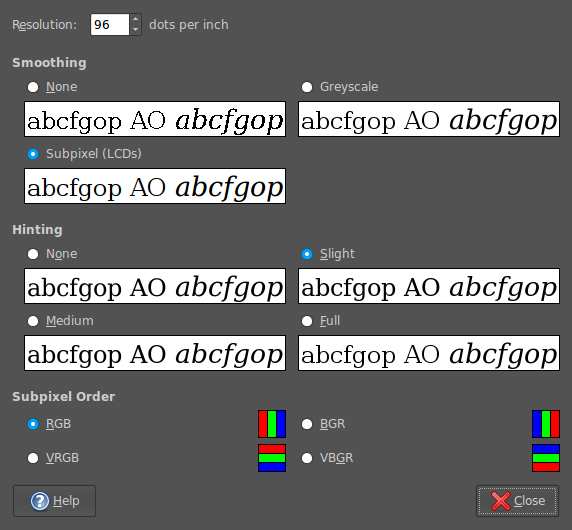
In Firefox 2, it would seem that I was getting away without tweaking my system settings to be their most optimum. With 3, I could do that no longer because of an irritating and pervasive fuzziness that particularly afflicted k's and w's. The way out of this turned out to involve changing my Appearance Preferences (Preferences > Appearance from the System menu). The required attention was focussed on the Fonts tab, whereupon the Details button was brought into use.
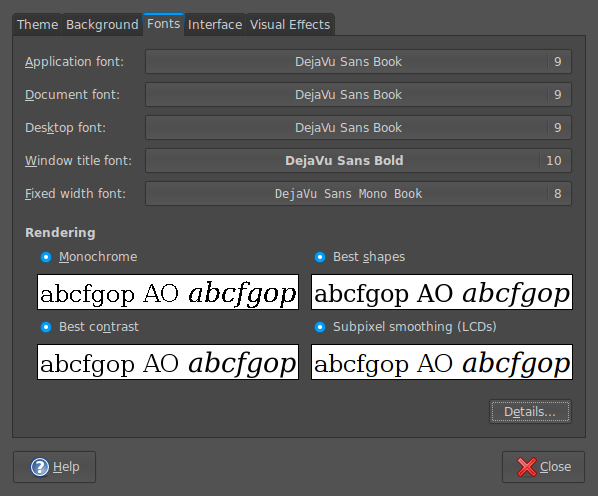
In the resulting dialogue box, smoothing was set to "Subpixel (LCDs)" and hinting to "Slight". Closing down everything after making the required selections and a restart of Firefox was all that was needed to improve matters and more completely make myself at home with Firefox 3.
Useful keyboard shortcuts for managing the window sizes of Windows applications
9th June 2008
Maximising and minimising windows is all part and parcel of using window-based user interfaces, so it's nice to know that there are keyboard shortcuts that reduce the need to use your mouse all the time. Here are a few that work on Windows:
Alt+Space+N Minimise
Alt+Space+X Maximise
Alt+Space+R Restore (set to default)
Transferring data between SAS and R
5th June 2008
A question regarding the ability to transfer of data between SAS and R set me off on a spot of investigation a while back, and I have always planned to share the results of my labours. Once I managed to locate the required documentation, things became clearer with further inspection. Functions from the foreign package seem to offer the most from the data import and export point of view, so they're what I'll be featuring in this posting.
Here, I am starting with importing, and using the read.ssd function makes life so much easier for getting SAS data into R. When I discovered that the foreign package may not be loaded by default, that could be determined easily using the following command:
search()
If package:foreign isn't in the list, then you need to issue the following function call:
library(foreign)
Of course, if the foreign package isn't installed, none of this will work. It should live in the library sub-folder of the main R installation directory, but if it isn't there, then downloading the relevant binary package from CRAN is in order. Assuming that all is installed, then a command like the following will perform the needful:
read.ssd("c:/data","data1",sascmd="C:/Program Files/SAS Institute/SAS/V8/sas.exe")
This creates a temporary SAS program that converts the SAS data set into a transport file for reading by another R function that is called in the background, read.xport. From my experience, it all seems to work fairly seamlessly.
To get data out of R and into SAS is a multi-stage process, even with the foreign package. While there are other ways, using the write.foreign seems more useful than most. Here is an example function call:
write.foreign(data1,"C:/test.txt","C:/test.sas",package="SAS",dataname="data1",validvarname="V7")
While no SAS data sets are created at this stage, a text file is generated along with a SAS program for converting it into a data set. Running the SAS program is a separate step that follows the creation of the two files. Even if it is less streamlined than read.ssd, write.foreign does make it easier to transfer data into SAS than having to write a program from scratch to read in write.table output.
In summary, R can neither read nor write SAS data sets by itself, so you need SAS installed to really make things happen. SAS gets called by read.ssd and I feel that it would be better if was called by write.foreign also rather than a SAS program generated for execution later on. Even so, it is good to see some custom functionality being provided that makes life easier. There's also the hmisc package, but my experiences while working with that on S-Plus have been such that it compares less favourably with foreign on the reliability front. Saying that, things may have changed since I last tried it.
SAS Data Step Hash Objects and Memory
3rd June 2008
Using hash objects in SAS data step code offers some great advantages from the speed point of view; having a set of data in memory rather than on disk makes things much faster. However, that means that you need to keep more of an eye on the amount of memory that's being used. The first thing is to work out how much memory is available, and it's not necessarily the total amount installed on the system or, for that matter, the amount of memory per processor on a multiprocessor system. What you really need is the number, in bytes, that is stored in the XMRLMEM system option and here's a piece of code that'll do just that:
data _null_;
    mem=getoption('xmrlmem');
    put mem;
run;
The XMRLMEM is itself an option that you can only declare in the system call that starts SAS up in the first place, and there are advantages to keeping it under control, particularly on large multi-user servers. However, if your hash objects start to exceed what is available, here's the sort of thing that you can expect to see:
ERROR: Hash object added 49136 items when memory failure occurred.

FATAL: Insufficient memory to execute data step program. Aborted during the EXECUTION phase.

NOTE: The SAS System stopped processing this step because of insufficient memory.

NOTE: SAS set option OBS=0 and will continue to check statements. This may cause NOTE: No observations in data set.
Those messages are a cue for you to learn to keep those hash objects and to only ever make them as large as your memory settings will allow. Another thing to note is that hash objects are best retained for rather fixed data volumes instead of ones that could outgrow their limits. There's a certain amount of common sense in operation here, but it may be that promoters of hash objects don't mention their limitations as much as they should. If you want to find out more, SAS has a useful paper on their website and their Knowledge Base has more on the error messages that you can get.
Cleaning up Ubuntu
1st June 2008
Uninstalling software still leaves any dependencies that came with them in place, so a quick way to get rid of any detritus is always useful. Here's a command that achieves this in a painless manner:
apt-get autoremove
Just say yes to what it suggests, to allow it on its way.