A few more shell commands
8th July 2015Here are some Linux commands that I encountered in a feature article in the current issue of Linux User & Developer that I had not met before:
cd --
This returns you to the previous directory where you were before with having to go back through the folder hierarchy to get there and is handy if you are jumping around a file system and any other means is far from speedy.
lsb_release -a
It can be useful to uncover what version of a distro you have from the command line and the above works for distros as diverse as Linux Mint, Debian, Fedora (it automatically installs in Fedora 22 if it is not installed already, a more advanced approach than showing you the command like in Linux Mint or Ubuntu), openSUSE and Manjaro. These days, the version may not change too often but it still is good to uncover what you have.
yum install fedora-upgrade
This one can be run either with sudo or in a root session started with su and it is specific to Fedora. The command performs an upgrade of the Fedora distro itself and I wonder if the functionality has been ported to the dnf command that has taken over from yum. My experiences with that in Fedora 22 so far suggest that it should be the case though I need to check that further with the VirtualBox VM that I have created.
Dealing with the Lack of Categories in the Application Overview Screen for GNOME Shell 3.8
10th July 2013One thing that I like to do is peruse the installed applications on any computer system. In most cases, this is simple enough to do but there are some who appear to believe in doing away with that in favour of text box searching. It also seems that the GNOME have fallen into that trap with version 3.8 of GNOME Shell. You could add the Applications Menu extension that is formally part of the GNOME Shell Classic interface and I have done this too. However, that has been known to freeze the desktop session so I am not that big a big fan of it.
However, there is a setting that brings back those application categories in the overview screen and it can be set using dconf-editor. After opening up the application, navigate to org > gnome > shell using the tree in the left hand panel of the tool. Editing the app-folder-categories entry in the right hand panel is what adds the categories back for you. The default is [‘Utilities’, ‘Sundry’] and this needs to be changed to [‘Utilities’, ‘Games’, ‘Sundry’, ‘Office’, ‘Network’, ‘Internet’, ‘Graphics’, ‘Multimedia’, ‘System’, ‘Development’, ‘Accessories’, ‘System Settings’, ‘Other’].
Once the above has been completed, a change is noticeable in that you get a list of categories in the application overview screen and a split of application icons in the middle and categories down the right hand side. Clicking on a category brings up a new panel that contains the application within it and this can be closed again. Cycling through the categories is a process of opening and closing the different panels. The behaviour may be changed but the functionality remains and I have heard that this will be polished further in release 3.10 of GNOME Shell.
For those wanting to to exit all of this and get something like the old GNOME 2, it is possible to add the Classic Session. In Fedora 19, it’s a matter of issuing something like the following command:
sudo yum -y install gnome-classic-session
In reality, this is a case of adding a number of extensions and changing the panel colour from black to grey but it works without needing the category tweak that I described above. The Application Menu extension does need more stability hardening before I’d trust it completely though. There’s no point having a nicer interface if it’s going to freeze up on you too often.
Adding Microsoft Core Fonts to Fedora 19
6th July 2013While I have a previous posting from 2009 that discusses adding Microsoft’s Core Fonts to the then current version of Fedora, it did strike me that I hadn’t laid out the series of command that were used. Instead, I referred to an external and unofficial Fedora FAQ. That’s still there but I also felt that I was leaving things a little to chance given how websites can disappear quite suddenly.
Even after next to four years, it still amazes me that you cannot install Microsoft’s Core Fonts in Fedora as you would in Ubuntu, Linux Mint or even Debian. Therefore, the following series of steps is as necessary now as it was then.
The first step is to add in a number of precursor applications such as wget for command line file downloading from websites, cabextract for extracting the contents of Windows CAB files, rpmbuild for creating RPM installers and utilities for the XFS file system that chkfontpath needs:
sudo yum -y install rpm-build cabextract ttmkfdir wget xfs
Here, I have gone with terminal commands that use sudo but you could become the superuser (root) for all of this and there are those who believe you should. The -y switch tells yum to go ahead with prompting you for permission before it does any installations. The next step is to download the Microsoft fonts package with wget:
sudo wget http://corefonts.sourceforge.net/msttcorefonts-2.0-1.spec
Once that is done, you need to install the chkfontpath package because the RPM for the fonts cannot be built without it:
sudo rpm -ivh http://dl.atrpms.net/all/chkfontpath
Once that is in place, you are ready to create the RPM file using this command:
sudo rpmbuild -ba msttcorefonts-2.0-1.spec
After the RPM has been created, it is time to install it:
sudo yum install --nogpgcheck ~/rpmbuild/RPMS/noarch/msttcorefonts-2.0-1.noarch.rpm
When installation has completed, the process is done. Because I used sudo, all of this happened in my own home area so there was a need for some housekeeping afterwards. If you did it by becoming the root user, then the files would be there instead and that’s the scenario in the online FAQ.
Getting Gnome Shell going for Fedora 16 running in VirtualBox
5th December 2011There are a number of complaints out there about how hard it is to get GNOME Shell running for a Fedora 16 installation in a VirtualBox virtual machine. As with earlier versions of Fedora, preparation remains a matter of having make, gcc and kernel-devel (kernel headers, in other words). While I have got away with just those, adding dkms (dynamic kernel module support) to the list might be no bad idea either. To get all of those instated, it is a matter of running the following command as root or using sudo:
yum -y install make gcc kernel-devel dkms
The -y switch ensures that any Y/N prompts that usually appear are suppressed and that the installation is completed. Just leave it out if you are inclined to get second thoughts. Another item that has been needed with a previous release of Fedora is libgomp but I haven’t had to add this for Fedora 16 if I remember correctly.
Once those are in place, it is time to install the VirtualBox Guest Additions. Going to Devices > Install Guest Additions… mounts a virtual CD that can be used for the installation of the various drivers that are needed. To do the installation, first go to where the installer is located using the following command:
cd /media/VBOXADDITIONS_4.1.6_74713/
Note that this location will change according to the release and build numbers of VirtualBox but the process essentially will be the same other than this. Once in there, issue the following command as root or using sudo:
./VBoxLinuxAdditions.run
Hopefully, this will complete without errors now with the precursor software that has been added beforehand. However, there is one more thing that needs doing or you will get the GNOME 3 fallback desktop instead. It pertains to SELinux, an old adversary of mine that got in the way when I was setting up a web server on a machine running Fedora. It doesn’t recognise the new VirtualBox drivers as it should so the following command needs executing as root or using sudo:
restorecon -R -v /opt
Doing this restores the SELinux contexts for the /opt directories within which the VirtualBox software directories are found. The -R switch tells it to act recursively and -v makes it verbose. When it has done its work, hopefully successfully, it is time to reboot the virtual machine and you should have a GNOME Shell desktop interface when you log in.
GNOME 3 in Fedora 15: A Case of Acclimatisation and Configuration
29th May 2011When I gave the beta version of the now finally released Fedora 15 a try, GNOME 3 left me thinking that it was even more dramatic and less desirable a change than Ubuntu’s Unity desktop interface. In fact, I was left with serious questions about its actual usability, even for someone like me. It all felt as if everything was one click further away from me and thoughts of what this could mean for anyone seriously afflicted by RSI started to surface in my mind, especially with big screens like my 24″ Iiyama being commonplace these days. Another missing item was somewhere on the desktop interface for shutting down or restarting a PC; it seemed to be a case of first logging off and then shutting down from the login screen. This was yet another case of adding to the number of steps for doing something between GNOME 2 and GNOME 3 with its GNOME Shell.
After that less than positive experience with a Live CD, you’d be forgiven for thinking that I’d be giving the GNOME edition of Fedora 15 a wide berth with the LXDE one being chosen in its place. Another alternative approach would have been to turn off GNOME Shell altogether by forcing the fallback mode to run all the time. The way to do this is start up the System Settings application and click on the System Info icon. Once in there, click on Graphics and turn on the Forced Fallback Mode option. With that done, closing down the application, logging off and then back on again will gain you an environment not dissimilar to the GNOME 2 of Fedora 14 and its forbears.
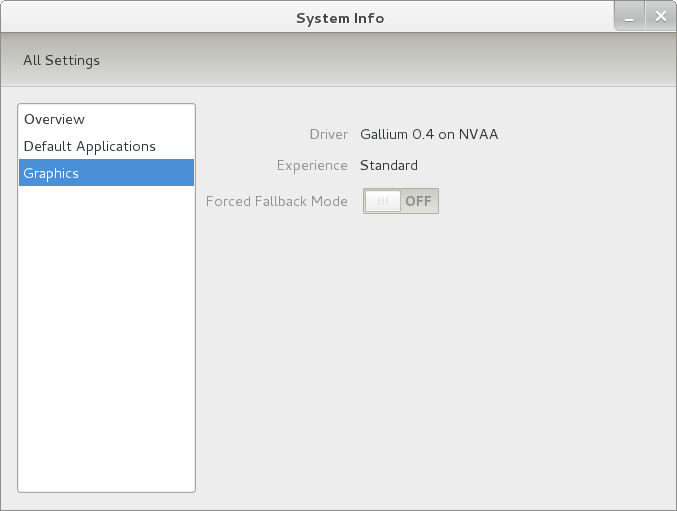
Even after considering the above easy way to get away from and maybe even avoid the world of GNOME Shell, I still decided to give it another go to see if I could make it work in a way that was less alien to me. After looking at the handy Quickstart guide, I ventured into the world of GNOME Shell extensions and very useful these have come to be too. The first of these that I added was the Alternate Status Menu and I ran the following command to do so:
yum install gnome-shell-extensions-alternative-status-menu
The result was that the “me” menu gained the ever useful “Power Off…” entry that I was seeking once I refreshed the desktop by running the command r in the command entry box produced by the ALT + F2 keyboard combination. Next up was the Place Menu and the command used to add that is:
yum install gnome-shell-extensions-place-menu
Again, refreshing the desktop as described for the Alternate Status Menu added the new menu to the (top) panel. Not having an application dock on screen all the time was the next irritation that was obliterated and it helps to get around the lack of a workspace switcher for now too. The GNOME Shell approach to virtual desktops is to have a dynamic number of workspaces with there always being one more than what you are using. It’s an interesting way of working that doesn’t perturb more pragmatic users like me, but there are those accustomed to tying applications to particular workspaces aren’t so impressed by the change. The other change to workspace handling is that keyboard shortcuts have changed to CTRL-ALT-[Up Arrow] and CTRL-ALT-[Down Arrow] from CTRL-ALT-[Left Arrow] and CTRL-ALT-[Right Arrow].
To add that application dock, I issued the command below and refreshed the desktop to get it showing. Though it stops application windows becoming fully maximised on the screen, that’s not a problem with my widescreen monitor. In fact, it even helps to switch between workspaces using the keyboard because that doesn’t seem to work when you have fully maximised windows.
yum install gnome-shell-extensions-dock
After adding the application dock, I stopped adding extensions though there are more available, such as Alternate Tab Behaviour (restores the ALT-TAB behaviour of GNOME 2), Auto-Move Windows, Drive Menu, Native Window Placement, Theme Selector and Window Navigator. Here are the YUM commands for each of these in turn:
yum install gnome-shell-extensions-alternate-tab
 yum install gnome-shell-extensions-auto-move-windows
 yum install gnome-shell-extensions-drive-menu
 yum install gnome-shell-extensions-native-window-placement
 yum install gnome-shell-extensions-theme-selector
 yum install gnome-shell-extensions-user-theme
 yum install gnome-shell-extensions-windowsNavigator
One hope that I will retain is that more of these extensions will appear over time, but Ranjith Siji seems to have a good round up of what is available. Other than these, I also have added the DCONF Editor and GNOME Tweaks Tool with the latter restoring buttons for minimising and maximising windows to their title bars for me. As ever, YUM was called to add them using the following commands:
yum install dconf-editor
 yum install gnome-tweaks-tool
There are other things that can be done with these but I haven’t explored them yet. All YUM commands were run as root and the ones that I used certainly have helped me to make myself at home in what once was a very unfamiliar desktop environment for me. In fact, I am beginning to like what has been done with GNOME 3 though I have doubts as to how attractive it would be to a user coming to Linux from the world of Windows. While everything is solidly crafted, the fact that I needed to make some customisations of my own raises questions about how suitable the default GNOME set-up in Fedora is for a new user though Fedora probably isn’t intended for that user group anyway. Things get more interesting when you consider distros favouring new and less technical users, both of whom need to be served anyway.
Ubuntu has gone its own way with Unity and, having spent time with GNOME 3, I can see why they might have done that. Unity does put a lot more near at hand on the desktop than is the case with GNOME 3 where you find yourself going to the Activities window a lot, either by using your mouse or by keystrokes like the “super” (or Windows) key or ALT-F1. Even so, there are common touches like searching for an application like you would search for a web page in Firefox. In retrospect, it is a pity to see the divergence when something from both camps might have helped for a better user experience. Nevertheless, I am reaching the conclusion that the Unity approach feels like a compromise and that GNOME feels that little bit more polished. Saying that, an extra extension or two to put more items nearer to hand in GNOME Shell would be desirable. If I hadn’t found a haven like Linux Mint where big interface changes are avoided, maybe going with the new GNOME desktop mightn’t have been a bad thing to do after all.
On upgrading from Fedora 13 to Fedora 14
7th November 2010My Fedora box recently got upgraded to the latest version of the distribution (14) and I stuck to a method that I have used successfully before and one that isn’t that common with variants of Linux either. What I did was to go to the Fedora website and download a full DVD image, burn it to a disk and boot from that. Then, I chose the upgrade option from the menus and all went smoothly with only commonplace options needing selection from the menus and no data was lost either. Apparently. this way of going about things is only offered by the DVD option because the equivalent Live CD versions only do full installations.
However, there was another option that I fancied trying but was stymied by messages about a troublesome Dropbox repository. As I later discovered, that would have been easily sorted but I went for a tried and tested method instead. This was a pity because only two commands would have needed to be issued when logged in as root and it would have been good to have had a go with them:
yum update yum
yum --releasever=14 update --skip-broken
These may have done what I habitually do with Ubuntu upgrades but trying them out either will have to await the release of the next version or my getting around to setting up a Fedora virtual machine to see what happens. The latter course of action might be sensible anyway to see if all works without any problem before doing it for a real PC installation.
Ridding Fedora of Unwanted Software Repositories
4th November 2010Like other Linux distributions, Fedora has the software repository scheme of things for software installation and updating. However, it could do with having the ability to remove unwanted repositories through a GUI but it doesn’t. What you need to do instead is switch to root in a terminal using the the command su -- and entering you root password before navigating to /etc/yum.repos.d/ to delete the troublesome [file name].repo file. Recently, I needed to do this after upgrading to Fedora 14 or Yum wouldn’t work from the command line, which is the way that I tend to update Fedora (yum -y update is command that I use and it automatically does all installations unattended until it is finished doing what’s needed). The offending repository, or “Software Source” as these things are called in the GUI, was belonging to Dropbox and even disabling it didn’t make Yum operate from the command like it should so it had to go. Maybe Dropbox haven’t caught up with the latest release of Fedora but that can be resolved another day.
Securing MySQL in Fedora
4th December 2009Ubuntu users must be spoilt because any MySQL installation asks you for a root password, a very good thing in my opinion. With Fedora, it just pops the thing on there with you needing to set up a service and setting the root password yourself; if I remember correctly, I think that openSUSE does the same thing. For the service management, I needed to grab system-config-services from the repositories because my Live CD installation left off a lot of stuff, OpenOffice and GIMP even. The following command line recipe addressed the service manager omission:
su -- # Change to root, entering password when asked
yum -y install system-config-services # Installs the thing without a yes/no prompt
exit # Return to normal user shell
Thereafter, the Services item from the menus at System > Administration was pressed into service and the MySQL service enabled and started. The next step was to lock down root so the following sequence was used:
mysql # Enter MySQL prompt; no need for user or password because it still is unsecured!
UPDATE mysql.user SET Password=PASSWORD(‘MyNewPass’) WHERE User=’root’;
FLUSH PRIVILEGES;
quit # Exit the mysql prompt, leaving the bare mysql command unusable
For those occasions when password problems keep you of the MySQL shell, you’ll find password resetting advice on the MySQL website but I didn’t need to go the whole hog here. MySQL Administrator might be another option for this type of thing. That thought never struck me while I was using it to set up less privileged users and allowing them access to the system. For a while, I was well stymied in my attempts to access the MySQL using any of those extra accounts until I got the idea of associating them with a host, another thing that is not needed in Ubuntu if my experience is any guide. All in all, Fedora may make you work a little extra to get things like thing done but I am not complaining if it makes you understand a little more about what is going on in the background, something that is never a disadvantage.
Command Line Software Management
2nd December 2009One of the nice things about a Debian-based Linux distribution is that it is easy to pull a piece of software onto your system from a repository using either apt-get or aptitude. Some may prefer to have a GUI but I find that the command line offers certain extra transparency that stops the “what’s it doing?” type of question. that’s never to say that the GUI-based approach hasn’t a place and I only go using it when seeking out a piece of software without knowing its aptitude-ready name. Interestingly, there are signs that Canonical may be playing with the idea of making Ubuntu’s Software Centre a full application management tool with updates and upgrades getting added to the current searching, installation and removal facilities. That well may be but it’s going to take a lot of effort to get me away from the command line altogether.
Fedora and openSUSE have their software management commands too in the shape of yum and zypper, respectively. The recent flurry of new operating system releases has had me experimenting with both of those distros on a real test machine. As might be expected, the usual battery of installation, removal and update activities are well served and I have been playing with software searching using yum too. What has yet to mature is in-situ distribution upgrading à la Ubuntu. In principle, it is possible but I got a black screen when I tried moving from openSUSE 11.1 to 11.2 within VirtualBox using instructions on the openSUSE website. Not wanting to wait, I reached for a Live CD instead and that worked a treat on both virtual and real machines. Being in an experiment turn of mind, I attempted the same to get from Fedora 11 to the beta release of its version 12. A spot of repository trouble got me using a Live CD in its place. You can perform an in-situ upgrade from a full Fedora DVD but the only option is system replacement when you have a Live CD. Once installation is out of the way, YAST can be ignored in favour of zypper and yum is good enough that Fedora’s GUI-using alternative can be ignored. It’s nice to see good transparent ideas taking hold elsewhere and may make migration between distros much easier too.
Adding msttcorefonts to Fedora
28th July 2009Once you have enabled the appropriate software repository, you can install the msttcorefonts (Microsoft TrueType core fonts like Arial, Times Roman, Verdana, Georgia, etc.) package on Debian and Ubuntu. With Fedora, it surprisingly isn’t so straightforward. There is a recipe using the command line that worked for me and I’m not going to repeat it here so I’ll leave you to go where I found it. In fact, it forms part of a wider unofficial Fedora FAQ that may be of more interest to you than solving this.
Update for Fedora 12 (2009-11-24):
You also need chkfontpath so the following needs doing before the final part of the command sequence, changing the filename as appropriate for your situation:
yum install xfs
 rpm -ivh http://dl.atrpms.net/all/chkfontpath-1.10.1-2.fc12.i686.rpm