TOPIC: FEDORA
GNOME 3 in Fedora 15: Acclimatisation and configuration
 29th May 2011
When I gave the beta version of the now finally released Fedora 15 a try, GNOME 3 left me thinking that it was even more dramatic and less desirable a change than Ubuntu's Unity desktop interface. In fact, I was left with serious questions about its actual usability, even for someone like me. It all felt as if everything was one click further away from me, and thoughts of what this could mean for anyone seriously afflicted by RSI started to surface in my mind, especially with big screens like my 24" Iiyama being commonplace these days. Another missing item was somewhere on the desktop interface for shutting down or restarting a PC; it seemed to be a case of first logging off and then shutting down from the login screen. This was yet another case of adding to the number of steps for doing something between GNOME 2 and GNOME 3 with its GNOME Shell.
After that less than positive experience with a Live CD, you'd be forgiven for thinking that I'd be giving the GNOME edition of Fedora 15 a wide berth, with the LXDE one being chosen in its place. Another alternative approach would have been to turn off GNOME Shell altogether by forcing the fallback mode to run all the time. The way to do this is start up the System Settings application and click on the System Info icon. Once in there, click on Graphics and turn on the Forced Fallback Mode option. With that done, closing down the application, logging off and then back on again will gain you an environment not dissimilar to the GNOME 2 of Fedora 14 and its forbears.
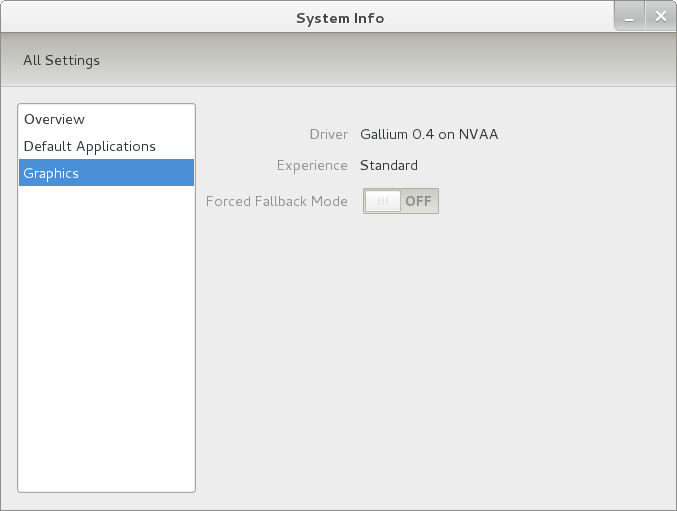
Even after considering the above easy way to get away from and maybe even avoid the world of GNOME Shell, I still decided to give it another go to see if I could make it work in a way that was less alien to me. After looking at the handy Quickstart guide, I ventured into the world of GNOME Shell extensions and very useful these have come to be too. The first of these that I added was the Alternate Status Menu, and I ran the following command to do so:
yum install gnome-shell-extensions-alternative-status-menu
The result was that the "me" menu gained the ever useful "Power Off..." entry that I was seeking once I refreshed the desktop by running the command r in the command entry box produced by the ALT + F2 keyboard combination. Next up was the Place Menu and the command used to add that is:
yum install gnome-shell-extensions-place-menu
Again, refreshing the desktop as described for the Alternate Status Menu added the new menu to the (top) panel. Not having an application dock on screen all the time was the next irritation that was obliterated, and it helps to get around the lack of a workspace switcher for now too. The GNOME Shell approach to virtual desktops is to have a dynamic number of workspaces, with there always being one more than what you are using. It's an interesting way of working that doesn't perturb more pragmatic users like me, but there are those accustomed to tying applications to particular workspaces aren't so impressed by the change. The other change to workspace handling is that keyboard shortcuts have changed to CTRL + ALT + [Up Arrow] and CTRL + ALT + [Down Arrow] from CTRL + ALT + [Left Arrow] and CTRL + ALT + [Right Arrow].
To add that application dock, I issued the command below and refreshed the desktop to get it showing. Though it stops application windows becoming fully maximised on the screen, that's not a problem with my widescreen monitor. In fact, it even helps to switch between workspaces using the keyboard because that doesn't seem to work when you have fully maximised windows.
yum install gnome-shell-extensions-dock
After adding the application dock, I stopped adding extensions though there are more available, such as Alternate Tab Behaviour (restores the ALT-TAB behaviour of GNOME 2), Auto-Move Windows, Drive Menu, Native Window Placement, Theme Selector and Window Navigator. Here are the YUM commands for each of these in turn:
yum install gnome-shell-extensions-alternate-tab

yum install gnome-shell-extensions-auto-move-windows

yum install gnome-shell-extensions-drive-menu

yum install gnome-shell-extensions-native-window-placement

yum install gnome-shell-extensions-theme-selector

yum install gnome-shell-extensions-user-theme

yum install gnome-shell-extensions-windowsNavigator
One hope that I will retain is that more of these extensions will appear over time, but Ranjith Siji seems to have a good round up of what is available. Other than these, I also have added the DCONF Editor and GNOME Tweaks Tool, with the latter restoring buttons for minimising and maximising windows to their title bars for me. As ever, yum was called to add them using the following commands:
yum install dconf-editor

yum install gnome-tweaks-tool
There are other things that can be done with these, but I haven't explored them yet. All yum commands were run as root, and the ones that I used certainly have helped me to make myself at home in what once was a very unfamiliar desktop environment for me. In fact, I am beginning to like what has been done with GNOME 3 though I have doubts as to how attractive it would be to a user coming to Linux from the world of Windows. While everything is solidly crafted, the fact that I needed to make some customisations of my own raises questions about how suitable the default GNOME set-up in Fedora is for a new user, though Fedora probably isn't intended for that user group anyway. Things get more interesting when you consider distros favouring new and less technical users, both of whom need to be served anyway.
Ubuntu has gone its own way with Unity and, having spent time with GNOME 3, I can see why they might have done that. Unity does put a lot more near at hand on the desktop than is the case with GNOME 3 where you find yourself going to the Activities window a lot, either by using your mouse or by keystrokes like the "super" (or Windows) key or ALT-F1. Even so, there are common touches like searching for an application like you would search for a web page in Firefox. In retrospect, it is a pity to see the divergence when something from both camps might have helped for a better user experience. Nevertheless, I am reaching the conclusion that the Unity approach feels like a compromise and that GNOME feels that little bit more polished. Saying that, an extra extension or two to put more items nearer to hand in GNOME Shell would be desirable. If I hadn't found a haven like Linux Mint where big interface changes are avoided, maybe going with the new GNOME desktop mightn't have been a bad thing to do after all.
Moving from Ubuntu 10.10 to Linux Mint 10
23rd April 2011
With a long Easter weekend available to me and with thoughts of forthcoming changes in the world of Ubuntu, I got to wonder about the merits of moving my main home PC to Linux Mint instead. Though there is a rolling variant based on Debian, I went for the more usual one based on Ubuntu that uses GNOME. For the record, Linux Mint isn't just about the GNOME desktop, but you also can have it with Xfce, LXDE and KDE desktops as well. While I have been known to use Lubuntu and like its LXDE implementation, I stuck with the option with which I have most experience.
Once I selected the right disk for the bootloader, the main installation of Mint went smoothly. By default, Ubuntu seems to take care of this, while Mint leaves it to you. When you have your operating system files on sdc, installation on the default of sda isn't going to produce a booting system. Instead, I ended up with GRUB errors and, while I suppose that I could have resolved these, the lazier option of repeating the installation with the right bootloader location was the one that I chose. It produced the result that I wanted: a working and loading operating system.
However, there was not something not right about the way that the windows were displayed on the desktop, with title bars and window management not working as they should. Creating a new account showed that it was the settings that were carried over from Ubuntu in my home area that were the cause. Again, I opted for a less strenuous option and moved things from the old account to the new one. One outcome of that decision was that there was a lot of use of the chown command to get file and folder permissions set for the new account. To make this all happen, the new account needed to be made into an Administrator just like its predecessor; by default, more restrictive desktop accounts are created using the Users and Groups application from the Administration submenu. Once I was happy that the migration was complete, I backed up any remaining files from the old user folder and removed it from the system. Some of the old configuration files were to find a new life with Linux Mint.
In the middle of the above, I also got to customise my desktop to get the feel that is amenable. For example, I do like a panel at the top and another at the bottom. By default, Linux Mint only comes with the latter. The main menu was moved to the top because I have become used to having there, and switchers for windows and desktops were added at the bottom. They were only a few from what has turned out not to be a short list of things that I fancied having: clock, bin, clearance of desktop, application launchers, clock, broken application killer, user switcher, off button for PC, run command and notification area. It all was gentle tinkering, but still is the sort of thing that you wouldn't want to have to do over and over again. Let's hope that is the case for Linux Mint upgrades in the future. That the configuration files for all of these are stored in the home area hopefully should make life easier, especially when an in-situ upgrade like that for Ubuntu isn't recommended by the Mint team.
With the desktop arranged to my liking, the longer job of adding to the collection of software on there, while pruning a few unwanted items too, was next. Having had Apache, PHP and MySQL on the system before I popped in that Linux Format magazine cover disk for the installation, I wanted to restore them. To get the off-line websites back, I had made copies of the old Apache settings that simply were copied over the defaults in /etc/apache (in fact, I simply overwrote the apache directory in /etc, but the effect was the same). Using MySQL Administrator enabled the taking of a backup of the old database too. In the interests of spring-cleaning, I only migrated a few of the old databases from the old system to the new one. In fact, there was an element of such tidying in my mind when I decided to change Linux distribution in the first place; Ubuntu hadn't been installed from afresh onto the system for a while anyway and some undesirable messages were appearing at update time though they were far from being critical errors.
The web server reinstatement was only part of the software configuration that I was doing, and there was a lot of use of apt-get while this was in progress. A rather diverse selection was added: Emacs, NEdit, ClamAV, Shotwell (just make sure that your permissions are sorted first before getting this to use older settings because anything inaccessible just gets cleared out; F-Spot was never there at first in my case, but it may differ for you), UFRaw, Chrome, Evolution (never have been a user of Mozilla Thunderbird, the default email client on Mint), Dropbox, FileZilla, MySQL Administrator, MySQL Query Browser, NetBeans, POEdit, Banshee (while Rhythmbox is what comes with Mint, I replaced it with this), VirtualBox and GParted. This is quite a list and while I maybe should have engaged the services of dpkg to help automate things, I didn't do that on this occasion, though Mint seems to have a front end for it that does the same sort of thing. Given that the community favours clean installations, it's little that something like this is on offer in the suite of tools in the standard installation. This is the type of rigmarole that one would not draw on themselves too often.
With desktop tinkering and software installations complete, it was time to do a little more configuration. To get my HP laser printer going, I ran hp-setup to download the (proprietary, RMS will not be happy...) driver for it because it otherwise wouldn't work for me. Fortune was removed from the terminal sessions because I like them to be without such things. To accomplish this, I edited /etc/bash.bashrc and commented out the /usr/games/fortune line before using apt-get to clear the software from my system. Being able to migrate my old Firefox and Evolution profiles, albeit manually, has become another boon. Undoubtedly, there are more adjustments that I could be making, but I am happy to do these as and when I get to them. So far, I have a more than usable system, even if I engaged in more customisation than many users would go doing.
Let's finish this with some of my impressions of Linux Mint. What goes without saying is that some things are done differently, which is to be expected. Distribution upgrades are just one example, while there are tools available to make clean installations that little bit easier. To my eyes, the desktop looks very clean and fond display is carried over from Ubuntu, not at all a bad thing. While it may sound like a small matter, it does appear to me that Fedora and openSUSE could learn a thing or too about how to display fonts onscreen on their systems. It is the sort of thing that adds the spot of polish that leaves a much better impression. So far, it hasn't been any hardship to find my way around; it helps that I can make the system fit my wants and needs. That it looks set to stay that way is another bonus. We have a lot of change coming in the Linux world, with GNOME 3 on the way and Ubuntu's decision to use Unity as their main desktop environment. While watching both of these developments mature, it looks as if I'll be happily using Mint. Change can refresh, while a bit of stability is good too.
On upgrading from Fedora 13 to Fedora 14
7th November 2010
My Fedora box recently got upgraded to the latest version of the distribution (14) and I stuck to a method that I have used successfully before and one that isn't that common with variants of Linux either. What I did was to go to the Fedora website and download a full DVD image, burn it to a disk and boot from that. Then, I chose the upgrade option from the menus and all went smoothly with only commonplace options needing selection from the menus and no data got lost either. Apparently, this way of going about things is only offered by the DVD option because the equivalent Live CD versions only do full installations.
However, there was another option that I fancied trying, but was stymied by messages about a troublesome Dropbox repository. As I later discovered, that would have been easily sorted, only for my opting for a tried and tested method instead. This was a pity because only two commands would have needed to be issued when logged in as root, and it would have been good to have had a go with them:
yum update yum

yum --releasever=14 update --skip-broken
These may have done what I habitually do with Ubuntu upgrades but trying them out either will have to await the release of the next version or my getting around to setting up a Fedora virtual machine to see what happens. The latter course of action might be sensible anyway to see if all works without any problems before doing it for a real PC installation.
Ridding Fedora of Unwanted Software Repositories
4th November 2010
Like other Linux distributions, Fedora has the software repository scheme of things for software installation and updating. However, it could do with having the ability to remove unwanted repositories through a GUI, only it doesn't. What you need to do instead is switch to root in a terminal using the command su - and enter your root user password before navigating to /etc/yum.repos.d/ to delete the troublesome [file name].repo file. Recently, I needed to do this after upgrading to Fedora 14 or yum wouldn't work from the command line, which is the way that I tend to update Fedora (yum -y update is the command that I use because it automatically does all installations unattended until it is finished doing what's needed). The offending repository, or "Software Source" as these things are called in the GUI, belonged to Dropbox and even disabling it didn't make yum operate from the command like it should, so it had to go. Maybe Dropbox hasn't caught up with the latest release of Fedora, but that can be resolved another day.
Upgrading to Fedora 13
1st June 2010
After having a spin of Fedora's latest in a VirtualBox virtual machine on my main home PC, I decided to upgrade my Fedora box. First, I needed to battle imperfect Internet speeds to get an ISO image that I could burn to a DVD. Once that was in place, I rebooted the Fedora machine using the DVD and chose the upgrade option to avoid bringing a major upheaval upon myself. You need the full DVD for this because only a full installation is available from Live ISO images and CD's.
Since all was graphical easiness, I got back into Fedora again without a hitch. Along with other bits and pieces, MySQL, PHP and Apache are working as before. If there was any glitch, it was with NetBeans 6.8 because the upgrade from the previous version didn't seem as complete as hoped. However, it was nothing that an update of the open source variant of Java and NetBeans itself couldn't resolve. There may have been untidy poking around before the solution was found, but all has been well since then.
Further securing MySQL in Fedora
4th December 2009
Ubuntu users must be spoilt because any MySQL installation asks you for a root password, an excellent thing in my opinion. With Fedora, it just pops the thing on there with you needing to set up a service and setting the root password yourself; if I recall correctly, I think that openSUSE does the same thing. For the service management, I needed to grab system-config-services from the repositories because my Live CD installation left off a lot of stuff, OpenOffice and GIMP even. The following command line recipe addressed the service manager omission:
su - # Change to root, entering password when asked

yum -y install system-config-services # Installs the thing without a yes/no prompt

exit # Return to normal user shell
Thereafter, the Services item from the menus at System > Administration was pressed into service and the MySQL service enabled and started. The next step was to lock down the root user, so the following sequence was used:
mysql # Enter MySQL prompt; no need for user or password because it still is unsecured!

UPDATE mysql.user SET Password=PASSWORD('MyNewPass') WHERE User='root';

FLUSH PRIVILEGES;

quit # Exit the mysql prompt, leaving the bare mysql command unusable
For those occasions when password problems keep you out of the MySQL shell, you'll find password resetting advice on the MySQL website, though I didn't need to go the whole hog here. MySQL Administrator might be another option for this type of thing. That thought never struck me while I was using it to set up less privileged users and allowing them access to the system. For a while, I was well stymied in my attempts to access the MySQL using any of those extra accounts until I got the idea of associating them with a host, another thing that is not needed on Ubuntu if my experience is any guide. All in all, Fedora may make you work a little extra to get things like thing done, yet I am not complaining if it makes you understand a little more about what is going on in the background, something that is never a disadvantage.
Command Line Software Management
2nd December 2009
One of the nice things about a Debian-based Linux distribution is that it is easy to pull a piece of software onto your system from a repository using either apt-get or aptitude. While some may prefer a GUI, but I find that the command line offers a certain extra transparency that stops the "what's it doing?" type of question. That's never to say that the GUI-based approach hasn't a place, and I only go using it when seeking out a piece of software without knowing its aptitude-ready name. Interestingly, there are signs that Canonical may be playing with the idea of making Ubuntu's Software Centre a full application management tool with updates and upgrades getting added to the current searching, installation and removal facilities. That well may be, but it's going to take a lot of effort to get me away from the command line altogether.
Fedora and openSUSE have their software management commands too in the shape of yum and zypper, respectively. The recent flurry of new operating system releases has had me experimenting with both of those distros on a real test machine. As might be expected, the usual battery of installation, removal and update activities are well served, and I have been playing with software searching using yum too.
One thing that has yet to mature is in-situ distribution upgrading, à la Ubuntu. In principle, it is possible, but I got a black screen when I tried moving from openSUSE 11.1 to 11.2 within VirtualBox using instructions on the openSUSE website. Not wanting to wait, I reached for a Live CD instead, and that worked a treat on both virtual and real machines.
Being in an experimental turn of mind, I attempted the same to get from Fedora 11 to the beta release of its version 12. A spot of repository trouble got me using a Live CD in its place. You can perform an in-situ upgrade from a full Fedora DVD, but the only option is system replacement when you have a Live CD.
Once installation is out of the way, YAST can be ignored in favour of zypper and yum is good enough that Fedora's GUI-using alternative can be ignored. It's nice to see good transparent ideas taking hold elsewhere and may make migration between distros much easier too.
Rough?
11th November 2009
Was it because Canonical and friends kept Ubuntu in such a decent state from 8.04 through to 9.04 that things went a little quiet in the blogosphere on the subject of the well-known Linux distribution? If so, 9.10 might be proving more of a talking point, and you have to wonder if this is such a good thing with the appearance of Windows 7 on the scene. Looking on the bright side, 10.04 will be an LTS release, so there is some chance that any rough edges that are on display now could be resolved by next April. Even so, it might have been better not to see anything so obvious at all.
In truth, Ubuntu always has had its gaps, and I have seen a few of their ilk over the last two years. Of these, a few have triggered postings on here. In fact, issues with accessing the BBC iPlayer still bring a goodly number of folk to this website. That may just be a matter of grabbing RealPlayer, now helpfully available as a DEB package, from the requisite place on the web and ensuring that Ubuntu-Restricted-Extras is in place too, but you have to know that in the first place.
Even so, unexpected behaviours like Palimpsest seeing every partition on a disk as a different drive and SIL Raid mappings being seen for hard drives that used to live on the main home PC that bit the dust earlier this year; it only happens on one of the machines that I have running Ubuntu so it may be hardware thing and newly added hard drive uses none of the SIL mapping either.
Perhaps more seriously (is it something that a new user should be encountering?), a misfiring variant of Brasero had me moving to K3b. Then, UFRaw was sluggish in batch mode, yet that's nothing that having a Debian VM won't overcome. Rough edges like these do get you asking if 9.10 was ready for the big time, while making you reluctant to recommend it to mainstream users like my brother.
The counterpoint to the above is that 9.10 includes a host of under the bonnet changes like the introduction of Ext4 hard drive formatting, Xsplash to allow the faster system loading to occur unseen and GNOME 2.28. To someone looking in from outside like me, that looks like a lot of work and might explain the ingress of the annoyances that I have seen. Add to that the fact that we are between Debian releases, so things like the optimised packaging of ImageMagick or UFRaw may not be so high up the list of the things to do, especially with the more general speed optimisations that were put in place for 9.10.
With 10.04 set to be an LTS release, I'd be hoping that consolidation is the order of the day over the next five or six months, but it seems to be the inclusion of new features and other such progress that get magazine reviewers giving higher ratings (Linux Format has given it a mark of 9 out of 10). With the mooted inclusion of GNOME 3 and its dramatically different interface in 10.10, they should get their fill of that. However, I'd like to see some restraint for the take of a smooth transition from the familiar GNOME 2.x to the new. If GNOME 3 stays very like its alpha builds, then the question of how users will take to it arises. Of course, there's still some time before we see GNOME 3 and, having seen how the Ubuntu developers transformed GNOME 2.28, I wouldn't be surprised if the impact of any change could be dulled.
In summary, my few weeks with Ubuntu 9.10 as my main OS have thrown up no major roadblocks that would cause me to look at moving elsewhere; Fedora would be tempting if that situation were to arise. The irritations that I have seen are more like signs of a lack of polish and remain peripheral to day-to-day working if you discount CD/DVD burning. To be honest, there always have been some element of roughness on Ubuntu, but has the lack of sizeable change spoilt us? Whatever about how things feel afterwards, significant changes can mean new problems to resolve and inspire blog posts describing any solutions, so it's not all bad. If that's what Canonical wants to see, they might get it, and the year ahead looks as if it will be an interesting one after a recent quieter period.
A multitude of operating systems
27th October 2009
Like buses, it appears that a whole hoard of operating systems is descending upon us at once. OS X 10.6 came first before it was the turn of Windows 7 last week with all the excitement that it generated in the computing and technology media. Next up will be Ubuntu, already a source of some embarrassment for the BBC's Rory Cellan-Jones when he got his facts muddled; to his credit he later corrected himself, though I do wonder how up to speed is his appreciated that Ubuntu has its distinct flavours with a netbook variant being different to the main offering that I use. Along with Ubuntu 9.10, Fedora 12 and openSUSE 11.2 are also in the wings. As if all these weren't enough, the latest issue of PC Plus gives an airing to less well-known operating systems like Haiku (the project that carries on BeOS).
The inescapable conclusion is that, far from the impressions of mainstream computer users who know only Windows, we are swimming in a sea of operating system options in which you may drown if you decide to try sampling them all. That may explain why I stick with Ubuntu for home use due to reasons of familiarity and reliability and leave much of the distro hopping to others. Of course, it shouldn't surprise anyone that Windows is the choice of where I work, with 2000 being usurped by Vista in the next few weeks (IT managers always like to be behind the curve for the sake of safety).
Installing MS TrueType Core Fonts on Fedora
28th July 2009
Once you have enabled the appropriate software repository, you can install the msttcorefonts (Microsoft TrueType core fonts like Arial, Times Roman, Verdana, Georgia, etc.) package on Debian and Ubuntu. With Fedora, it surprisingly isn't so straightforward. There is a recipe using the command line that worked for me, and I'm not going to repeat it here, so I'll leave you to go where I found it. In fact, it forms part of a wider unofficial Fedora FAQ that may be of more interest to you than solving this.
Update for Fedora 12 (2009-11-24):
You also need chkfontpath so the following needs doing before the final part of the command sequence, changing the filename as appropriate for your situation:
yum install xfs

rpm -ivh http://dl.atrpms.net/all/chkfontpath-1.10.1-2.fc12.i686.rpm