What I learned from manually upgrading to Linux Mint 11
 31st May 2011
For a Linux distribution that focuses on user-friendliness, it does surprise me that Linux Mint offers no seamless upgrade path. In fact, the underlying philosophy is that upgrading an operating system is a risky business. However, I have been doing in-situ upgrades with both Ubuntu and Fedora for a few years without any real calamities. A mishap with a hard drive that resulted in lost data in the days when I mainly was a Windows user places this into sharp relief. These days, I am far more careful but thought nothing of sticking a Fedora DVD into a drive to move my Fedora machine from 14 to 15 recently. Apart from a few rough edges and the need to get used to GNOME 3 together with making a better fit for me, there was no problem to report. The same sort of outcome used to apply to those online Ubuntu upgrades that I was accustomed to doing.
The recommended approach for Linux Mint is to back up your package lists and your data before the upgrade. Doing the former is a boon because it automates adding the extras that a standard CD or DVD installation doesn't do. While I did do a little backing up of data, it wasn't total because I know how to identify my drives and take my time over things. Apache settings and the contents of MySQL databases were my main concern because of where these are stored.
When I was ready to do so, I popped a DVD in the drive and carried out a fresh installation into the partition where my operating system files are kept. Being a Live DVD, I was able to set up any drive and partition mappings by referring to Mint's Disk Utility. One thing that didn't go so well was the GRUB installation, and it was due to the choice that I made on one of the installation screens. Despite doing an installation of version 10 just over a month ago, I had overlooked an intricacy of the task and placed GRUB on the operating system files partition rather than at the top level of the disk where it is located. Instead of trying to address this manually, I took the easier and more time-consuming step of repeating the installation like I did the last time. If there was a graphical tool for addressing GRUB problems, I might have gone for that instead, but am left wondering at why there isn't one included at all. Maybe it's something that the people behind GRUB should consider creating, unless there is one out there already about which I know nothing.
With the booting problem sorted, I tried logging in, only to find a problem with my desktop that made the system next to unusable. It was back to the DVD, and I moved many of the configuration files and folders (the ones with names beginning with a ".") from my home directory in the belief that there might have been an incompatibility. That action gained me a fully usable desktop environment, but I now think that the cause of my problem may have been different to what I initially suspected. Later I discovered that ownership of files in my home area elsewhere wasn't associated with my user ID, though there was no change to it during the installation. As it happened, a few minutes with the chown command were enough to sort out the permissions issue.
The restoration of the extra software that I had added beyond what standardly gets installed was took its share of time, but the use of a previously prepared list made things so much easier. That it didn't work smoothly because some packages couldn't be found the first time around, so another one was needed. Nevertheless, that is nothing compared to the effort needed to do the same thing by issuing an installation command at a time. Once the usual distribution software updates were in place, all that was left was to update VirtualBox to the latest version, install a Citrix client and add a PHP plugin to NetBeans. Then, nearly everything was in place for me.
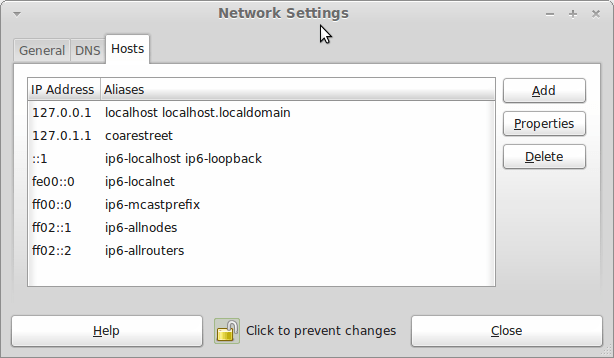
Next, Apache settings were restored, as were the databases that I used for offline web development. That nearly was all that was needed to get offline websites working, but for the need to add an alias for localhost.localdomain. That required installation of the Network Settings tool so that I could add the alias in its Hosts tab. With that out of the way, the system had been settled in and was ready for real work.
Given the glitches I encountered, I can understand the Linux Mint team's caution regarding a more automated upgrade process. Even so, I still wonder if the more manual alternative that they have pursued brings its own problems in the form of those that I met. The fact that the whole process took a few hours in comparison to the single hour taken by the in-situ upgrades that I mentioned earlier is another consideration that makes you wonder if it is all worth it every six months or so. Saying that, there is something to letting a user decide when to upgrade rather than luring one along to a new version, a point that is more than pertinent in light of the recent changes made to Ubuntu and Fedora. Whichever approach you care to choose, there are arguments in favour as well as counterarguments too.
Improving Font Display in Fedora 15
30th May 2011
When I first started to poke around Fedora 15 after upgrading my Fedora machine, the definition of the font display was far from being acceptable to me. Thankfully, it was something that I could resolve, and I am writing these words with the letters forming them being shown in a way that was acceptable to me. The main thing that I did to achieve this was to add a file named 99-autohinter-only.conf in the folder /etc/fonts/conf.d. The file contains the following:
<?xml version="1.0"?>

<!DOCTYPE fontconfig SYSTEM "fonts.dtd">

<fontconfig>

<match target="font">

<edit name="autohint" mode="assign">

<bool>true</bool>

</edit>

</match>

</fontconfig>
Enabling autohinting improves font appearance in Fedora 15. The TrueType bytecode interpreter (BCI) was recently added to FreeType after its patent expired, but this actually decreased font quality on my system. I applied Kevin Kofler's autohinting fix and installed GNOME Tweak Tool, which lets you adjust autohinting settings. This combination solved my problems, particularly with letters like "k". Now, I am considering trying the same solution in openSUSE, which also has unsatisfactory font rendering, though I'll have to wait for GNOME Tweak Tool until they release a GNOME 3 version.
GNOME 3 in Fedora 15: Acclimatisation and configuration
29th May 2011
When I gave the beta version of the now finally released Fedora 15 a try, GNOME 3 left me thinking that it was even more dramatic and less desirable a change than Ubuntu's Unity desktop interface. In fact, I was left with serious questions about its actual usability, even for someone like me. It all felt as if everything was one click further away from me, and thoughts of what this could mean for anyone seriously afflicted by RSI started to surface in my mind, especially with big screens like my 24" Iiyama being commonplace these days. Another missing item was somewhere on the desktop interface for shutting down or restarting a PC; it seemed to be a case of first logging off and then shutting down from the login screen. This was yet another case of adding to the number of steps for doing something between GNOME 2 and GNOME 3 with its GNOME Shell.
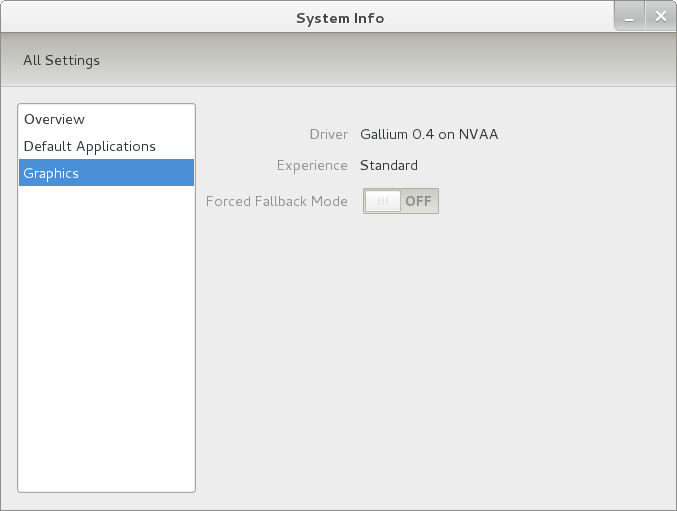
After that less than positive experience with a Live CD, you'd be forgiven for thinking that I'd be giving the GNOME edition of Fedora 15 a wide berth, with the LXDE one being chosen in its place. Another alternative approach would have been to turn off GNOME Shell altogether by forcing the fallback mode to run all the time. The way to do this is start up the System Settings application and click on the System Info icon. Once in there, click on Graphics and turn on the Forced Fallback Mode option. With that done, closing down the application, logging off and then back on again will gain you an environment not dissimilar to the GNOME 2 of Fedora 14 and its forbears.
Even after considering the above easy way to get away from and maybe even avoid the world of GNOME Shell, I still decided to give it another go to see if I could make it work in a way that was less alien to me. After looking at the handy Quickstart guide, I ventured into the world of GNOME Shell extensions and very useful these have come to be too. The first of these that I added was the Alternate Status Menu, and I ran the following command to do so:
yum install gnome-shell-extensions-alternative-status-menu
The result was that the "me" menu gained the ever useful "Power Off..." entry that I was seeking once I refreshed the desktop by running the command r in the command entry box produced by the ALT + F2 keyboard combination. Next up was the Place Menu and the command used to add that is:
yum install gnome-shell-extensions-place-menu
Again, refreshing the desktop as described for the Alternate Status Menu added the new menu to the (top) panel. Not having an application dock on screen all the time was the next irritation that was obliterated, and it helps to get around the lack of a workspace switcher for now too. The GNOME Shell approach to virtual desktops is to have a dynamic number of workspaces, with there always being one more than what you are using. It's an interesting way of working that doesn't perturb more pragmatic users like me, but there are those accustomed to tying applications to particular workspaces aren't so impressed by the change. The other change to workspace handling is that keyboard shortcuts have changed to CTRL + ALT + [Up Arrow] and CTRL + ALT + [Down Arrow] from CTRL + ALT + [Left Arrow] and CTRL + ALT + [Right Arrow].
To add that application dock, I issued the command below and refreshed the desktop to get it showing. Though it stops application windows becoming fully maximised on the screen, that's not a problem with my widescreen monitor. In fact, it even helps to switch between workspaces using the keyboard because that doesn't seem to work when you have fully maximised windows.
yum install gnome-shell-extensions-dock
After adding the application dock, I stopped adding extensions though there are more available, such as Alternate Tab Behaviour (restores the ALT-TAB behaviour of GNOME 2), Auto-Move Windows, Drive Menu, Native Window Placement, Theme Selector and Window Navigator. Here are the YUM commands for each of these in turn:
yum install gnome-shell-extensions-alternate-tab

yum install gnome-shell-extensions-auto-move-windows

yum install gnome-shell-extensions-drive-menu

yum install gnome-shell-extensions-native-window-placement

yum install gnome-shell-extensions-theme-selector

yum install gnome-shell-extensions-user-theme

yum install gnome-shell-extensions-windowsNavigator
One hope that I will retain is that more of these extensions will appear over time, but Ranjith Siji seems to have a good round up of what is available. Other than these, I also have added the DCONF Editor and GNOME Tweaks Tool, with the latter restoring buttons for minimising and maximising windows to their title bars for me. As ever, yum was called to add them using the following commands:
yum install dconf-editor

yum install gnome-tweaks-tool
There are other things that can be done with these, but I haven't explored them yet. All yum commands were run as root, and the ones that I used certainly have helped me to make myself at home in what once was a very unfamiliar desktop environment for me. In fact, I am beginning to like what has been done with GNOME 3 though I have doubts as to how attractive it would be to a user coming to Linux from the world of Windows. While everything is solidly crafted, the fact that I needed to make some customisations of my own raises questions about how suitable the default GNOME set-up in Fedora is for a new user, though Fedora probably isn't intended for that user group anyway. Things get more interesting when you consider distros favouring new and less technical users, both of whom need to be served anyway.
Ubuntu has gone its own way with Unity and, having spent time with GNOME 3, I can see why they might have done that. Unity does put a lot more near at hand on the desktop than is the case with GNOME 3 where you find yourself going to the Activities window a lot, either by using your mouse or by keystrokes like the "super" (or Windows) key or ALT-F1. Even so, there are common touches like searching for an application like you would search for a web page in Firefox. In retrospect, it is a pity to see the divergence when something from both camps might have helped for a better user experience. Nevertheless, I am reaching the conclusion that the Unity approach feels like a compromise and that GNOME feels that little bit more polished. Saying that, an extra extension or two to put more items nearer to hand in GNOME Shell would be desirable. If I hadn't found a haven like Linux Mint where big interface changes are avoided, maybe going with the new GNOME desktop mightn't have been a bad thing to do after all.
Extending ASUS Eee PC Battery Life without changing from Ubuntu 11.04
25th May 2011
While it might just be my experience of the things, I do tend to take claims about laptop or netbook battery life with a pinch of salt. After all, I have a Toshiba laptop that only lasts an hour or two away from the mains and that runs Windows 7. For a long time, my ASUS Eee PC netbook looked like that too, only for a spot of investigation to reveal that there was something that I could do to extend the length of time before the battery ran out of charge. For now, the solution would seem to be installing eee-control and here's what I needed to do that for Ubuntu 11.04, which has gained a reputation for being a bit of a power hog on netbooks if various tests are to be believed.
Because eee-control is not in the standard Ubuntu repositories, you need to add an extra one for install in the usual way. To make this happen, launch Synaptic and find the entry named Repositories on the Settings menu and click on it. If there's no sign of it, then Software Sources (this was missing on my ASUS) needs to be installed using the following command:
sudo apt-get install software-properties-gtk
Once Software Sources opens up after you enter your password, go to the Other Software tab. The next step is to click on the Add button and enter the following into the APT Line box before clicking on the Add Source button:
ppa:eee-control/eee-control
With that done, all that's needed is to issue the following command before rebooting the machine on completion of the installation:
sudo apt-get install eee-control
When you are logged back in to get your desktop, you'll notice a new icon on your desktop with the Eee logo, and clicking on this reveals a menu with a number of useful options. Among these is the ability to turn off a number of devices such as the camera, Wi-Fi or card reader. After that, there's the entry named Preferences in the Advanced submenu for turning on such things as setting performance to Powersave for battery-powered operation or smart fan control. The notifications issued to you can be controlled too, as can be a number of customisable keyboard shortcuts useful for quickly starting a few applications.
So far, I have seen a largely untended machine last around four hours, and that's around double what I have been getting until now. Of course, what really is needed is a test with constant use to see how it gets on. Even if I see lifetimes of around 3 hours, this still will be an improvement. Nevertheless, being of a sceptical nature, I will not scotch the idea of getting a spare battery just yet.