Moving application title bar buttons on GNOME desktops
 6th March 2010
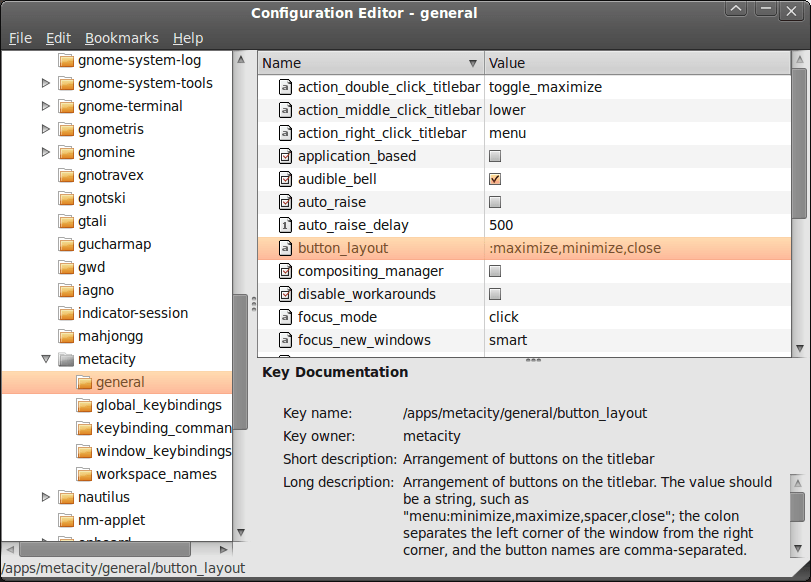
A recent look at how Ubuntu 10.04 development is getting on confronted me with an interface situation to which I am not accustomed: title bar buttons at the left. The usual combination of buttons for maximisation, minimisation and closure were there in their usual order but at the left of the window. While this is the where you find them on OS X, I prefer the Windows convention and placed them to the right again.
To achieve that end, I ran gconf-editor from the command line using my usual user account (not sudo; that doesn't seem to work) and made my way to apps -> metacity -> general. Once there, I sought out the button_layout property and moved the colon in the value from the left to the right. In other words, I started with this:
maximize,minimize,close:
and changed it to this (note the position of the colon in the actual string):
:maximize,minimize,close
If you ever find yourself wanting to change things from the Windows convention to the Apple one, just reverse what I did. As an aside, you also can swap the button order too if you like. After all, it's just a text field that you can edit, and the screen immediately refreshes when you hit the Return key after completing the edit.
As a more general observation, if Ubuntu 10.04 does come out using the OS X convention for title bar button placement, I could see others like wanting it changed back and that's why I am sharing it here. Surprising users in this way, especially after the 9.10 release's attracting some adverse comments, would not be all that advisable. The issue may be easy to address, but that's small comfort when you release how easily users are discouraged.
Nevertheless, 10.04 is an LTS release and what I have seen so far looks polished; there may be no splash screen at boot and shutdown time for what I am running (I am sticking with acquiring upgrades every so often instead of periodic re-installation from a new disk image) but that's a minor matter.
For the sake of not turning over the apple cart, I may have left off VirtualBox Additions, and things look steady enough so far. In fact, I am writing these words using Firefox 3.6 on there. Accompanying that is OpenOffice 3.2, but things do not look so different apart from these, a reassuring observation. While there may be an emphasis on purple in the colour scheme at the time of writing, that could change yet. 9.10's course had plenty of that, so I am willing to be patient. After all, there's more than a month to go yet, before the final cut is available for general use.
Reading data into SAS using the EXCEL and PCFILES library engines
4th March 2010
Recently, I had the opportunity to have a look at the Excel library engine again because I need to read Excel data into SAS. You need SAS Access for PC Files licensed for it to work, but it does simplify the process of getting data from spreadsheets into SAS. It all revolves around setting up a library pointing at the Excel file using the Excel engine. The result is that every worksheet in the file is treated like a SAS dataset, even if their names contain characters that SAS considers invalid for dataset names. The way around that is to enclose the worksheet name in single quotes with the letter n straight after the closing quote, much in the same way as you'd read in text strings as SAS date values ('04MAR2010'd, for example). To make all of this clearer, I have added some example code below.
libname testxl excel 'c:\test.xls';
data test;
    set testxl.'sheet1$'n;
run;
All of the above does apply to SAS on Windows (I have used it successfully in 9.1.3 and 9.2) but there appears to be a way of using the same type of thing on UNIX too. Again, SAS Access for PC Files is needed as well as a SAS PC Files server on an available Windows machine, and it is the PCFILES engine that is specified. While I cannot say that I have had the chance to see it working in practice but seeing it described in SAS Online Documentation corrected my previous misimpressions about the UNIX variant of SAS and its ability to read in Excel or Access data. Well, you learn something new every day.